> ## Documentation Index
> Fetch the complete documentation index at: https://docs.chief.bot/llms.txt
> Use this file to discover all available pages before exploring further.
# Using featured prompts
> Featured prompts are the curated cards in the Prompt Launchpad.
## Run a featured prompt in seconds
Featured prompts are the curated cards in the [**Prompt Launchpad**](/help/prompts-the-launchpad/what-is-the-launchpad). Each one is a complete, ready-to-run prompt. This guide shows you how to find one, run it, and save it for next time.
## Open the Launchpad and pick a category
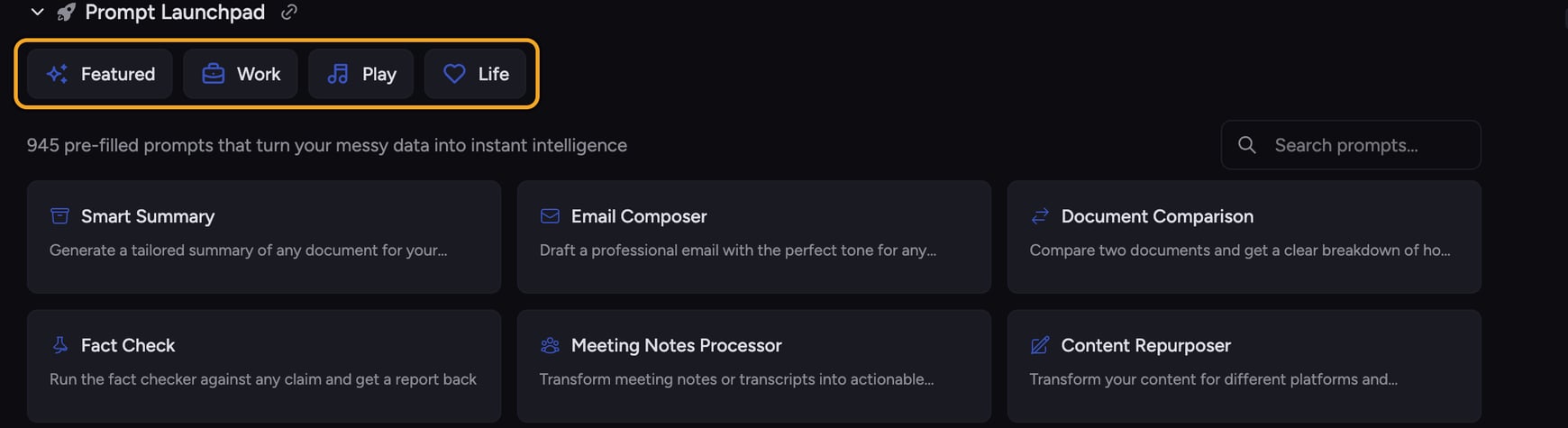 1. On your project home page, find the **Prompt Launchpad** section below the [prompt bar](/help/the-prompt-bar-scope/the-prompt-bar-a-tour-of-your-chat-controls). If it's collapsed, click the **Prompt Launchpad** row (rocket icon) to expand it.
2. The gallery opens on **Featured**. To browse a different area, click a category button — **Work**, **Play**, or **Life**.
3. To narrow further, click a sub-category pill (for example **Sales**, **Marketing**, or **Product**). The breadcrumb at the top shows where you are; click any breadcrumb step to go back.
## Run a prompt
1. On your project home page, find the **Prompt Launchpad** section below the [prompt bar](/help/the-prompt-bar-scope/the-prompt-bar-a-tour-of-your-chat-controls). If it's collapsed, click the **Prompt Launchpad** row (rocket icon) to expand it.
2. The gallery opens on **Featured**. To browse a different area, click a category button — **Work**, **Play**, or **Life**.
3. To narrow further, click a sub-category pill (for example **Sales**, **Marketing**, or **Product**). The breadcrumb at the top shows where you are; click any breadcrumb step to go back.
## Run a prompt
 1. Hover over a card to read its full description and see its action buttons.
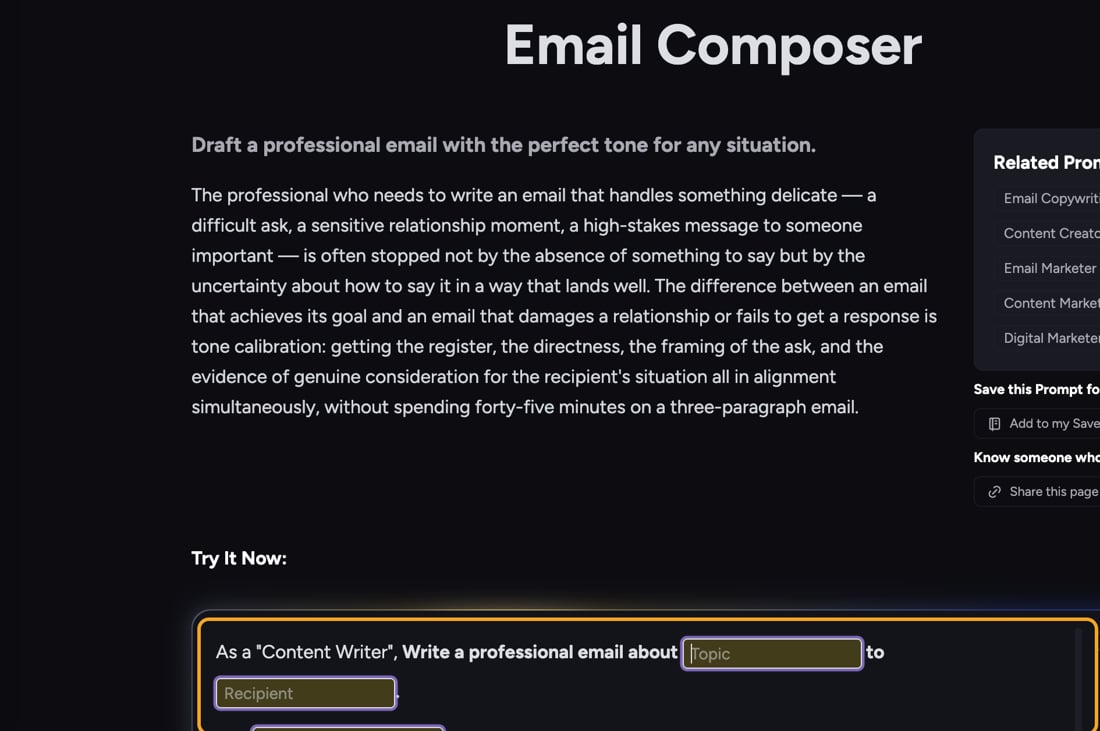
2. Click anywhere on the card. Chief loads the full prompt into the prompt bar and takes you to that prompt's page.
3. Review or edit the text in the prompt bar, then press send to run it.
ℹ️ **Good to Know:** Some featured prompts contain [fill-in fields](/help/the-prompt-bar-scope/using-variable-fields-in-a-prompt) (shown as chips). Click each chip to enter your details before sending, so the prompt is tailored to you.
## Save a featured prompt for later
1. Hover over a card to read its full description and see its action buttons.
2. Click anywhere on the card. Chief loads the full prompt into the prompt bar and takes you to that prompt's page.
3. Review or edit the text in the prompt bar, then press send to run it.
ℹ️ **Good to Know:** Some featured prompts contain [fill-in fields](/help/the-prompt-bar-scope/using-variable-fields-in-a-prompt) (shown as chips). Click each chip to enter your details before sending, so the prompt is tailored to you.
## Save a featured prompt for later
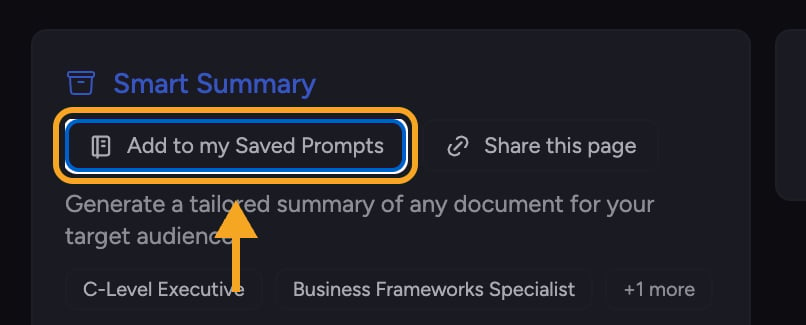 1. Hover over the card and click [**Add to my Saved Prompts**](/help/prompts-the-launchpad/saving-your-own-prompt-templates) (notebook icon).
2. Chief saves and stars the prompt, then opens the **Saved Prompts** panel and highlights the new row.
3. The card now shows **View in Saved Prompts**, so you can jump back to it any time.
## Open a prompt in a new tab
Hold **Cmd** (Mac) or **Ctrl** (Windows) and click a card to open that prompt on its own page in a new browser tab — handy for comparing a few before you commit.
## Frequently asked questions
That's expected. Clicking a card only loads the prompt into the prompt bar; it doesn't send it. Review the text and press send when you're ready.
No. Chief links each featured prompt to a single saved copy. Clicking again just reopens and highlights the existing entry instead of adding a second one.
Yes. Editing the text in the prompt bar only affects your current message. To keep an edited version, save it to your Saved Prompts and edit it there.
1. Hover over the card and click [**Add to my Saved Prompts**](/help/prompts-the-launchpad/saving-your-own-prompt-templates) (notebook icon).
2. Chief saves and stars the prompt, then opens the **Saved Prompts** panel and highlights the new row.
3. The card now shows **View in Saved Prompts**, so you can jump back to it any time.
## Open a prompt in a new tab
Hold **Cmd** (Mac) or **Ctrl** (Windows) and click a card to open that prompt on its own page in a new browser tab — handy for comparing a few before you commit.
## Frequently asked questions
That's expected. Clicking a card only loads the prompt into the prompt bar; it doesn't send it. Review the text and press send when you're ready.
No. Chief links each featured prompt to a single saved copy. Clicking again just reopens and highlights the existing entry instead of adding a second one.
Yes. Editing the text in the prompt bar only affects your current message. To keep an edited version, save it to your Saved Prompts and edit it there.