> ## Documentation Index
> Fetch the complete documentation index at: https://docs.chief.bot/llms.txt
> Use this file to discover all available pages before exploring further.
# Authentication & account security (magic link, tokens)
> Chief signs you in without a password.
Chief [signs you in without a password](/help/getting-started/creating-your-account-signing-in). You can use a magic link sent to your email, or sign in with Google.
## Sign in with a magic link
1. Enter your email address.
2. Click **Email me a Magic Link**.
3. Open the email (its subject is around "Check your email to get started") and click the link to finish signing in.
ℹ️ **Good to Know:** Chief recommends using your [work email](/help/organization-administration/understanding-seats-domain-based-access) rather than a free personal address — it improves sharing, support, and early access.
## Sign in with Google
1. Click **Sign up with Google** (or the Google sign-in button).
2. Complete the Google prompt; you'll be redirected back to Chief signed in.
## Didn't get the magic link?
* **Check your spam folder.**
* Make sure you used the **same email you registered with** — for security, Chief needs the exact address tied to the link.
* If you've requested several links quickly, you may hit a rate limit: **wait an hour** before trying again.
* Still stuck? [Get help](/help/help-feedback-whats-new/getting-help-in-chief) — email [support@chief.bot](mailto:support@chief.bot) and the team will troubleshoot with you.
⚠️ **Important:** A magic link can become invalid if it's expired, already used, or opened with a different email than the one it was sent to. Request a fresh link and open it from the same inbox.
## Manage your signed-in devices
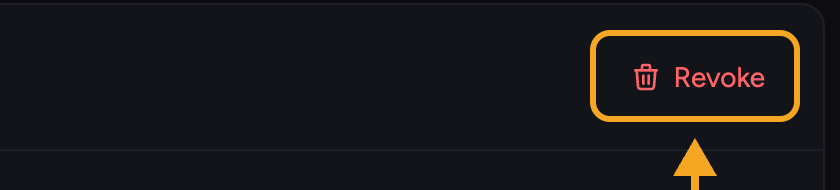 Go to **Settings → Devices** to see [paired devices](/help/meetings-live-sessions/pairing-managing-devices-updating-the-app) (such as the Chief desktop app). Click **Revoke** next to a device to sign it out immediately; you can pair it again later with a new code.
## API tokens for automation
Go to **Settings → Devices** to see [paired devices](/help/meetings-live-sessions/pairing-managing-devices-updating-the-app) (such as the Chief desktop app). Click **Revoke** next to a device to sign it out immediately; you can pair it again later with a new code.
## API tokens for automation
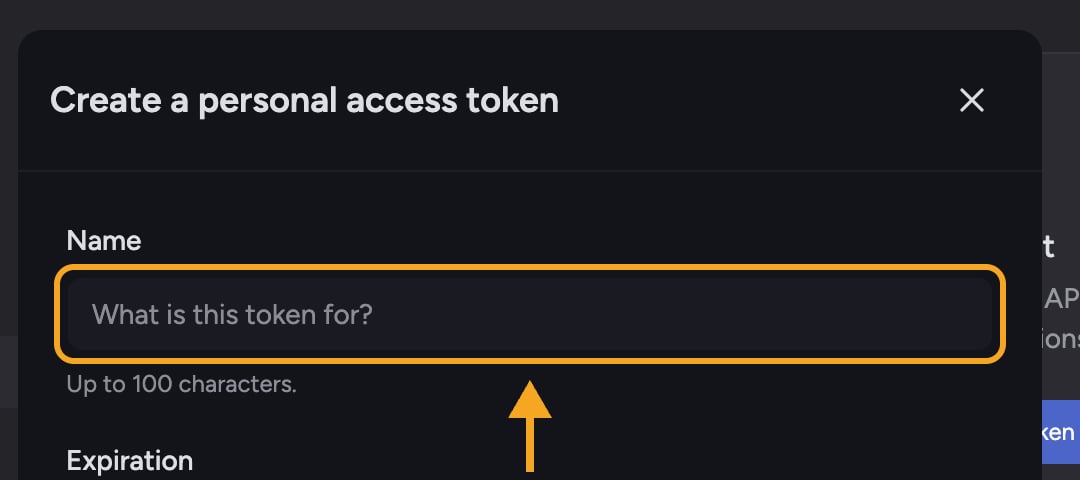 For programmatic access, create a personal access token under **Settings → API tokens**. See [Managing API tokens securely](/help/security-privacy/managing-api-tokens-securely) for the full workflow.
## Frequently asked questions
The link likely expired, was already used, or was opened in a different account/email. Request a new magic link and open it from the same inbox you registered with.
You've requested magic links too frequently. Wait an hour before trying again.
Go to **Settings → Devices** and click **Revoke** on that device. It's signed out immediately.
For programmatic access, create a personal access token under **Settings → API tokens**. See [Managing API tokens securely](/help/security-privacy/managing-api-tokens-securely) for the full workflow.
## Frequently asked questions
The link likely expired, was already used, or was opened in a different account/email. Request a new magic link and open it from the same inbox you registered with.
You've requested magic links too frequently. Wait an hour before trying again.
Go to **Settings → Devices** and click **Revoke** on that device. It's signed out immediately.