> ## Documentation Index
> Fetch the complete documentation index at: https://docs.chief.bot/llms.txt
> Use this file to discover all available pages before exploring further.
# Managing API tokens securely
> Personal access tokens let integrations and scripts call the Chief API on your behalf, with your account's permissions.
Personal access tokens let [integrations](/help/integrations/integrations-overview) and scripts call the Chief API on your behalf, with your account's permissions. Treat a token like a password.
## Create a token
 1. Go to [**Settings → API tokens**](/help/integrations/api-access-personal-access-tokens).
2. Click **Create token**.
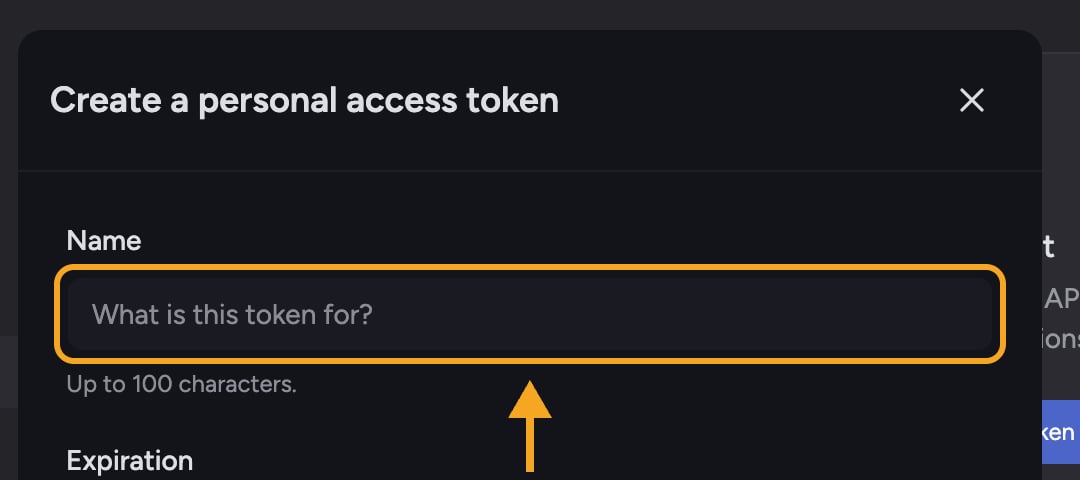
3. Enter a **Name** describing what it's for (up to 100 characters).
4. Choose an **Expiration**: **30 days**, **90 days**, **365 days**, or **Custom date**.
5. Click **Generate token**.
6. On the **Copy your token** screen, click **Copy**, paste the token into your secret store, then click **Done**.
⚠️ **Important:** This is the only time you'll see this token. Store it somewhere safe — once you close the dialog, Chief can't show the value again. If you lose it, revoke the token and create a new one.
## Expiration rules
1. Go to [**Settings → API tokens**](/help/integrations/api-access-personal-access-tokens).
2. Click **Create token**.
3. Enter a **Name** describing what it's for (up to 100 characters).
4. Choose an **Expiration**: **30 days**, **90 days**, **365 days**, or **Custom date**.
5. Click **Generate token**.
6. On the **Copy your token** screen, click **Copy**, paste the token into your secret store, then click **Done**.
⚠️ **Important:** This is the only time you'll see this token. Store it somewhere safe — once you close the dialog, Chief can't show the value again. If you lose it, revoke the token and create a new one.
## Expiration rules
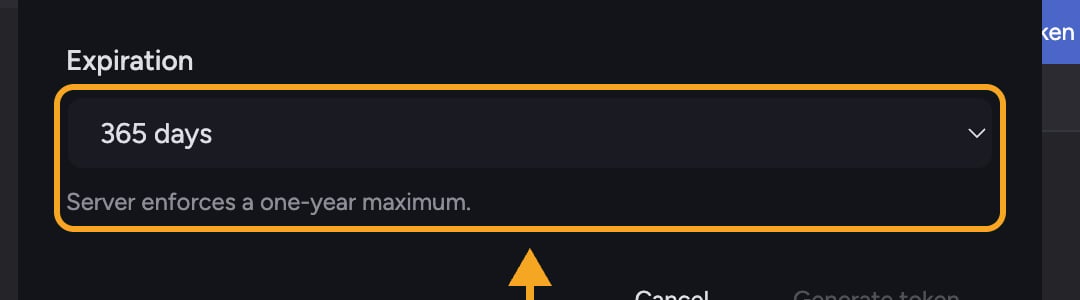 Tokens default to **365 days**. If you pick a custom date, the server enforces a **one-year maximum**. Shorter-lived tokens are safer — prefer 30 or 90 days for automation you can rotate.
## Revoke a token
1. Go to **Settings → API tokens**.
2. Find the token in the list (you can see its **Created**, **Expires**, and **Last used** dates).
3. Click **Revoke**, then confirm **Revoke this token?**
The token stops working **immediately** and this can't be undone. A revoked token shows the status **Revoked**.
## Good habits
* Give each integration — including any [MCP server](/help/integrations/mcp-servers-connecting-custom-tools) — its own named token so you can revoke one without breaking the others.
* Never paste a token into chat, code committed to a repo, or a screenshot.
* Rotate tokens on a schedule and revoke any you no longer use.
## Frequently asked questions
No — the token is shown only once. Revoke it and create a new one.
They stop working immediately. Revoking takes effect at once and can't be undone, so update your integration with a new token first if you need continuity.
No. The server enforces a one-year maximum, so the longest available is 365 days.
A personal access token authenticates API requests with [your account's permissions](/help/security-privacy/authentication-account-security-magic-link-tokens) — it can do what your account can do. Give each integration its own token and the shortest practical expiration.
Tokens default to **365 days**. If you pick a custom date, the server enforces a **one-year maximum**. Shorter-lived tokens are safer — prefer 30 or 90 days for automation you can rotate.
## Revoke a token
1. Go to **Settings → API tokens**.
2. Find the token in the list (you can see its **Created**, **Expires**, and **Last used** dates).
3. Click **Revoke**, then confirm **Revoke this token?**
The token stops working **immediately** and this can't be undone. A revoked token shows the status **Revoked**.
## Good habits
* Give each integration — including any [MCP server](/help/integrations/mcp-servers-connecting-custom-tools) — its own named token so you can revoke one without breaking the others.
* Never paste a token into chat, code committed to a repo, or a screenshot.
* Rotate tokens on a schedule and revoke any you no longer use.
## Frequently asked questions
No — the token is shown only once. Revoke it and create a new one.
They stop working immediately. Revoking takes effect at once and can't be undone, so update your integration with a new token first if you need continuity.
No. The server enforces a one-year maximum, so the longest available is 365 days.
A personal access token authenticates API requests with [your account's permissions](/help/security-privacy/authentication-account-security-magic-link-tokens) — it can do what your account can do. Give each integration its own token and the shortest practical expiration.