> ## Documentation Index
> Fetch the complete documentation index at: https://docs.chief.bot/llms.txt
> Use this file to discover all available pages before exploring further.
# Visibility & access controls (private / restricted / project)
> Every chat in Chief has a visibility level that controls who can see it.
Every chat in Chief has a [visibility level](/help/sharing-visibility/chat-visibility-private-project-restricted) that controls who can see it. You set it per chat, and you can change it anytime.
## The three visibility levels
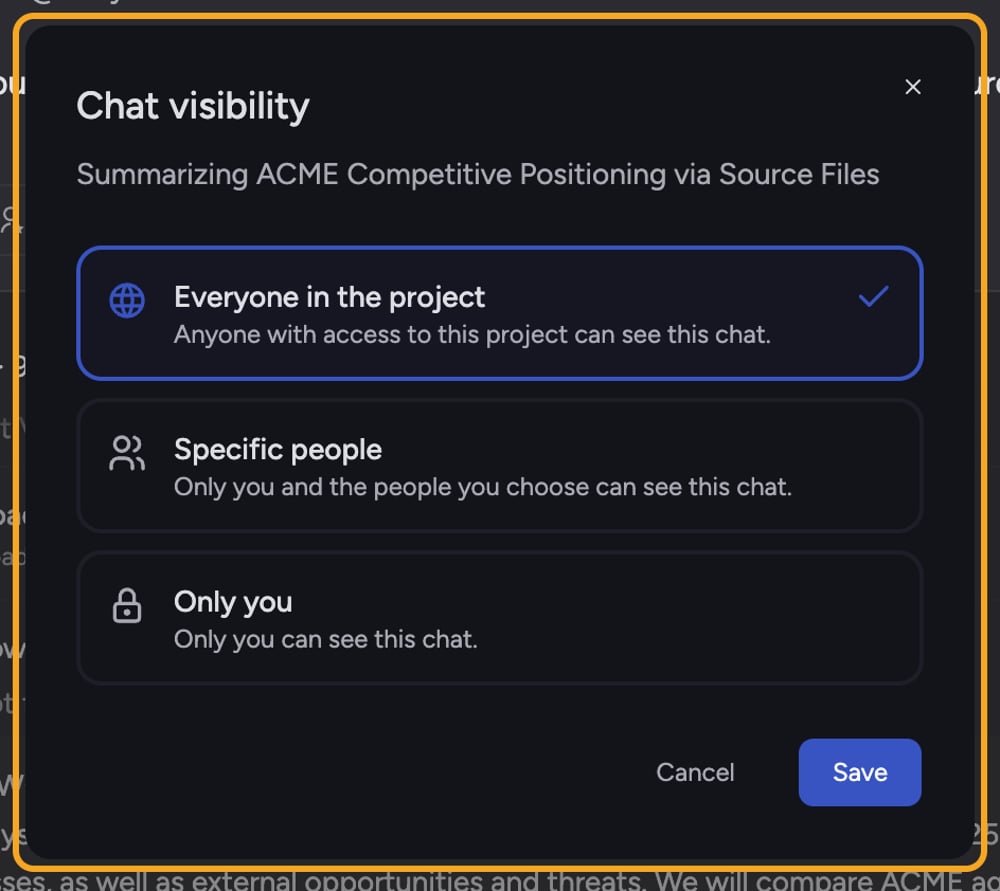
* **Private** — Only you can see this chat.
* **Restricted** — Only you and the specific people you choose can see this chat.
* **Project** — Anyone with access to [this project](/help/projects-sharing-teams/what-is-a-project) can see this chat.
## Change a chat’s visibility
 1. Open the chat.
2. Click the visibility badge (it reads **Private**, **Restricted**, or **Project**) — or open the chat menu and click **Change visibility**.
3. In the **Chat visibility** dialog, select the level you want — **Only you** (Private), **Specific people** (Restricted), or **Everyone in the project** (Project).
4. If you chose **Restricted**, under **Share with specific people** click each [project member](/help/projects-sharing-teams/removing-members-managing-access) you want to include.
5. Click **Save**.
⚠️ **Important:** If the member list fails to load when you open the dialog, **Save** stays disabled. This prevents accidentally saving a Restricted chat with an empty audience. Click **Retry**, and only save once the list loads.
## Chats in Google-connected projects start Private
When a project has [the Google integration](/help/integrations/integrations-overview), new chats start **Private**. This keeps mailbox and calendar content from being shared with the whole project unless you deliberately change the chat’s visibility.
## FAQ
The chat may have been deleted, made Private, or [you were removed](/help/sharing-visibility/revoking-access-to-a-shared-chat) from who can see it. Your access to the rest of the project is unchanged.
Save is disabled while the project member list is still loading or failed to load, and while a save is in progress. If you saw a “Could not load visibility settings” error, click Retry first.
Restricted shares with you plus the specific people you select from the project. Project admins can still see a Restricted chat even if you didn't include them in your selection.
1. Open the chat.
2. Click the visibility badge (it reads **Private**, **Restricted**, or **Project**) — or open the chat menu and click **Change visibility**.
3. In the **Chat visibility** dialog, select the level you want — **Only you** (Private), **Specific people** (Restricted), or **Everyone in the project** (Project).
4. If you chose **Restricted**, under **Share with specific people** click each [project member](/help/projects-sharing-teams/removing-members-managing-access) you want to include.
5. Click **Save**.
⚠️ **Important:** If the member list fails to load when you open the dialog, **Save** stays disabled. This prevents accidentally saving a Restricted chat with an empty audience. Click **Retry**, and only save once the list loads.
## Chats in Google-connected projects start Private
When a project has [the Google integration](/help/integrations/integrations-overview), new chats start **Private**. This keeps mailbox and calendar content from being shared with the whole project unless you deliberately change the chat’s visibility.
## FAQ
The chat may have been deleted, made Private, or [you were removed](/help/sharing-visibility/revoking-access-to-a-shared-chat) from who can see it. Your access to the rest of the project is unchanged.
Save is disabled while the project member list is still loading or failed to load, and while a save is in progress. If you saw a “Could not load visibility settings” error, click Retry first.
Restricted shares with you plus the specific people you select from the project. Project admins can still see a Restricted chat even if you didn't include them in your selection.