> ## Documentation Index
> Fetch the complete documentation index at: https://docs.chief.bot/llms.txt
> Use this file to discover all available pages before exploring further.
# Chat visibility: private, project & restricted
> Every chat in a Chief Project has a visibility setting that decides exactly who can open it.
Every [chat](/help/chatting-with-chief/how-chats-work) in a Chief [Project](/help/projects-sharing-teams/what-is-a-project) has a **visibility** setting that decides exactly who can open it. This lets you keep a private draft to yourself, share working notes with your whole Project team, or open a sensitive conversation to just a handful of named people — without moving the chat anywhere.
## The three visibility levels
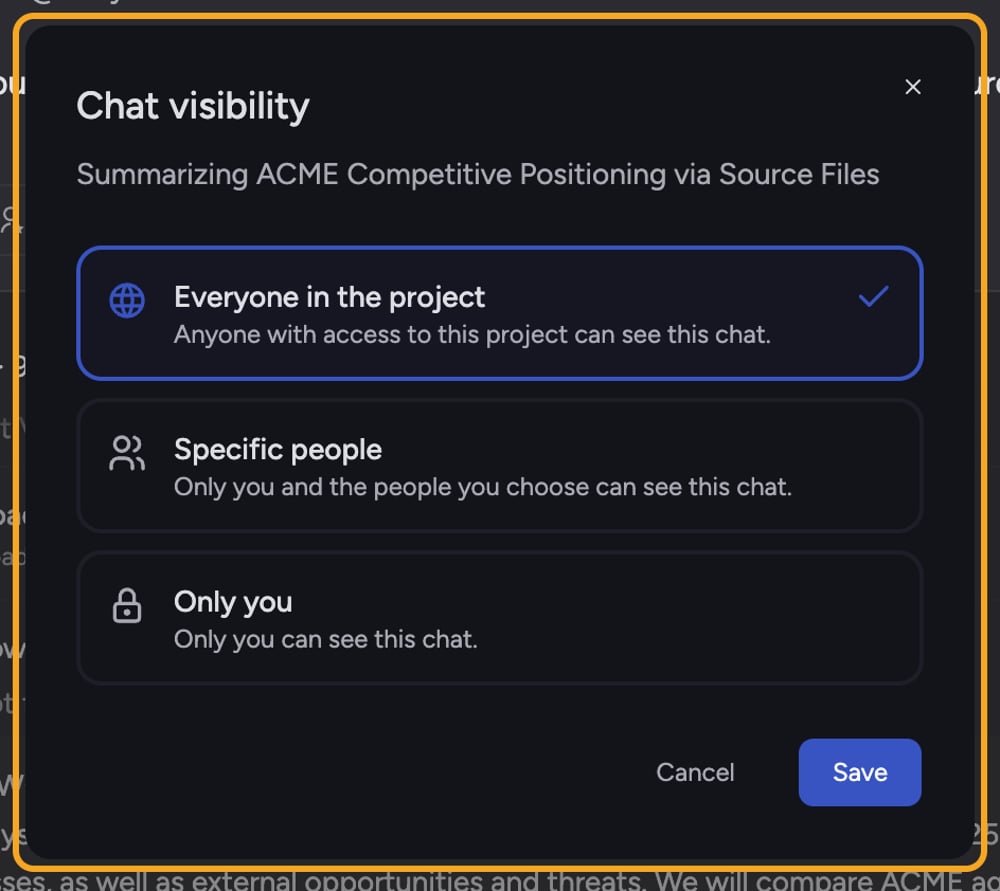 Open any chat and look for the visibility badge near the chat title. It shows the current level: **Private**, **Project**, or **Restricted**. Here is what each one means:
* **Only you (Private)** — Only you can see this chat. Nobody else in the Project can open it, even Project owners.
* **Everyone in the project (Project)** — [Anyone with access to this Project](/help/projects-sharing-teams/inviting-members-email-domain-invite-link) can see the chat. This is the default for most chats.
* **Specific people (Restricted)** — Only you and the people you choose can see the chat. You pick named Project members one by one.
**Example:** You start a chat to draft a board update using your team's shared files. While it is rough, you keep it **Private**. Once it is ready for feedback, you switch it to **Restricted** and add your two co-authors. After the update ships, you set it to **Project** so the whole team can reference it.
## How to change a chat's visibility
1. Open the chat you want to change.
2. Select the **visibility badge** next to the chat title (it reads "Change visibility, currently…"). The **Chat visibility** dialog opens.
3. In the dialog, select one of the three options: **Only you**, **Everyone in the project**, or **Specific people**.
4. If you choose **Specific people**, a **Share with specific people** list of [Project members](/help/projects-sharing-teams/removing-members-managing-access) appears below. Select each person who should have access; a checkmark marks the people you have chosen.
5. Select **Save**. The dialog confirms with "Saving…" and then closes. The visibility badge updates to the new level.
⚠️ **Important:** Chats in Projects that have [the Google integration](/help/integrations/integrations-overview) connected start as **Private** on purpose. This keeps mailbox and calendar content from being shared with the whole Project until you deliberately raise the visibility.
## Visibility vs. secret links
Visibility controls who *inside* your Project or Organization can open the chat. It does not create a public link. To let someone *outside* the Project view a read-only copy, [create a secret link](/help/sharing-visibility/sharing-a-chat-via-secret-link) instead.
## FAQ
If the member list could not load, Chief disables **Save** so you do not accidentally wipe the chat's existing audience by saving an empty selection. Close and reopen the dialog, or select **Retry** if an error appears, then choose your people and save again.
No. A **Private** chat is visible only to you. Other members — including Project owners — cannot open it until you change the level to Restricted (and add them) or Project.
They lose access immediately. If they had the chat open, they will see a message that the chat is no longer available to them; their access to the rest of the Project is unchanged.
Open any chat and look for the visibility badge near the chat title. It shows the current level: **Private**, **Project**, or **Restricted**. Here is what each one means:
* **Only you (Private)** — Only you can see this chat. Nobody else in the Project can open it, even Project owners.
* **Everyone in the project (Project)** — [Anyone with access to this Project](/help/projects-sharing-teams/inviting-members-email-domain-invite-link) can see the chat. This is the default for most chats.
* **Specific people (Restricted)** — Only you and the people you choose can see the chat. You pick named Project members one by one.
**Example:** You start a chat to draft a board update using your team's shared files. While it is rough, you keep it **Private**. Once it is ready for feedback, you switch it to **Restricted** and add your two co-authors. After the update ships, you set it to **Project** so the whole team can reference it.
## How to change a chat's visibility
1. Open the chat you want to change.
2. Select the **visibility badge** next to the chat title (it reads "Change visibility, currently…"). The **Chat visibility** dialog opens.
3. In the dialog, select one of the three options: **Only you**, **Everyone in the project**, or **Specific people**.
4. If you choose **Specific people**, a **Share with specific people** list of [Project members](/help/projects-sharing-teams/removing-members-managing-access) appears below. Select each person who should have access; a checkmark marks the people you have chosen.
5. Select **Save**. The dialog confirms with "Saving…" and then closes. The visibility badge updates to the new level.
⚠️ **Important:** Chats in Projects that have [the Google integration](/help/integrations/integrations-overview) connected start as **Private** on purpose. This keeps mailbox and calendar content from being shared with the whole Project until you deliberately raise the visibility.
## Visibility vs. secret links
Visibility controls who *inside* your Project or Organization can open the chat. It does not create a public link. To let someone *outside* the Project view a read-only copy, [create a secret link](/help/sharing-visibility/sharing-a-chat-via-secret-link) instead.
## FAQ
If the member list could not load, Chief disables **Save** so you do not accidentally wipe the chat's existing audience by saving an empty selection. Close and reopen the dialog, or select **Retry** if an error appears, then choose your people and save again.
No. A **Private** chat is visible only to you. Other members — including Project owners — cannot open it until you change the level to Restricted (and add them) or Project.
They lose access immediately. If they had the chat open, they will see a message that the chat is no longer available to them; their access to the rest of the Project is unchanged.