> ## Documentation Index
> Fetch the complete documentation index at: https://docs.chief.bot/llms.txt
> Use this file to discover all available pages before exploring further.
# Sharing a chat via secret link
> A secret link lets anyone you send it to open a read-only copy of a chat thread in Chief — no account or Project membership required.
A **secret link** lets anyone you send it to open a read-only copy of a [chat thread](/help/chatting-with-chief/how-chats-work) in Chief — no account or Project membership required. Use it to share an answer with a client, a colleague in another team, or anyone who just needs to see the conversation.
## Create a secret link
 1. Open the chat you want to share.
2. Select the **Share chat thread** button (the link icon; its tooltip reads "Create a secret link to share entire chat thread"). The **Share Chat Thread** dialog opens.
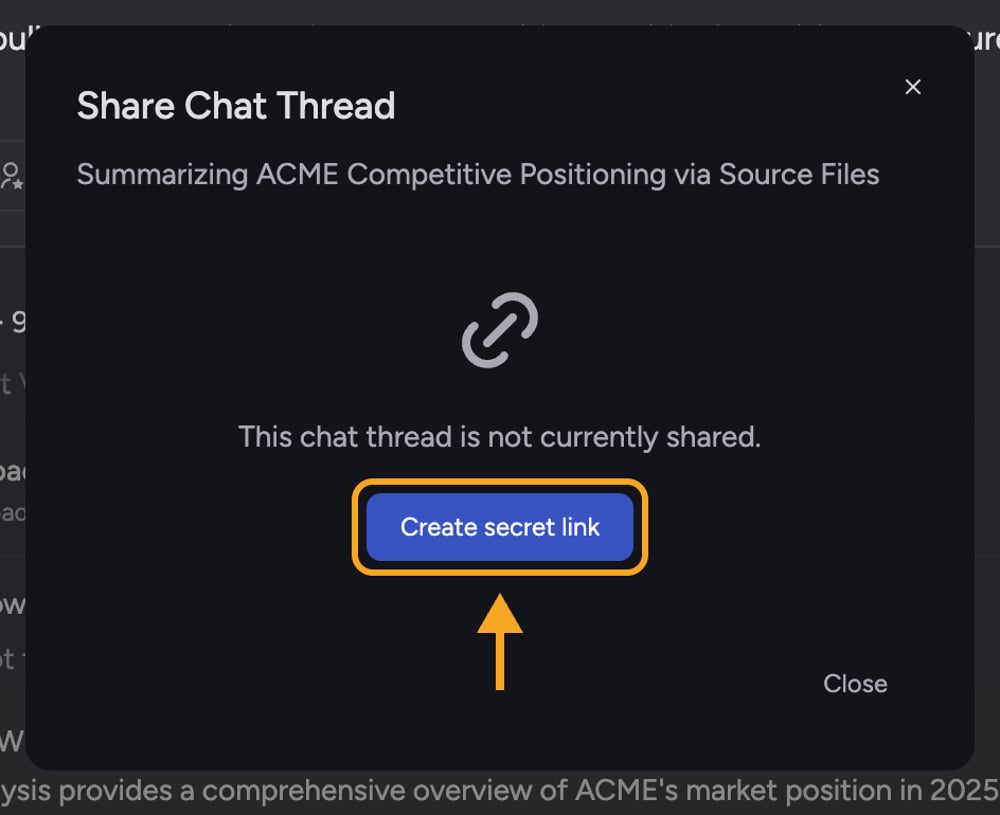
3. If the chat is not shared yet, the dialog shows "This chat thread is not currently shared." Select **Create secret link**. The button shows "Creating…" while it works.
4. When the link is ready, it appears in the **Share secret link** field and is copied to your clipboard automatically. You will see "Link copied!".
5. Paste the link into an email, message, or document to share it. To copy it again later, select the **copy** button next to the field.
⚠️ **Important:** Anyone with the secret link can view the chat. The link is not tied to a specific person, so treat it like a password — anyone you forward it to (or who it gets forwarded to) can open the conversation.
## What recipients can and cannot do
People who open a secret link get a [read-only **Shared Chat** view](/help/sharing-visibility/viewing-shared-chats-as-a-guest). They can read the whole thread but cannot reply, edit, or use Project actions (analyzing, citing sources, [adding to the Library](/help/your-knowledge-library/saving-a-chat-answer-back-to-your-library)) unless they are a signed-in member of the Project. The footer offers them a way to try Chief or open the Project if they have access.
## Turning the link off
A secret link stays active until you revoke it. To shut off access for everyone who has the link, select [**Revoke link**](/help/sharing-visibility/revoking-access-to-a-shared-chat) in the same dialog.
## FAQ
This is usually a temporary connection issue. Close the dialog and reopen it — if a link was actually created in the background, the dialog will load the existing link instead of erroring. If it still fails, wait a moment and try again.
The shared view reflects the thread as it stands. If you continue the conversation, recipients opening the link later will see the newer messages, because the link points to the live thread, not a frozen snapshot.
Yes — use [email sharing](/help/sharing-visibility/sharing-a-chat-by-email) to send the link to named addresses, or use [Restricted chat visibility](/help/sharing-visibility/chat-visibility-private-project-restricted) to limit who inside your Project can open it.
1. Open the chat you want to share.
2. Select the **Share chat thread** button (the link icon; its tooltip reads "Create a secret link to share entire chat thread"). The **Share Chat Thread** dialog opens.
3. If the chat is not shared yet, the dialog shows "This chat thread is not currently shared." Select **Create secret link**. The button shows "Creating…" while it works.
4. When the link is ready, it appears in the **Share secret link** field and is copied to your clipboard automatically. You will see "Link copied!".
5. Paste the link into an email, message, or document to share it. To copy it again later, select the **copy** button next to the field.
⚠️ **Important:** Anyone with the secret link can view the chat. The link is not tied to a specific person, so treat it like a password — anyone you forward it to (or who it gets forwarded to) can open the conversation.
## What recipients can and cannot do
People who open a secret link get a [read-only **Shared Chat** view](/help/sharing-visibility/viewing-shared-chats-as-a-guest). They can read the whole thread but cannot reply, edit, or use Project actions (analyzing, citing sources, [adding to the Library](/help/your-knowledge-library/saving-a-chat-answer-back-to-your-library)) unless they are a signed-in member of the Project. The footer offers them a way to try Chief or open the Project if they have access.
## Turning the link off
A secret link stays active until you revoke it. To shut off access for everyone who has the link, select [**Revoke link**](/help/sharing-visibility/revoking-access-to-a-shared-chat) in the same dialog.
## FAQ
This is usually a temporary connection issue. Close the dialog and reopen it — if a link was actually created in the background, the dialog will load the existing link instead of erroring. If it still fails, wait a moment and try again.
The shared view reflects the thread as it stands. If you continue the conversation, recipients opening the link later will see the newer messages, because the link points to the live thread, not a frozen snapshot.
Yes — use [email sharing](/help/sharing-visibility/sharing-a-chat-by-email) to send the link to named addresses, or use [Restricted chat visibility](/help/sharing-visibility/chat-visibility-private-project-restricted) to limit who inside your Project can open it.