> ## Documentation Index
> Fetch the complete documentation index at: https://docs.chief.bot/llms.txt
> Use this file to discover all available pages before exploring further.
# Sharing skills with your project vs. private
> Every custom Skill has a scope that controls who can use it.
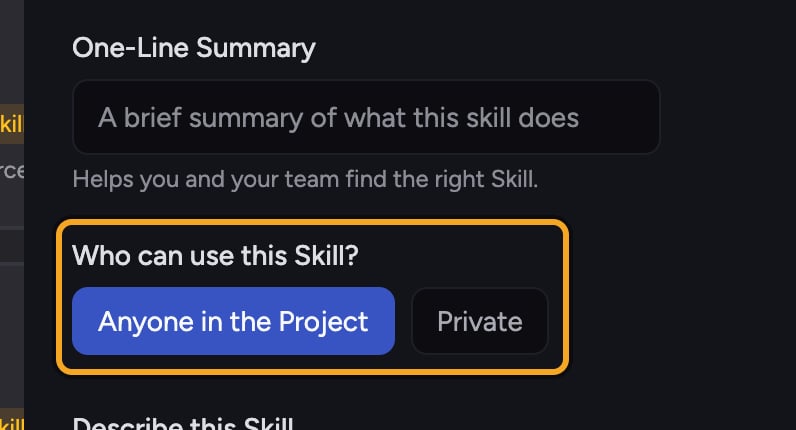
Every custom [Skill](/help/skills/what-are-skills) has a **scope** that controls who can use it. You choose the scope when you [create a Skill](/help/skills/creating-a-custom-skill-ai-assisted), and you can change it later. There are two scopes for the Skills you make:
* **Anyone in the Project** — the Skill is shared with everyone who has access to the current [Project](/help/projects-sharing-teams/what-is-a-project). Use this for team workflows and shared standards.
* **Private** — the Skill is visible only to you. Use this for personal shortcuts you don't want to share.
[Built-in Skills](/help/skills/using-built-in-skills) carry the **Chief** scope badge and are always available; they aren't yours to scope.
## Set the scope when creating a Skill
 1. On the **Skills** page, click **Create a Skill**.
2. Fill in the Skill details.
3. Under **Who can use this Skill?**, click either **Anyone in the Project** or **Private**.
4. Click **Save**.
## Copy a Skill into another Project
Sharing across Projects is a copy operation: you duplicate the Skill into a destination Project and can re-scope it there.
1. On the **Skills** page, select the Skill (or Skills) you want to copy using the Select checkbox on each card.
2. Start the copy action to open the copy dialog.
3. Under the scope control, choose **Keep original** to preserve each Skill's existing scope, or pick **Anyone in the Project** or **Private** to override it in the destination.
4. Choose the [destination Project](/help/projects-sharing-teams/switching-bookmarking-discovering-projects) from the list, then confirm the copy.
⚠️ **Important:** Copying creates a separate Skill in the destination Project. Later edits to the original won't sync to the copy, and vice versa — they're independent from that point on.
## FAQ
No. "Anyone in the Project" shares the Skill within the current Project only. To make it available elsewhere, copy it into that other Project.
Check the scope you applied in the destination. If the copy landed as **Private**, only you can see it. Re-scope it to **Anyone in the Project** so the whole Project gets access.
Yes. Open the Skill on the Skills page, change the **Who can use this Skill?** setting, and save.
1. On the **Skills** page, click **Create a Skill**.
2. Fill in the Skill details.
3. Under **Who can use this Skill?**, click either **Anyone in the Project** or **Private**.
4. Click **Save**.
## Copy a Skill into another Project
Sharing across Projects is a copy operation: you duplicate the Skill into a destination Project and can re-scope it there.
1. On the **Skills** page, select the Skill (or Skills) you want to copy using the Select checkbox on each card.
2. Start the copy action to open the copy dialog.
3. Under the scope control, choose **Keep original** to preserve each Skill's existing scope, or pick **Anyone in the Project** or **Private** to override it in the destination.
4. Choose the [destination Project](/help/projects-sharing-teams/switching-bookmarking-discovering-projects) from the list, then confirm the copy.
⚠️ **Important:** Copying creates a separate Skill in the destination Project. Later edits to the original won't sync to the copy, and vice versa — they're independent from that point on.
## FAQ
No. "Anyone in the Project" shares the Skill within the current Project only. To make it available elsewhere, copy it into that other Project.
Check the scope you applied in the destination. If the copy landed as **Private**, only you can see it. Re-scope it to **Anyone in the Project** so the whole Project gets access.
Yes. Open the Skill on the Skills page, change the **Who can use this Skill?** setting, and save.