> ## Documentation Index
> Fetch the complete documentation index at: https://docs.chief.bot/llms.txt
> Use this file to discover all available pages before exploring further.
# Using built-in skills
> Chief comes with a set of built-in Skills you can use immediately — no setup required.
Chief comes with a set of **built-in [Skills](/help/skills/what-are-skills)** you can use immediately — no setup required. Built-in Skills are provided by Chief and carry the **Chief** badge so you can tell them apart from Skills your team created.
## Find the built-in Skills
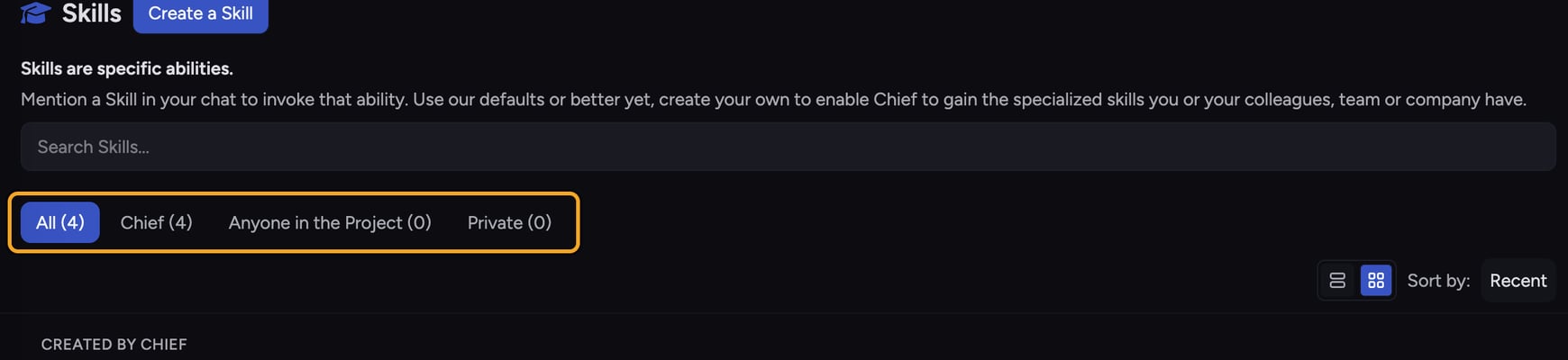 1. In the left navigation, click **Skills**. The Skills page opens and lists every Skill available to you.
2. On each Skill card, look at [the scope badge](/help/skills/sharing-skills-with-your-project-vs-private). Cards badged **Chief** are the built-in Skills. Cards badged **Anyone in the Project** or **Private** are custom Skills.
3. To narrow the list to Chief's own Skills, click the **Chief** tab at the top of the list.
## Use a built-in Skill in a chat
1. In the left navigation, click **Skills**. The Skills page opens and lists every Skill available to you.
2. On each Skill card, look at [the scope badge](/help/skills/sharing-skills-with-your-project-vs-private). Cards badged **Chief** are the built-in Skills. Cards badged **Anyone in the Project** or **Private** are custom Skills.
3. To narrow the list to Chief's own Skills, click the **Chief** tab at the top of the list.
## Use a built-in Skill in a chat
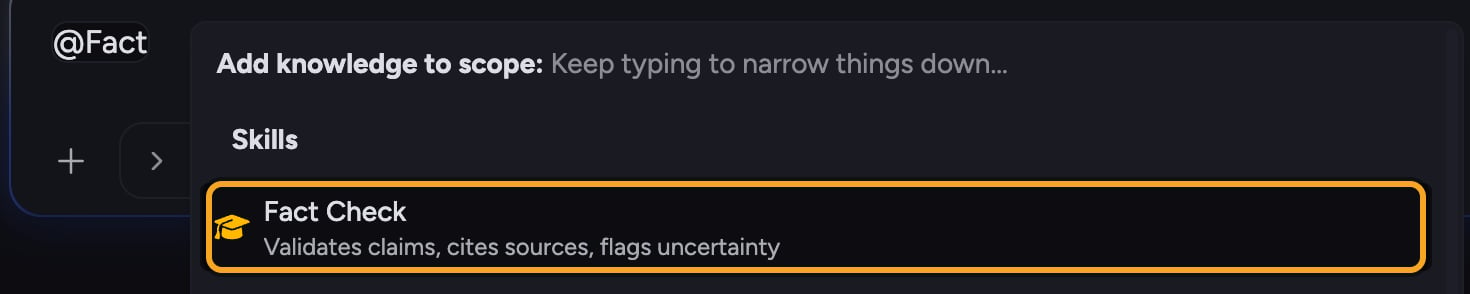 1. Open or start a chat so the [prompt bar](/help/the-prompt-bar-scope/the-prompt-bar-a-tour-of-your-chat-controls) is visible.
2. In the prompt bar, type **@** followed by the Skill's name. A picker appears.
3. Click the Skill you want. It is inserted into your prompt as a pill (for example, **@Skill name**).
4. Type the rest of your request, then send the message. Chief follows the Skill's instructions for that response.
🚀 **Pro-Tip:** Want to tweak a built-in Skill? Hover its card and click the duplicate icon to make an editable copy. The original Chief Skill stays unchanged, and your copy becomes a [custom Skill](/help/skills/creating-a-custom-skill-ai-assisted) you can edit freely.
## FAQ
Not directly — built-in Chief Skills are read-only. Duplicate one first (the copy icon on the card), then edit the copy. Your duplicate is saved as a custom Skill.
Check that [the Skill is enabled](/help/skills/enabling-disabling-mentioning-skills-skill). Open the **Skills** page and confirm the toggle on its card is on — a disabled Skill won't appear in the @ picker. If it's enabled and still missing, make sure you're typing enough of the name for it to match.
No. Built-in Skills are always available and separate from the custom Skills you create or share within your Project.
1. Open or start a chat so the [prompt bar](/help/the-prompt-bar-scope/the-prompt-bar-a-tour-of-your-chat-controls) is visible.
2. In the prompt bar, type **@** followed by the Skill's name. A picker appears.
3. Click the Skill you want. It is inserted into your prompt as a pill (for example, **@Skill name**).
4. Type the rest of your request, then send the message. Chief follows the Skill's instructions for that response.
🚀 **Pro-Tip:** Want to tweak a built-in Skill? Hover its card and click the duplicate icon to make an editable copy. The original Chief Skill stays unchanged, and your copy becomes a [custom Skill](/help/skills/creating-a-custom-skill-ai-assisted) you can edit freely.
## FAQ
Not directly — built-in Chief Skills are read-only. Duplicate one first (the copy icon on the card), then edit the copy. Your duplicate is saved as a custom Skill.
Check that [the Skill is enabled](/help/skills/enabling-disabling-mentioning-skills-skill). Open the **Skills** page and confirm the toggle on its card is on — a disabled Skill won't appear in the @ picker. If it's enabled and still missing, make sure you're typing enough of the name for it to match.
No. Built-in Skills are always available and separate from the custom Skills you create or share within your Project.