> ## Documentation Index
> Fetch the complete documentation index at: https://docs.chief.bot/llms.txt
> Use this file to discover all available pages before exploring further.
# @-mentioning files, Labels, Collections & Concepts
> An @-mention is the fastest way to point Chief at one specific thing — a file, a Label, a Collection, or a Concept — without opening the Library picker.
An **@**-mention is the fastest way to point Chief at one specific thing — a file, a [Label](/help/labels/tagging-files-filtering-by-label), a [Collection](/help/collections/what-are-collections), or a [Concept](/help/concepts/what-are-concepts) — without opening the Library picker. You stay on the keyboard, type a few letters, and the item drops into your prompt.
## Add an @-mention
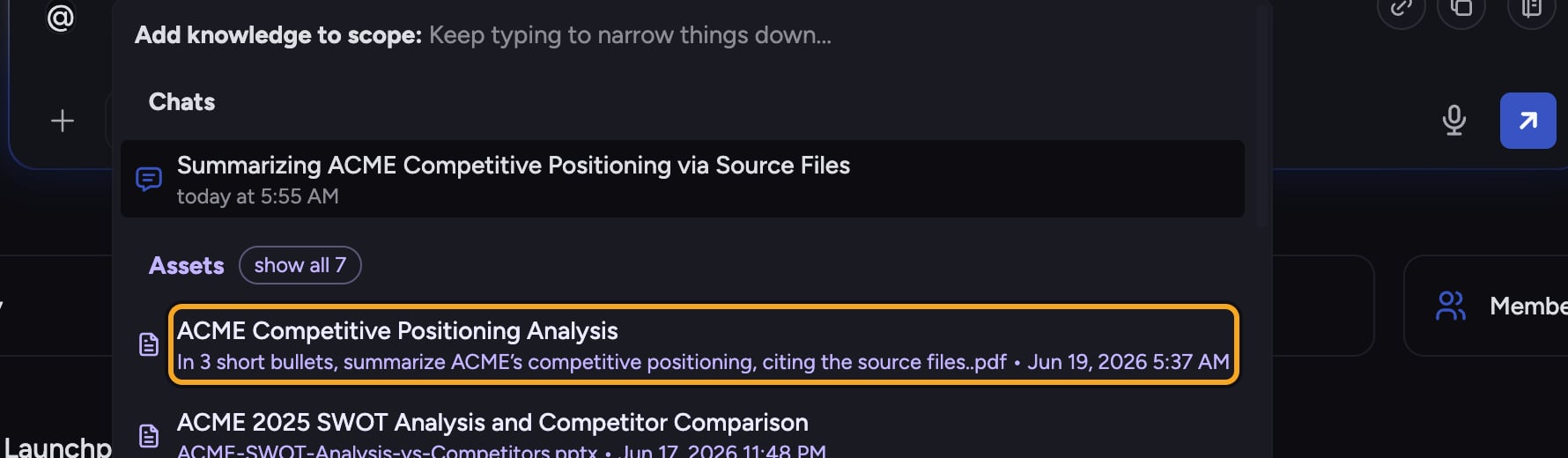 1. Click into the prompt bar and type **@**. A picker opens for adding knowledge to your scope.
2. Keep typing to narrow the list. The picker groups matches by type — Files, Labels, Concepts, Collections, and more.
3. Click the item you want (or use the arrow keys and press Enter). It is inserted into your prompt as an inline chip.
4. Finish typing your prompt around the chip, then send. The mentioned item is included in the knowledge Chief uses to answer.
✅ **Tip:** Mention a **Label** or **Collection** to bring in a whole group of files at once — handy when you want "everything tagged Q3" without selecting each file.
## What you can @-mention
* **Files** — any document in your Project [Library](/help/your-knowledge-library/what-is-the-library).
* **Labels** — pulls in every file [carrying that Label](/help/labels/creating-customizing-labels-colors-icons).
* **Collections** — pulls in the files that [match the Collection](/help/collections/building-a-collection-with-and-or-label-filters).
* **Concepts** — adds a [defined Concept](/help/concepts/defining-a-concept-exploring-the-concept-graph) to the context.
## @-mention vs. the Using: toolbar
Both feed the same answer. An **@**-mention lives inline in your prompt and is great for a one-off reference. The [**Using:** toolbar](/help/the-prompt-bar-scope/setting-the-scope-of-a-chat-using-files-labels-collections-concepts) sets standing scope for the whole chat. When you send, your mentions merge into scope automatically, so you do not have to add the same item in both places.
## FAQ
If you keep typing and see no matches, the item may not be in this Project, or it may [still be processing](/help/your-knowledge-library/file-size-limits-processing-stages) after upload. Check your spelling, or upload the file first, then mention it.
Place your cursor just after the inline chip in the prompt and delete it like any other character. Removing the chip takes that item back out of the prompt's knowledge.
The mention resolves the Label's files when you send. Add the Label again in a later prompt (or keep it in the **Using:** toolbar) to pick up newly tagged files.
1. Click into the prompt bar and type **@**. A picker opens for adding knowledge to your scope.
2. Keep typing to narrow the list. The picker groups matches by type — Files, Labels, Concepts, Collections, and more.
3. Click the item you want (or use the arrow keys and press Enter). It is inserted into your prompt as an inline chip.
4. Finish typing your prompt around the chip, then send. The mentioned item is included in the knowledge Chief uses to answer.
✅ **Tip:** Mention a **Label** or **Collection** to bring in a whole group of files at once — handy when you want "everything tagged Q3" without selecting each file.
## What you can @-mention
* **Files** — any document in your Project [Library](/help/your-knowledge-library/what-is-the-library).
* **Labels** — pulls in every file [carrying that Label](/help/labels/creating-customizing-labels-colors-icons).
* **Collections** — pulls in the files that [match the Collection](/help/collections/building-a-collection-with-and-or-label-filters).
* **Concepts** — adds a [defined Concept](/help/concepts/defining-a-concept-exploring-the-concept-graph) to the context.
## @-mention vs. the Using: toolbar
Both feed the same answer. An **@**-mention lives inline in your prompt and is great for a one-off reference. The [**Using:** toolbar](/help/the-prompt-bar-scope/setting-the-scope-of-a-chat-using-files-labels-collections-concepts) sets standing scope for the whole chat. When you send, your mentions merge into scope automatically, so you do not have to add the same item in both places.
## FAQ
If you keep typing and see no matches, the item may not be in this Project, or it may [still be processing](/help/your-knowledge-library/file-size-limits-processing-stages) after upload. Check your spelling, or upload the file first, then mention it.
Place your cursor just after the inline chip in the prompt and delete it like any other character. Removing the chip takes that item back out of the prompt's knowledge.
The mention resolves the Label's files when you send. Add the Label again in a later prompt (or keep it in the **Using:** toolbar) to pick up newly tagged files.