> ## Documentation Index
> Fetch the complete documentation index at: https://docs.chief.bot/llms.txt
> Use this file to discover all available pages before exploring further.
# Responding in an Expert Voice ("Respond as")
> An Expert Voice changes how Chief responds — its tone, perspective, and style.
An [**Expert Voice**](/help/expert-voices/what-are-expert-voices) changes *how* Chief responds — its tone, perspective, and style. Want answers like a business executive, a coach, or explained simply? Pick an Expert Voice and Chief speaks that way until you change it.
## Choose an Expert Voice
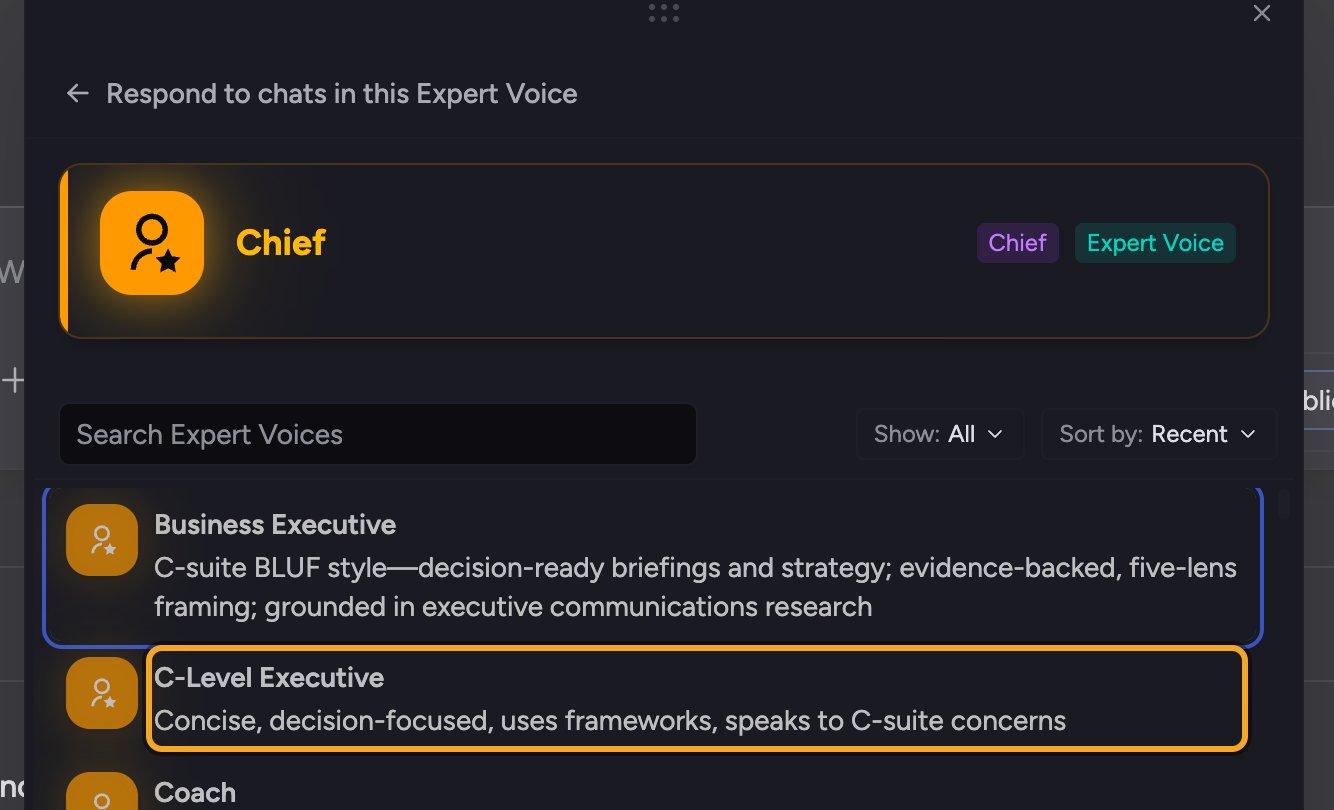 1. In the [prompt bar](/help/the-prompt-bar-scope/the-prompt-bar-a-tour-of-your-chat-controls), expand the **Using:** toolbar and find the **Expert Voice:** chip (it reads **Default** until you pick one).
2. Click the chip. The **Respond to my prompts as a…** flyout opens.
3. Browse the list of Expert Voices, or type in the **Search Expert Voices** box to filter.
4. Click a voice to select it. The chip now shows that voice's name, and Chief will answer in it.
💡 **Good to know:** Chief ships with [ready-made Expert Voices](/help/expert-voices/using-built-in-expert-voices) — such as a business executive, an executive advisor, a coach, a brevity-focused voice, and an ELI5 ("explain like I'm five") voice. You can also [create your own](/help/expert-voices/creating-a-custom-expert-voice).
## Switch back to Default
1. In the [prompt bar](/help/the-prompt-bar-scope/the-prompt-bar-a-tour-of-your-chat-controls), expand the **Using:** toolbar and find the **Expert Voice:** chip (it reads **Default** until you pick one).
2. Click the chip. The **Respond to my prompts as a…** flyout opens.
3. Browse the list of Expert Voices, or type in the **Search Expert Voices** box to filter.
4. Click a voice to select it. The chip now shows that voice's name, and Chief will answer in it.
💡 **Good to know:** Chief ships with [ready-made Expert Voices](/help/expert-voices/using-built-in-expert-voices) — such as a business executive, an executive advisor, a coach, a brevity-focused voice, and an ELI5 ("explain like I'm five") voice. You can also [create your own](/help/expert-voices/creating-a-custom-expert-voice).
## Switch back to Default
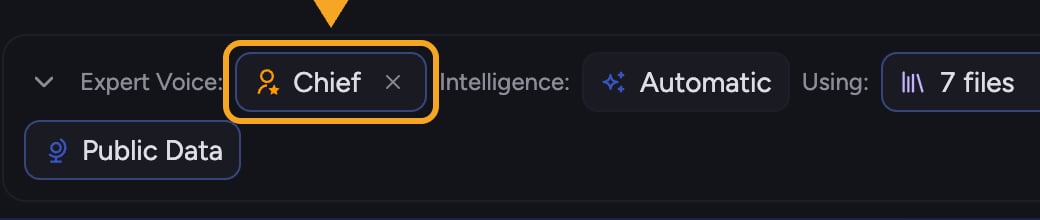 To stop using a specialist voice, click the **×** on the **Expert Voice:** chip, or open the flyout and click **Reset**. The chip returns to **Default** — a neutral, all-purpose voice that adapts to whatever you are working on.
## Expert Voices vs. Skills
An **Expert Voice** shapes how Chief communicates. A [**Skill**](/help/skills/what-are-skills) gives Chief task-specific know-how. They are different tools; the Respond-as flyout focuses on Expert Voices, and you can create either one.
## FAQ
Click the **Expert Voice:** chip, then click a voice in the flyout. The chip should update to the voice's name. If it does not, make sure you selected a voice rather than just searching.
Your selected Expert Voice [persists across chats](/help/expert-voices/applying-a-voice-to-a-chat-respond-as) until you change it or reset to **Default**.
Yes. The flyout includes an option to create an Expert Voice, where you describe the tone and perspective you want Chief to use.
To stop using a specialist voice, click the **×** on the **Expert Voice:** chip, or open the flyout and click **Reset**. The chip returns to **Default** — a neutral, all-purpose voice that adapts to whatever you are working on.
## Expert Voices vs. Skills
An **Expert Voice** shapes how Chief communicates. A [**Skill**](/help/skills/what-are-skills) gives Chief task-specific know-how. They are different tools; the Respond-as flyout focuses on Expert Voices, and you can create either one.
## FAQ
Click the **Expert Voice:** chip, then click a voice in the flyout. The chip should update to the voice's name. If it does not, make sure you selected a voice rather than just searching.
Your selected Expert Voice [persists across chats](/help/expert-voices/applying-a-voice-to-a-chat-respond-as) until you change it or reset to **Default**.
Yes. The flyout includes an option to create an Expert Voice, where you describe the tone and perspective you want Chief to use.