> ## Documentation Index
> Fetch the complete documentation index at: https://docs.chief.bot/llms.txt
> Use this file to discover all available pages before exploring further.
# Setting the scope of a chat — "Using:" files, Labels, Collections, Concepts
> Scope is the set of knowledge Chief draws on to answer you.
Scope is the set of knowledge Chief draws on to answer you. The **Using:** toolbar in the [prompt bar](/help/the-prompt-bar-scope/the-prompt-bar-a-tour-of-your-chat-controls) shows what is in scope right now and lets you add or remove Files, [Labels](/help/labels/tagging-files-filtering-by-label), [Collections](/help/collections/what-are-collections), and [Concepts](/help/concepts/what-are-concepts) for the chat.
## Open the Using: toolbar
 1. In the prompt bar, find the **Using:** toolbar beside the **+** button. Collapsed, it shows a compact summary (for example "12 files, 2 labels").
2. Click the chevron at the left of the toolbar. The toolbar expands to show chips for **Expert Voice:**, **Intelligence:**, **Using:** (your files and knowledge), and **Public Data**.
## Add Files, Labels, Collections, or Concepts
1. In the prompt bar, find the **Using:** toolbar beside the **+** button. Collapsed, it shows a compact summary (for example "12 files, 2 labels").
2. Click the chevron at the left of the toolbar. The toolbar expands to show chips for **Expert Voice:**, **Intelligence:**, **Using:** (your files and knowledge), and **Public Data**.
## Add Files, Labels, Collections, or Concepts
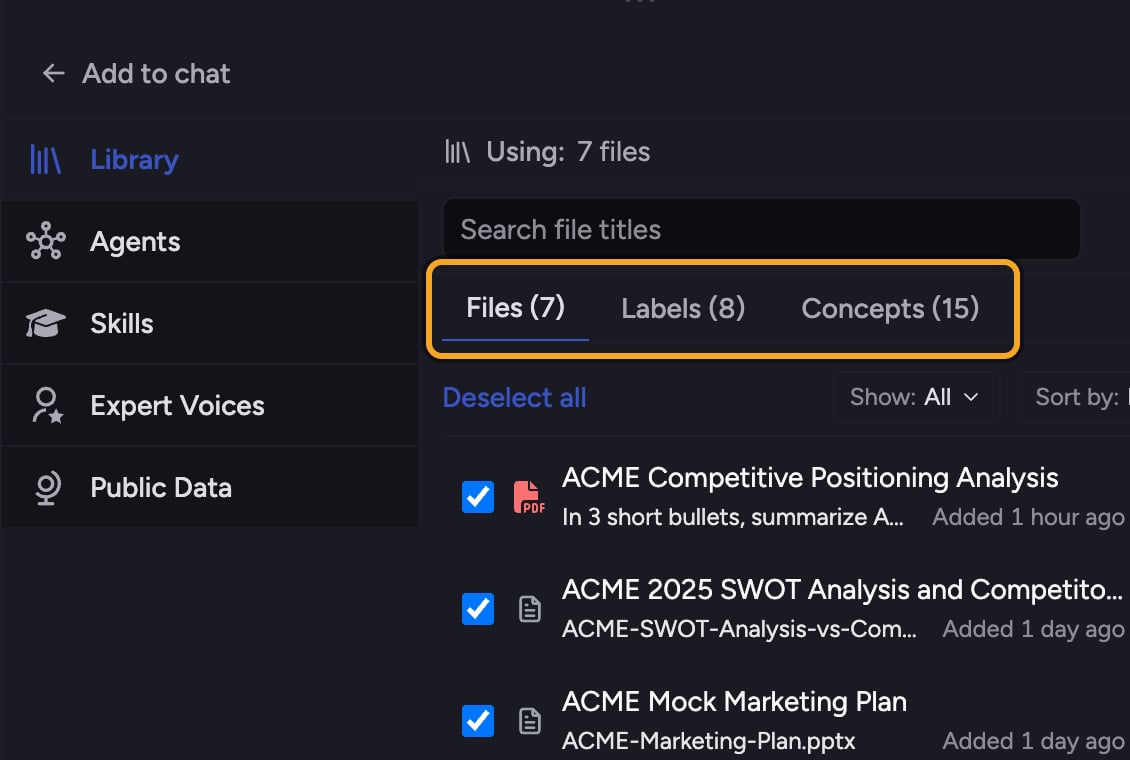 1. Click the **+** button at the left of the action bar. The command menu opens.
2. Choose **Add from Library**. A picker opens with tabs for library items, Labels, Collections, and Concepts.
3. Select the items you want. Each selection is added to the chat's scope and appears in the **Using:** chip.
4. Type your prompt and send. Chief answers using exactly what is in scope.
💡 **Good to know:** Add **Labels** — [several at once](/help/labels/bulk-labeling) — or **Collections** instead of picking files one by one. A Label or Collection brings in every file it covers, and stays current as files move in and out of it.
## Use your whole Library, or none of it
When the **Using:** chip shows the [Library](/help/your-knowledge-library/what-is-the-library) icon, Chief is drawing on every file in the Project. When it reads **None of my files**, Chief answers from the prompt and any [Public Data](/help/the-prompt-bar-scope/including-public-web-data-public-data) only.
## Clear the scope
1. Expand the **Using:** toolbar.
2. Click the **×** on the **Using:** chip. This removes all scoped files and knowledge and resets the chip to **None of my files**.
## FAQ
Scope set through the **Using:** toolbar is standing context for the chat. An [**@**-mention](/help/the-prompt-bar-scope/mentioning-files-labels-collections-concepts) pulls a specific item into a single prompt inline. Both feed the same answer — mentions merge into scope when you send.
Check that the files [finished processing](/help/your-knowledge-library/viewing-asset-details-file-processing-status) — a spinner on the **Using:** chip means work is still pending. Also confirm the files you expected are actually listed in the expanded toolbar and not removed — see [Chief can't see / isn't using my document](/help/troubleshooting/chief-cant-see-isnt-using-my-document) if it persists.
[Spreadsheets](/help/how-chief-works-magic-under-the-hood/how-chief-processes-spreadsheets) are counted separately and shown as their own count. The file count covers your other documents; the spreadsheet count is listed beside it.
1. Click the **+** button at the left of the action bar. The command menu opens.
2. Choose **Add from Library**. A picker opens with tabs for library items, Labels, Collections, and Concepts.
3. Select the items you want. Each selection is added to the chat's scope and appears in the **Using:** chip.
4. Type your prompt and send. Chief answers using exactly what is in scope.
💡 **Good to know:** Add **Labels** — [several at once](/help/labels/bulk-labeling) — or **Collections** instead of picking files one by one. A Label or Collection brings in every file it covers, and stays current as files move in and out of it.
## Use your whole Library, or none of it
When the **Using:** chip shows the [Library](/help/your-knowledge-library/what-is-the-library) icon, Chief is drawing on every file in the Project. When it reads **None of my files**, Chief answers from the prompt and any [Public Data](/help/the-prompt-bar-scope/including-public-web-data-public-data) only.
## Clear the scope
1. Expand the **Using:** toolbar.
2. Click the **×** on the **Using:** chip. This removes all scoped files and knowledge and resets the chip to **None of my files**.
## FAQ
Scope set through the **Using:** toolbar is standing context for the chat. An [**@**-mention](/help/the-prompt-bar-scope/mentioning-files-labels-collections-concepts) pulls a specific item into a single prompt inline. Both feed the same answer — mentions merge into scope when you send.
Check that the files [finished processing](/help/your-knowledge-library/viewing-asset-details-file-processing-status) — a spinner on the **Using:** chip means work is still pending. Also confirm the files you expected are actually listed in the expanded toolbar and not removed — see [Chief can't see / isn't using my document](/help/troubleshooting/chief-cant-see-isnt-using-my-document) if it persists.
[Spreadsheets](/help/how-chief-works-magic-under-the-hood/how-chief-processes-spreadsheets) are counted separately and shown as their own count. The file count covers your other documents; the spreadsheet count is listed beside it.