> ## Documentation Index
> Fetch the complete documentation index at: https://docs.chief.bot/llms.txt
> Use this file to discover all available pages before exploring further.
# Using # variable fields in a prompt
> Variable fields turn a prompt into a fill-in-the-blank template.
Variable fields turn a prompt into a fill-in-the-blank template. Instead of rewriting the same prompt with different details each time, you build it once with **#** variable fields and just fill in the blanks before sending.
## Where variable fields come from
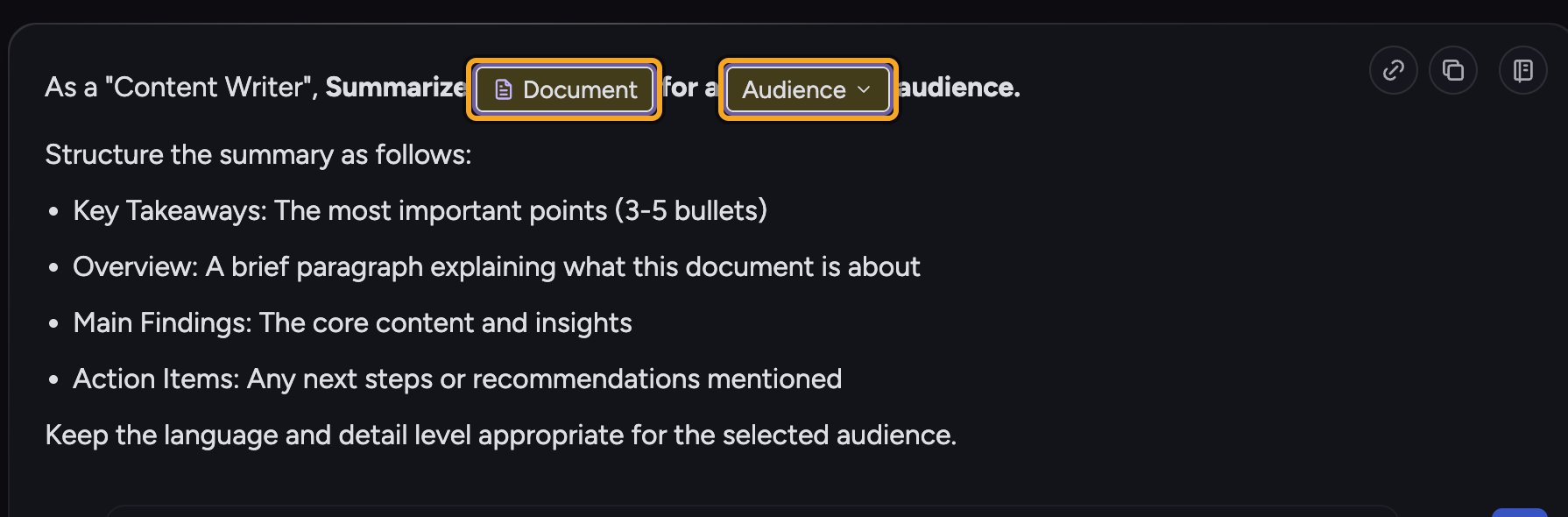 Variable fields live in **prompt templates** — the [saved prompts](/help/prompts-the-launchpad/saving-your-own-prompt-templates) and [launchpad prompts](/help/prompts-the-launchpad/what-is-the-launchpad) you open from your Library. When you open a template that has variables, each one appears in the prompt bar as an editable field waiting for your input.
💡 **Good to know:** You add variable fields when you *create* a prompt template in the [Prompt Library editor](/help/prompts-the-launchpad/searching-prompts-the-prompt-library) (type **#** there to add one). In a normal chat you fill them in rather than create them.
## Fill in a template's variable fields
Variable fields live in **prompt templates** — the [saved prompts](/help/prompts-the-launchpad/saving-your-own-prompt-templates) and [launchpad prompts](/help/prompts-the-launchpad/what-is-the-launchpad) you open from your Library. When you open a template that has variables, each one appears in the prompt bar as an editable field waiting for your input.
💡 **Good to know:** You add variable fields when you *create* a prompt template in the [Prompt Library editor](/help/prompts-the-launchpad/searching-prompts-the-prompt-library) (type **#** there to add one). In a normal chat you fill them in rather than create them.
## Fill in a template's variable fields
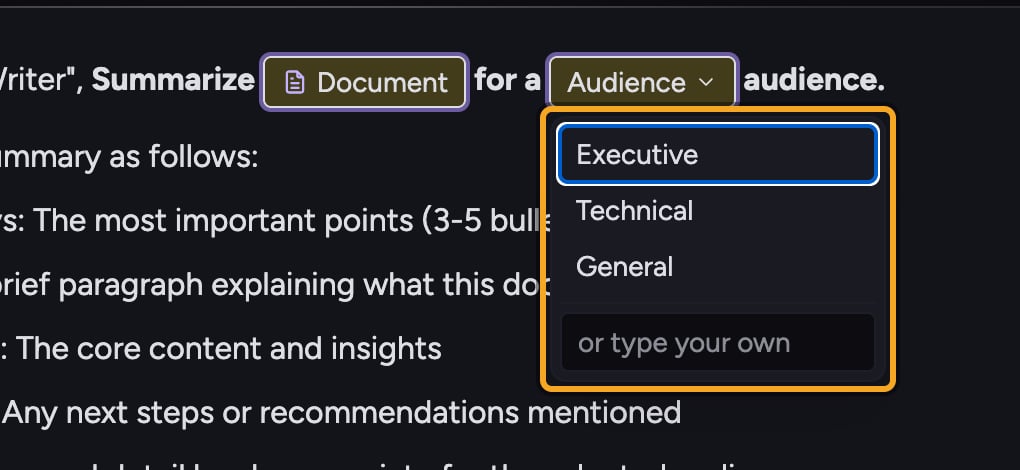 1. Open a saved or launchpad prompt that contains variables. Its text appears in the prompt bar with one editable field per variable.
2. Click a text or paragraph field and type your value.
3. For a dropdown field, click it and choose one of the listed options (or type your own where allowed).
4. For a file field, click it to pick a file from your [Library](/help/your-knowledge-library/what-is-the-library), or paste content directly.
5. For an audio field, record your input when prompted.
6. When every required field is filled, send the prompt as usual.
## The field types you'll see
* **Text Input** — a single-line value.
* **Paragraph Input** — a multi-line value for longer input.
* **File Picker** — select a file from your assets, or paste data in.
* **Dropdown** — choose from predefined options.
* **Record Audio** — [capture spoken input](/help/your-knowledge-library/recording-audio-directly-into-chief) for that field.
## FAQ
The **#** shortcut to add variable fields lives in the Prompt Library editor, where you build templates. In a chat you fill in the fields a template already defines.
A required field is probably still empty. Fields marked required must have a value; fill them in (or remove the field in the template editor and mark it optional) before sending.
Optional fields can be left blank or removed from the prompt. Use the field's remove control to drop it from this run.
1. Open a saved or launchpad prompt that contains variables. Its text appears in the prompt bar with one editable field per variable.
2. Click a text or paragraph field and type your value.
3. For a dropdown field, click it and choose one of the listed options (or type your own where allowed).
4. For a file field, click it to pick a file from your [Library](/help/your-knowledge-library/what-is-the-library), or paste content directly.
5. For an audio field, record your input when prompted.
6. When every required field is filled, send the prompt as usual.
## The field types you'll see
* **Text Input** — a single-line value.
* **Paragraph Input** — a multi-line value for longer input.
* **File Picker** — select a file from your assets, or paste data in.
* **Dropdown** — choose from predefined options.
* **Record Audio** — [capture spoken input](/help/your-knowledge-library/recording-audio-directly-into-chief) for that field.
## FAQ
The **#** shortcut to add variable fields lives in the Prompt Library editor, where you build templates. In a chat you fill in the fields a template already defines.
A required field is probably still empty. Fields marked required must have a value; fill them in (or remove the field in the template editor and mark it optional) before sending.
Optional fields can be left blank or removed from the prompt. Use the field's remove control to drop it from this run.