> ## Documentation Index
> Fetch the complete documentation index at: https://docs.chief.bot/llms.txt
> Use this file to discover all available pages before exploring further.
# Recording audio directly into Chief
> You can record audio directly in Chief — a meeting recap, a voice note, an idea — and save it straight to your Library.
## Record without leaving Chief
You can record audio directly in Chief — a [meeting](/help/meetings-live-sessions/what-are-live-sessions) recap, a voice note, an idea — and save it straight to your [Library](/help/your-knowledge-library/what-is-the-library). Once it [processes](/help/your-knowledge-library/file-size-limits-processing-stages), you can [chat with it like any other file](/help/your-knowledge-library/chatting-with-one-file-vs-many-files-together).
## Make a recording
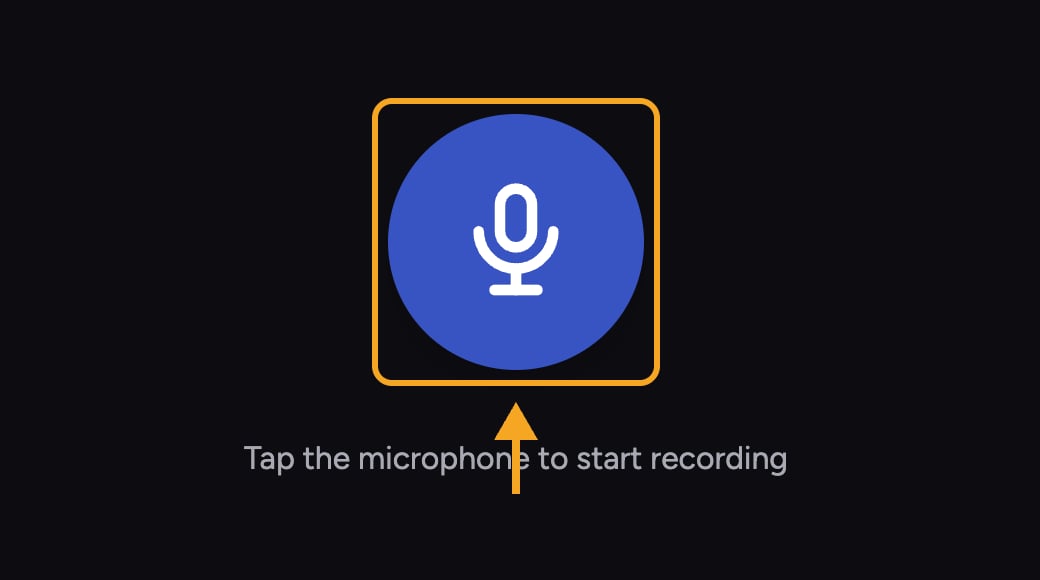 1. Open the **Record Audio** recorder in Chief.
2. Tap the microphone button to start. If your browser asks, allow microphone access.
3. The timer counts up as you record. Tap the button again to **pause**, and tap once more to **resume**.
4. When you are done, click **Finish**.
5. Preview the recording with the player. Click **Discard** to throw it away, or **Upload** to keep it.
6. In the **Name Your Recording** dialog, type a name (or leave it blank to use the default) and confirm to save it to your Library.
ℹ️ **Good to Know:** Leave the tab open while the recording uploads. Once saved, it processes like any other file before it is ready to chat with — you can [follow its processing status](/help/your-knowledge-library/viewing-asset-details-file-processing-status) in the file's details.
**Related articles:** [Uploading files and supported file types](/help/your-knowledge-library/uploading-files-supported-file-types) · [Viewing asset details and file processing status](/help/your-knowledge-library/viewing-asset-details-file-processing-status) · [What are Live Sessions?](/help/meetings-live-sessions/what-are-live-sessions)
## FAQ
Your browser blocked the microphone. Allow microphone access for Chief in your browser settings and try again.
Chief could not detect a microphone. Connect one, make sure it is selected as your input device, and try recording again.
No. A recording is only saved after you click **Finish** and then **Upload** and name it. If you close the tab, refresh, or click **Discard** before uploading, the recording is lost — so finish and upload before leaving the page.
1. Open the **Record Audio** recorder in Chief.
2. Tap the microphone button to start. If your browser asks, allow microphone access.
3. The timer counts up as you record. Tap the button again to **pause**, and tap once more to **resume**.
4. When you are done, click **Finish**.
5. Preview the recording with the player. Click **Discard** to throw it away, or **Upload** to keep it.
6. In the **Name Your Recording** dialog, type a name (or leave it blank to use the default) and confirm to save it to your Library.
ℹ️ **Good to Know:** Leave the tab open while the recording uploads. Once saved, it processes like any other file before it is ready to chat with — you can [follow its processing status](/help/your-knowledge-library/viewing-asset-details-file-processing-status) in the file's details.
**Related articles:** [Uploading files and supported file types](/help/your-knowledge-library/uploading-files-supported-file-types) · [Viewing asset details and file processing status](/help/your-knowledge-library/viewing-asset-details-file-processing-status) · [What are Live Sessions?](/help/meetings-live-sessions/what-are-live-sessions)
## FAQ
Your browser blocked the microphone. Allow microphone access for Chief in your browser settings and try again.
Chief could not detect a microphone. Connect one, make sure it is selected as your input device, and try recording again.
No. A recording is only saved after you click **Finish** and then **Upload** and name it. If you close the tab, refresh, or click **Discard** before uploading, the recording is lost — so finish and upload before leaving the page.