> ## Documentation Index
> Fetch the complete documentation index at: https://docs.chief.bot/llms.txt
> Use this file to discover all available pages before exploring further.
# Renaming, moving, copying & deleting files
> Every file in your Library has actions for renaming, moving, copying, downloading, and deleting.
## Manage a file
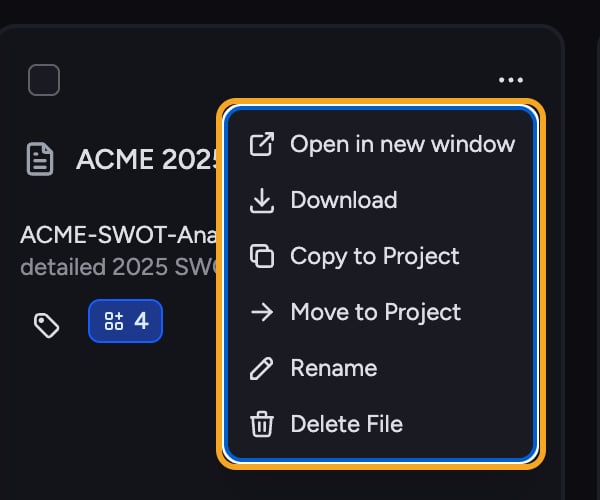 Every file in your [Library](/help/your-knowledge-library/what-is-the-library) has actions for renaming, moving, copying, downloading, and deleting. Open a file's menu to reach them.
## Rename a file
Every file in your [Library](/help/your-knowledge-library/what-is-the-library) has actions for renaming, moving, copying, downloading, and deleting. Open a file's menu to reach them.
## Rename a file
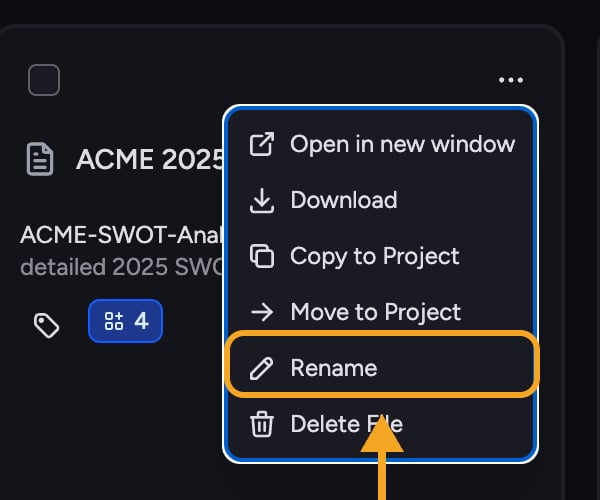 1. Open the file's menu and choose **Rename**.
2. In the **Rename File** dialog, edit the **Display name** field.
3. Click **Save**.
## Move a file to another project
1. Open the file's menu and choose **Rename**.
2. In the **Rename File** dialog, edit the **Display name** field.
3. Click **Save**.
## Move a file to another project
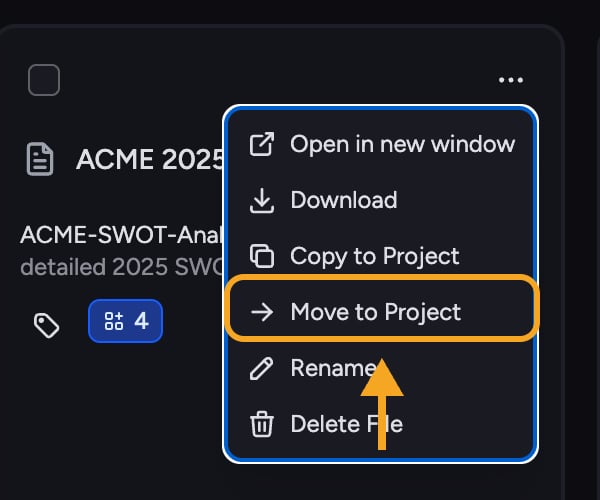 1. Open the menu and choose **Move to Project**.
2. Pick the destination [project](/help/projects-sharing-teams/what-is-a-project). You can keep the file's [Labels](/help/labels/tagging-files-filtering-by-label) with it using the label-transfer option.
3. Confirm. When it succeeds, choose to stay where you are or go to the destination project.
## Copy a file to another project
1. Open the menu and choose **Move to Project**.
2. Pick the destination [project](/help/projects-sharing-teams/what-is-a-project). You can keep the file's [Labels](/help/labels/tagging-files-filtering-by-label) with it using the label-transfer option.
3. Confirm. When it succeeds, choose to stay where you are or go to the destination project.
## Copy a file to another project
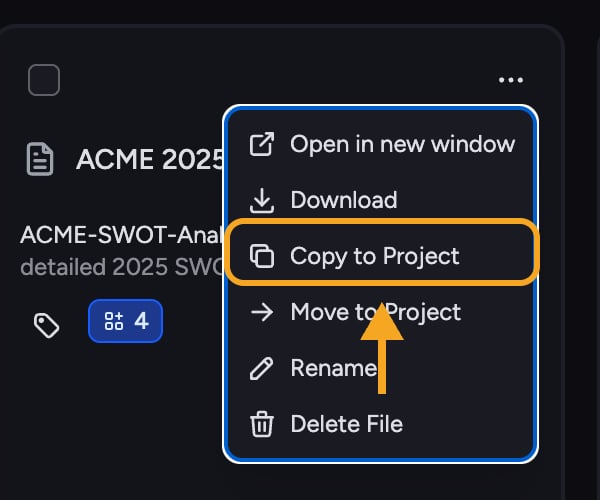 1. Open the menu and choose **Copy to Project**.
2. Pick the destination project and confirm. The original stays in place and a copy is added to the other project.
## Delete a file
1. Open the menu and choose **Copy to Project**.
2. Pick the destination project and confirm. The original stays in place and a copy is added to the other project.
## Delete a file
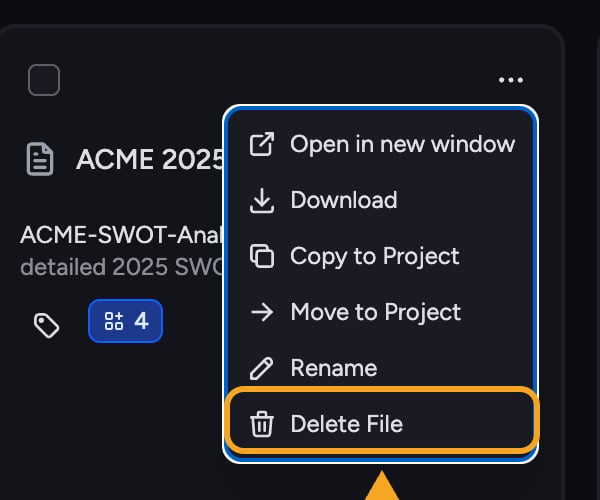 1. Open the menu and choose **Delete File**.
2. Confirm in the warning dialog. The file is removed from this project's Library.
⚠️ **Important:** Deleting a file is permanent and also removes it from any chats, Labels, [Collections](/help/collections/what-are-collections), and [Concepts](/help/concepts/what-are-concepts) that drew on it. **Rename** and **Download** are only available once a file finishes processing — if they're disabled, wait for processing to complete.
**Related articles:** [What is the Library?](/help/your-knowledge-library/what-is-the-library) · [Uploading files and supported file types](/help/your-knowledge-library/uploading-files-supported-file-types) · [Tagging files and filtering by Label](/help/labels/tagging-files-filtering-by-label)
## FAQ
You may not have permission to add files to the destination project. Contact that project's owner or administrator if you believe you should.
No. Moving relocates the file to the destination project. Use **Copy to Project** instead if you want it in both places.
Deleting removes the file from this project for good; there's no undo. To restore it, add it again — [re-upload the file](/help/your-knowledge-library/uploading-files-supported-file-types), [re-add the URL](/help/your-knowledge-library/adding-web-pages-urls-to-your-library), or copy it back from another project if you still have it there.
1. Open the menu and choose **Delete File**.
2. Confirm in the warning dialog. The file is removed from this project's Library.
⚠️ **Important:** Deleting a file is permanent and also removes it from any chats, Labels, [Collections](/help/collections/what-are-collections), and [Concepts](/help/concepts/what-are-concepts) that drew on it. **Rename** and **Download** are only available once a file finishes processing — if they're disabled, wait for processing to complete.
**Related articles:** [What is the Library?](/help/your-knowledge-library/what-is-the-library) · [Uploading files and supported file types](/help/your-knowledge-library/uploading-files-supported-file-types) · [Tagging files and filtering by Label](/help/labels/tagging-files-filtering-by-label)
## FAQ
You may not have permission to add files to the destination project. Contact that project's owner or administrator if you believe you should.
No. Moving relocates the file to the destination project. Use **Copy to Project** instead if you want it in both places.
Deleting removes the file from this project for good; there's no undo. To restore it, add it again — [re-upload the file](/help/your-knowledge-library/uploading-files-supported-file-types), [re-add the URL](/help/your-knowledge-library/adding-web-pages-urls-to-your-library), or copy it back from another project if you still have it there.