> ## Documentation Index
> Fetch the complete documentation index at: https://docs.chief.bot/llms.txt
> Use this file to discover all available pages before exploring further.
# Viewing asset details & file processing status
> Every file in your Library has a detail view that shows its name, a preview where available, the Labels applied to it, the Concepts Chief found in it, and its current processing status.
## Open a file's details
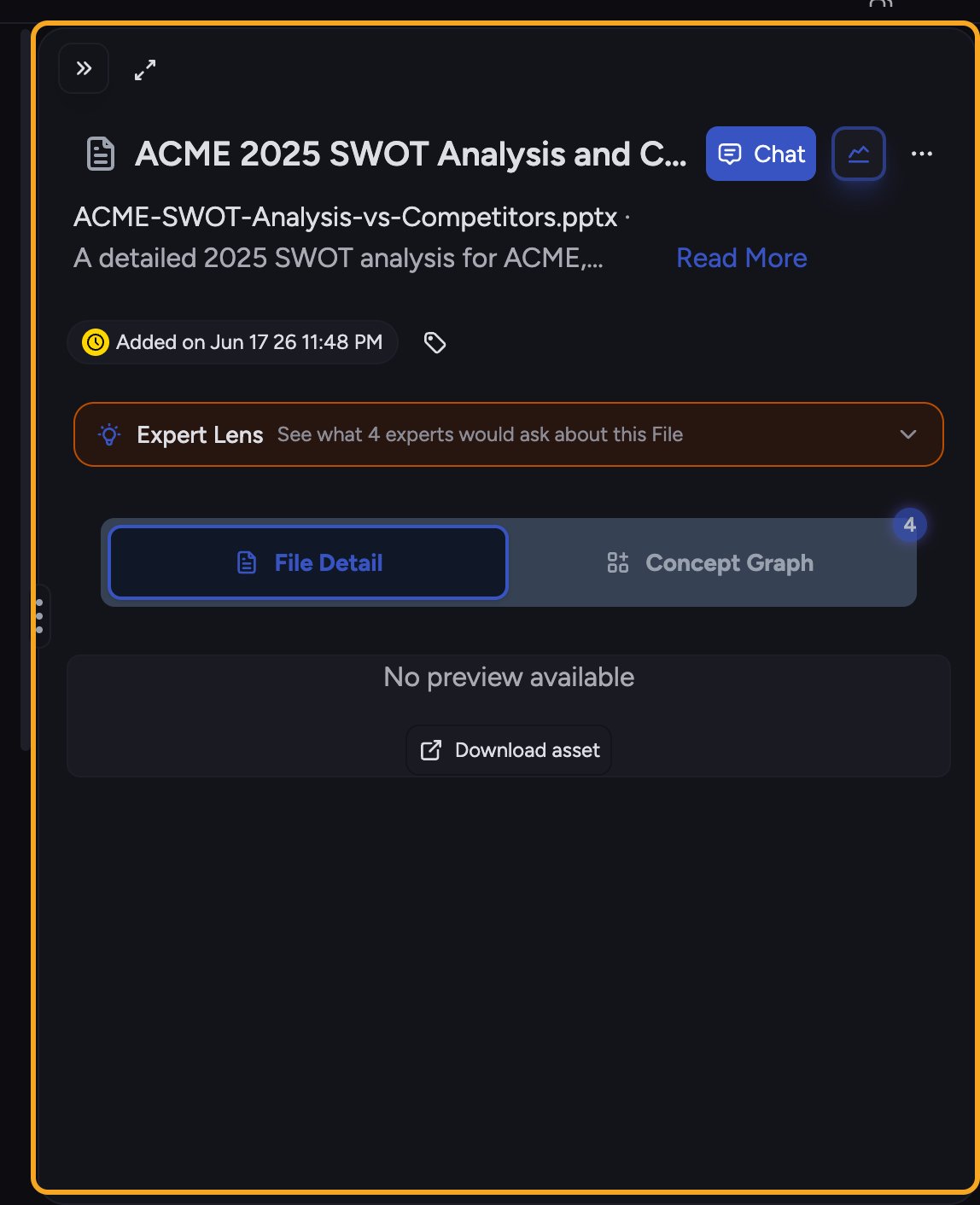 Every file in your [Library](/help/your-knowledge-library/what-is-the-library) has a detail view that shows its name, a preview where available, the [Labels](/help/labels/tagging-files-filtering-by-label) applied to it, the [Concepts](/help/concepts/what-are-concepts) Chief found in it, and its current processing status.
1. In your Library, click the file you want to inspect.
2. The detail view opens, showing the file name and icon at the top.
3. Review the status and any Labels and Concepts. Use the **Chat with this File** control to [start a chat scoped to just this file](/help/your-knowledge-library/chatting-with-one-file-vs-many-files-together).
4. Switch between the **File Detail** tab (the default) and the **Concept Graph** tab to see how the Concepts in this file connect to each other.
5. To return, click the back control at the top, or press **Esc**.
## Reading the processing status
Every file in your [Library](/help/your-knowledge-library/what-is-the-library) has a detail view that shows its name, a preview where available, the [Labels](/help/labels/tagging-files-filtering-by-label) applied to it, the [Concepts](/help/concepts/what-are-concepts) Chief found in it, and its current processing status.
1. In your Library, click the file you want to inspect.
2. The detail view opens, showing the file name and icon at the top.
3. Review the status and any Labels and Concepts. Use the **Chat with this File** control to [start a chat scoped to just this file](/help/your-knowledge-library/chatting-with-one-file-vs-many-files-together).
4. Switch between the **File Detail** tab (the default) and the **Concept Graph** tab to see how the Concepts in this file connect to each other.
5. To return, click the back control at the top, or press **Esc**.
## Reading the processing status
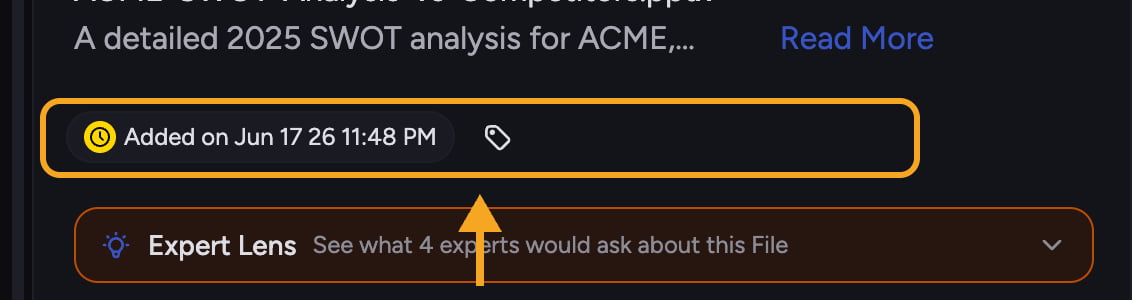 The status tells you exactly where the file is in [the processing stages](/help/your-knowledge-library/file-size-limits-processing-stages):
* **Queued for upload** / **In queue for processing** — waiting to start.
* **Processing your file…** — Chief is reading it.
* **Ready for simple chats with just this file** — usable on its own.
* **Ready for complex chats…** — fully ready, usable alongside [your whole Library](/help/your-knowledge-library/how-chief-uses-your-files-to-answer-questions).
* **Insufficient credits** or an error — the file could not be processed.
⚠️ **Important:** **Rename** and **Download** are only available once processing is complete. While a file is still processing, those actions are disabled.
**Related articles:** [File size limits and processing stages](/help/your-knowledge-library/file-size-limits-processing-stages) · [Uploading files and supported file types](/help/your-knowledge-library/uploading-files-supported-file-types) · [My file won't process or isn't ready](/help/troubleshooting/my-file-wont-process-or-isnt-ready) · [Renaming, moving, copying and deleting files](/help/your-knowledge-library/renaming-moving-copying-deleting-files)
## FAQ
Processing this file requires credits your account did not have. Top up your credits, then use the try-again action on the file to reprocess it.
Those actions unlock when processing finishes. Wait for the file to reach a ready state and the controls will become available.
A file becomes usable in a chat about that single file as soon as its first processing pass finishes. The deeper "complex" stage is what lets Chief combine it with the rest of your Library in one answer. If you want to use it alongside other files, wait for the "ready for complex chats" status.
The status tells you exactly where the file is in [the processing stages](/help/your-knowledge-library/file-size-limits-processing-stages):
* **Queued for upload** / **In queue for processing** — waiting to start.
* **Processing your file…** — Chief is reading it.
* **Ready for simple chats with just this file** — usable on its own.
* **Ready for complex chats…** — fully ready, usable alongside [your whole Library](/help/your-knowledge-library/how-chief-uses-your-files-to-answer-questions).
* **Insufficient credits** or an error — the file could not be processed.
⚠️ **Important:** **Rename** and **Download** are only available once processing is complete. While a file is still processing, those actions are disabled.
**Related articles:** [File size limits and processing stages](/help/your-knowledge-library/file-size-limits-processing-stages) · [Uploading files and supported file types](/help/your-knowledge-library/uploading-files-supported-file-types) · [My file won't process or isn't ready](/help/troubleshooting/my-file-wont-process-or-isnt-ready) · [Renaming, moving, copying and deleting files](/help/your-knowledge-library/renaming-moving-copying-deleting-files)
## FAQ
Processing this file requires credits your account did not have. Top up your credits, then use the try-again action on the file to reprocess it.
Those actions unlock when processing finishes. Wait for the file to reach a ready state and the controls will become available.
A file becomes usable in a chat about that single file as soon as its first processing pass finishes. The deeper "complex" stage is what lets Chief combine it with the rest of your Library in one answer. If you want to use it alongside other files, wait for the "ready for complex chats" status.