

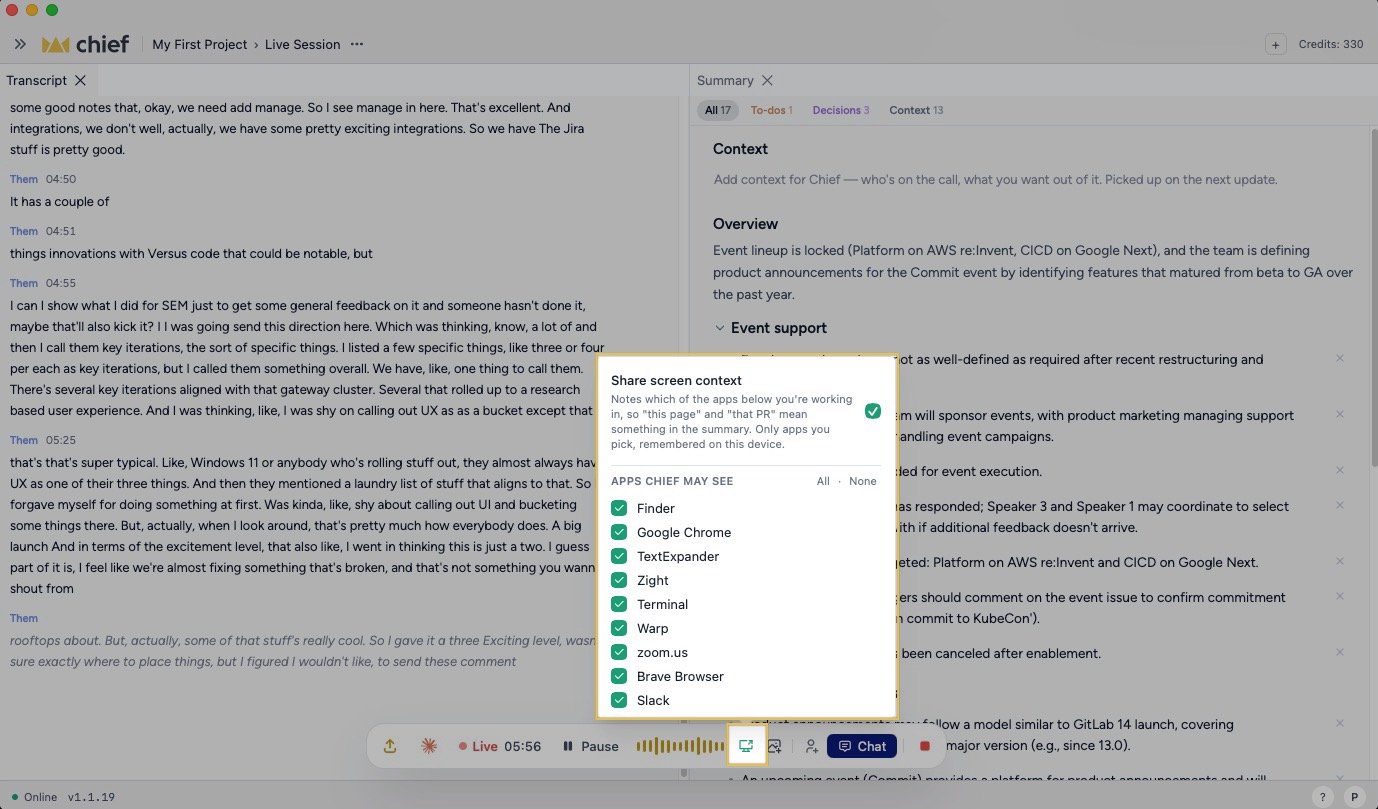
Turn on screen context
- Start a Live Session as the host.
- Click the Share screen context screen icon in the session controls.
- Turn on Give Chief More Context About What You’re Discussing.
- Under Apps Chief may see, select each running app you want Chief to use. Click All to select every listed app or None to clear the list.
- On macOS, if you use more than one display, use Screen to choose Any screen or a specific display. Windows does not show a screen picker. Chief shows Now reading, Last read, or Nothing read yet so you can check the current state.
ℹ️ Good to Know: Screen context is separate from adding screenshots to the transcript. It notes app activity and, with optional permission, window titles or pages. Use a screenshot when the exact visual matters.
Include window titles and pages
On macOS, Chief can note selected app names without Accessibility permission. To add window titles and page information:- Open Share screen context.
- Click Grant beside the Accessibility message.
- Approve the request in macOS. If you previously denied access, Grant opens System Settings so you can allow Chief there.
Review or remove captured context
Open Share screen context and look under Captured this session. Chief groups captured events by app and shows the event count. Click Remove beside an app to remove its captured events from the session. Captured context follows its time in the session. It is included alongside transcript text and images when you send the Live Session to an AI agent.FAQ
Does Chief see every app on my screen?
Does Chief see every app on my screen?
No. Chief records events only from apps you select under Apps Chief may see. If no running apps appear, close and reopen the control after starting the apps you want to select.
Why does Chief show only an app name?
Why does Chief show only an app name?
On macOS, grant the optional Accessibility permission if you want Chief to include window titles and pages. Windows has no corresponding permission: Chief reads the foreground allowed app’s title and, for Chrome, Edge, or Brave, its HTTP or HTTPS page URL.