

Say it. Chief captures it.
Chief is your AI Chief of Staff. Bring your meetings, documents and files, and links; Chief captures and organizes them into searchable knowledge, then helps you turn what you know into clear next steps. You do not have to keep re-explaining your business or rewrite every meeting by hand. This tab is for the Chief Web App: organizing Projects, searching your Library, and working with tasks and meeting results. Use the Live Sessions tab when you want to capture a meeting or collaborate in the Live Sessions app.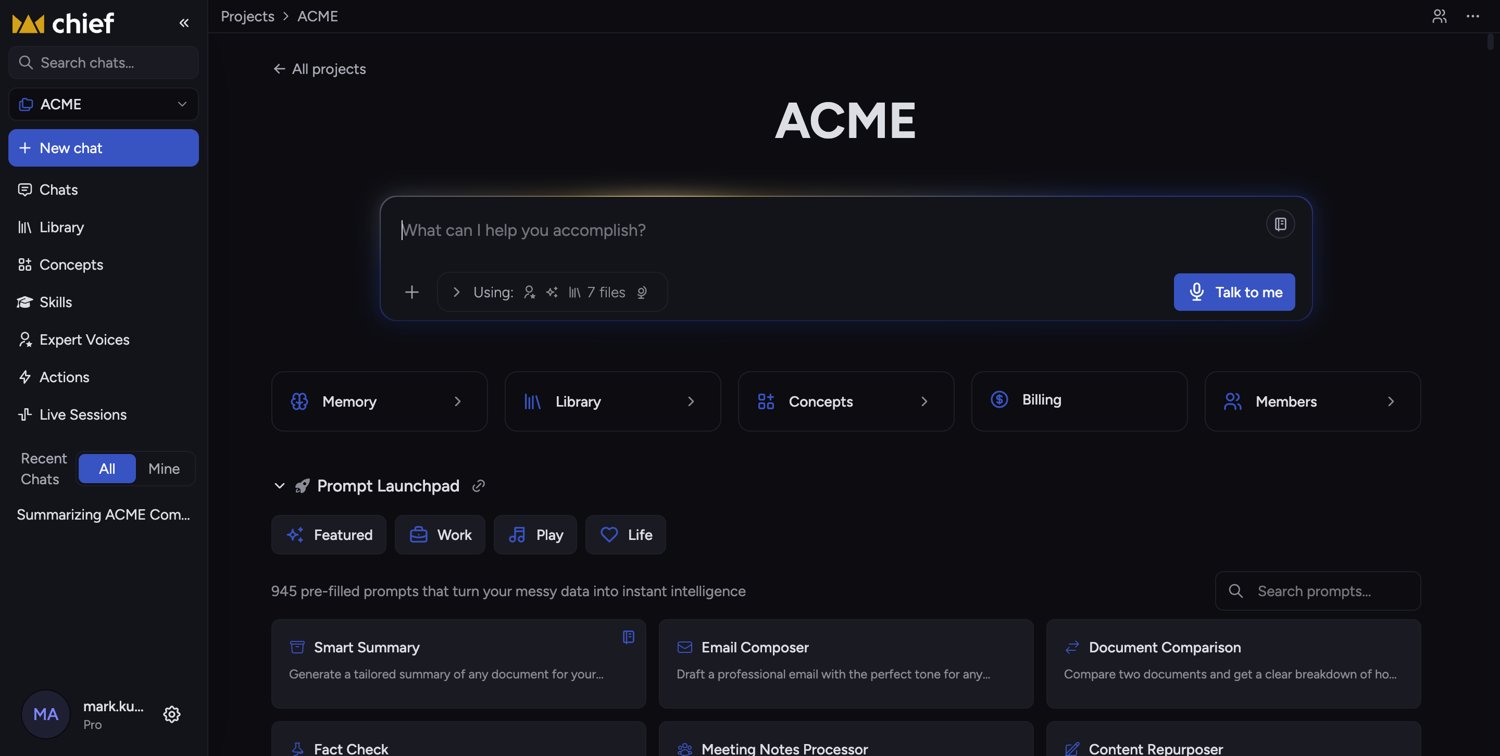
What you can do with Chief
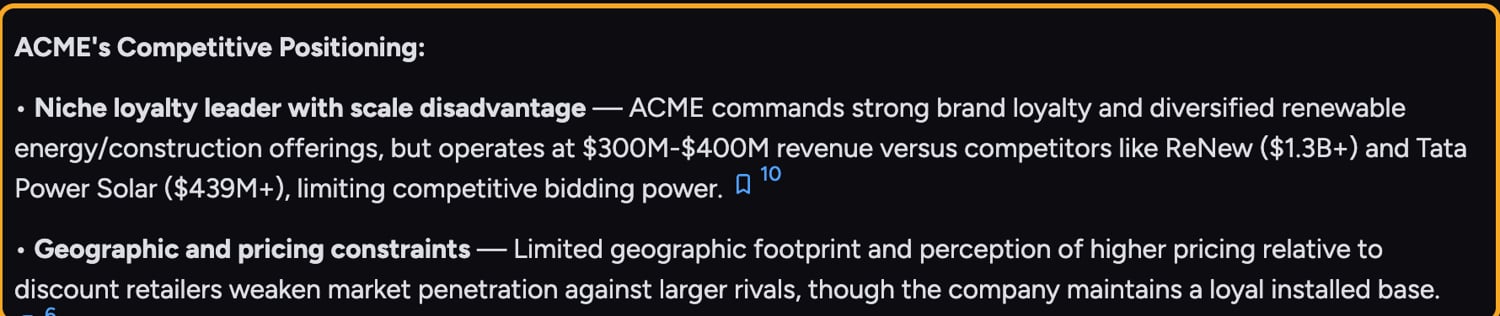
- Work with your data. Ask anything and get answers grounded in the files you’ve uploaded, not generic guesses.
- Organize work in Projects. Group files, tasks, and teammates into a shared workspace.
- Add a Library of Files. Upload documents, data, and other files to reference in your tasks.
- Choose how Chief thinks. Pick an intelligence level — Auto, Fast, Expert, or Deep Intelligence — to trade speed for depth.
- Customize responses with Expert Voices and Skills. Make Chief respond as a subject-matter expert or invoke a specific ability.
- Reach Chief from your own stack. Everything above is also available outside the app — from an AI coding agent, your own application, or a shell script. See Build on Chief.
Good to Know: Chief works across web, a desktop app, and a browser extension — so you can capture and ask about information wherever you are.
FAQ
Do I have to upload files before I can use Chief?
Do I have to upload files before I can use Chief?
No. You can start a conversation right away. Uploading files (your Library) makes answers more specific to your own data, but it’s optional for general questions.
Has the product been renamed?
Has the product been renamed?
Yes — the product is now called Chief. If you set things up under an earlier name, everything is still here; you may still see the older name in a few places we’re updating.
What if Chief gives an answer that looks wrong or incomplete?
What if Chief gives an answer that looks wrong or incomplete?
Re-run the prompt or rephrase it, and make sure the relevant files are included in the task. If an answer comes back incomplete, you can re-run it; if it keeps happening, use Get Help to reach support.