

Use a suggested prompt
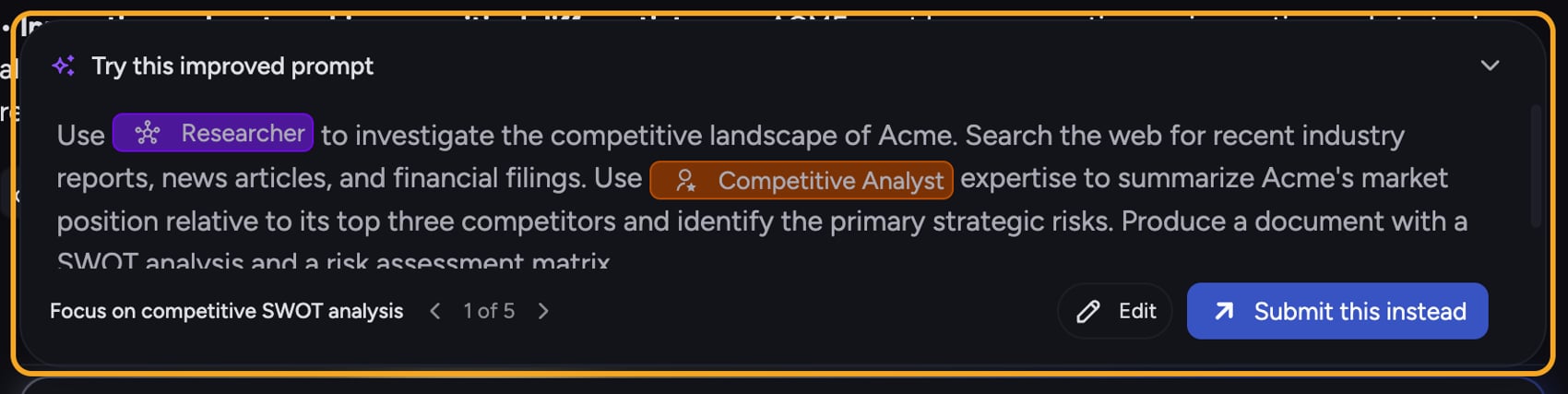
- Type a prompt of at least three words, then pause. Chief can show up to three rewrites after it has enough context. Select Improve this to request rewrites immediately. For questions suggested from your knowledge instead, see Expert Lens.
- Select an Improved prompt row to open and review that rewrite.
- Click Edit to put the rewrite in the composer, or Submit this instead to send it immediately.
Choose which suggestions appear
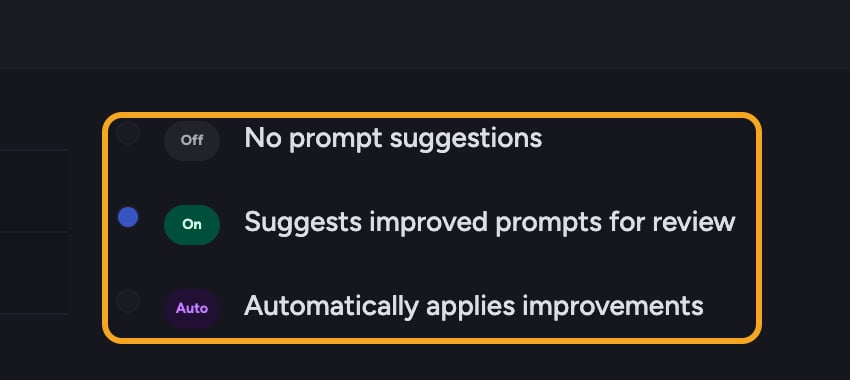
- In the prompt bar, click + and choose Prompt Suggestions under Configure. You can also select the sliders icon on the suggestion strip.
- Turn each source on or off independently:
- Autocomplete — finishes your prompt as you type. If your plan does not include it, the row stays visible with an Upgrade to Pro badge and opens the pricing page instead of switching on.
- Improved prompts — rewrites your draft and offers it for review.
- If you dismissed the suggestion strip, select the wand icon at the top right of the composer to show it again.
Good to Know: Chief does not auto-apply rewrites. You decide whether to edit or submit each improved prompt.
FAQ
Why aren't any suggestions showing up?
Why aren't any suggestions showing up?
Suggestions need at least three words to work from. Open + → Prompt Suggestions (under Configure) and confirm the source you want is switched on. If Autocomplete shows an Upgrade to Pro badge, it is not included in your current plan. Rewrites are also skipped when your prompt contains template variables, such as #{text:name}.
Will Chief replace my draft automatically?
Will Chief replace my draft automatically?
No. An improved prompt opens for review. Click Edit to place it in the composer or Submit this instead to send it. Use Revert if you want to restore your earlier draft after editing.
Does using a suggestion cost extra?
Does using a suggestion cost extra?
Improving a prompt is a small, separate step Chief runs as you type. You’re billed for the prompt you actually send, the same as any other prompt.