

Check your personal balance and usage
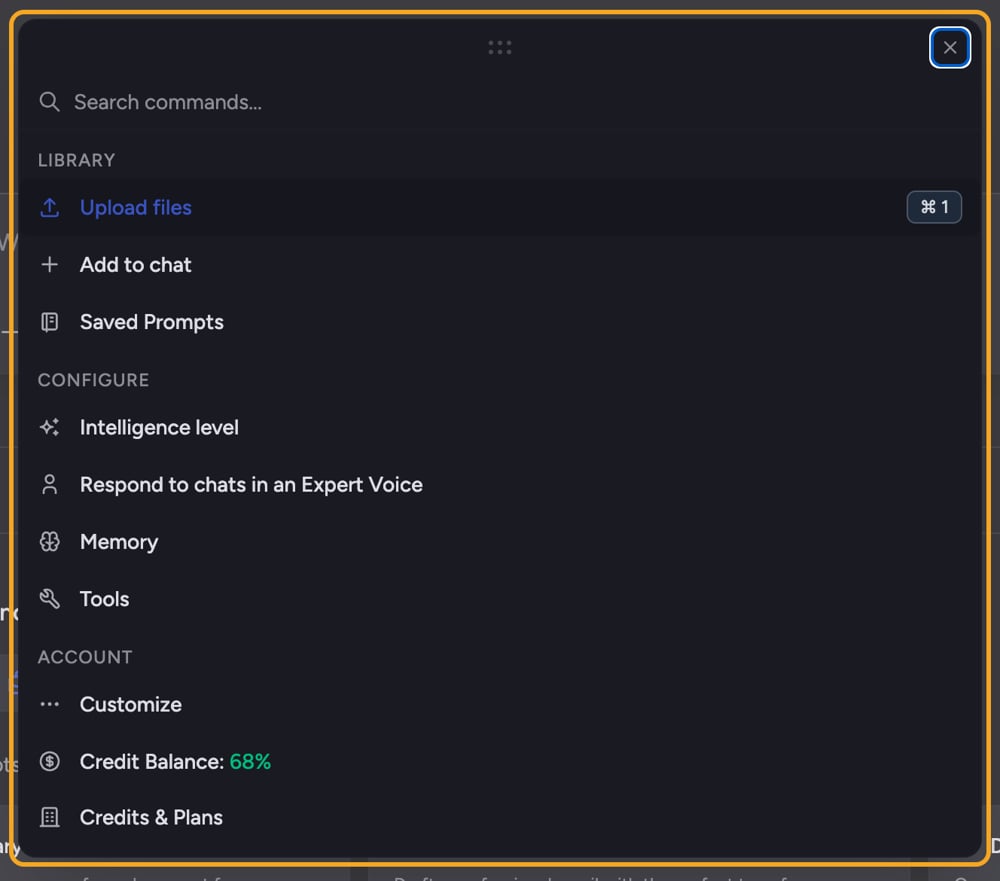
- Open the Command Center with the + button in the prompt bar or ⌘K / Ctrl+K.
- Select Credits & Plans, then read the Your plan card. It shows your current plan and the number of credits available.
- If you own an Organization, choose Billing from the account menu for its detailed balance. Three tiles sit at the top of the page: Plan shows the Organization’s plan, Balance shows its credits available, and Used this month shows the percentage used with a progress bar.
- Select View credit usage on the Used this month tile to open the Organization’s full Usage report.
ℹ️ Good to know: On the Organization Billing page, the Used this month bar is a quick health signal — green means you have plenty (65%+ remaining), amber means you’re getting low (21–64%), and red means you’re nearly out (20% or less).
Check a project’s balance
When you work inside a project, the credits may come from a different balance than your personal one — for example, the organization that pays for the project.- Open the project, then open its Billing tab.
- Read the Balance field for that project’s available credits, and the Plan type field for the plan funding it.
- If the project is paid for by someone else, you’ll see who it’s Powered by or Billed to, and a “Different from your personal plan” note when it doesn’t match your own plan.
FAQ
The Your plan card shows no balance — why?
The Your plan card shows no balance — why?
The credit balance only appears once billing data has loaded. Give it a moment, or refresh. If you’re signed out or browsing as a guest, sign in first.
My project balance looks different from my personal balance — is that a bug?
My project balance looks different from my personal balance — is that a bug?
No. Projects can be funded by a different plan than your own. The amount shown on a project’s Billing tab is that project’s balance, which may belong to the organization paying for it — not your personal credits. See “Personal vs. organization billing” for how this works.
I see a "Refill Soon" or "Refill Now" warning. What does it mean?
I see a "Refill Soon" or "Refill Now" warning. What does it mean?
It means your remaining credits are at or below 20%. The warning reads “Refill Soon: Almost out of credits” while some credits remain, and “Refill Now to keep using Chief” once you’re out. In the Command Center it’s red and opens the pricing page. On the Organization Billing page it’s amber and jumps to Buy credits. Refill before you run out.