

Edit a prompt you sent
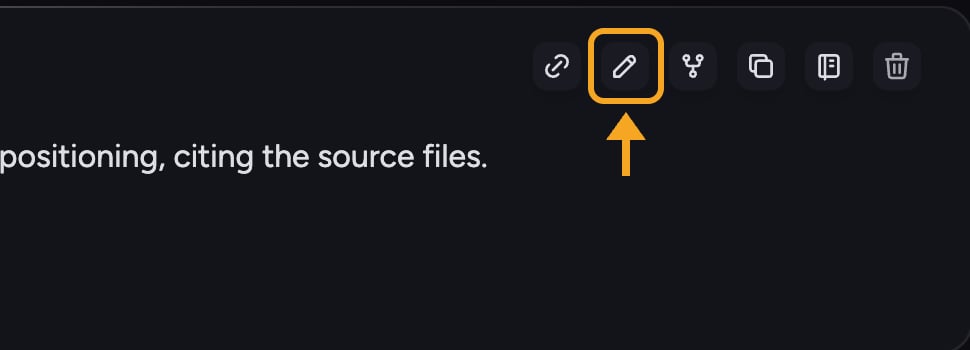
- Hover over your prompt to show the action row.
- Click the Edit message (pencil) button.
- Change the text, then submit. On tasks that support branching, this starts a new branch so your original prompt and answer are kept.
Good to Know: The Edit message button only appears on prompts you sent, on branching-enabled tasks, and once the response has finished generating.
Copy a message to your clipboard
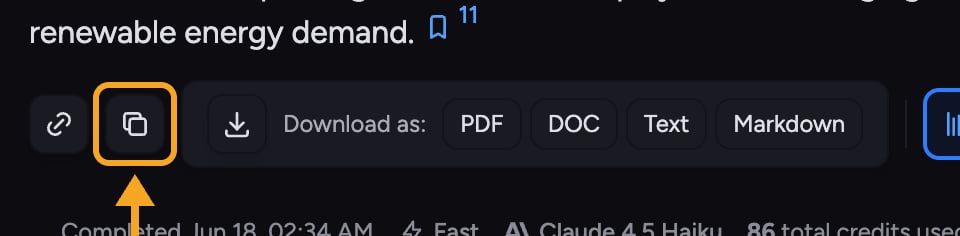
- Hover over the prompt or answer you want to copy.
- Click the Copy button (copy icon).
- The icon flips to a checkmark when the text is on your clipboard.
Download an answer

- Hover over the answer and click the Download button (down-arrow icon).
- The button expands to show Download as: with format buttons.
- Choose PDF, DOC, Text, or Markdown. If the answer contains a table, an XLS option also appears.
- Your browser downloads the file. The filename is based on the answer’s first heading or your prompt.
FAQ
The PDF download failed. What now?
The PDF download failed. What now?
PDF export runs on Chief’s servers and needs an active session. If you see a Failed label on the PDF button, reload the page so your session refreshes, then try again. DOC, Text, and Markdown are generated in your browser and will still work if PDF is having trouble.
Will copying an answer keep its formatting?
Will copying an answer keep its formatting?
The plain Copy action copies text. Use Copy as Markdown when you want to preserve headings, bold, lists, and tables for pasting into another tool.