

Deliver every run to an inbox
Email delivers an Action’s results straight to people’s inboxes. When you turn it on, Chief emails the run’s output to your recipients each time the Action completes.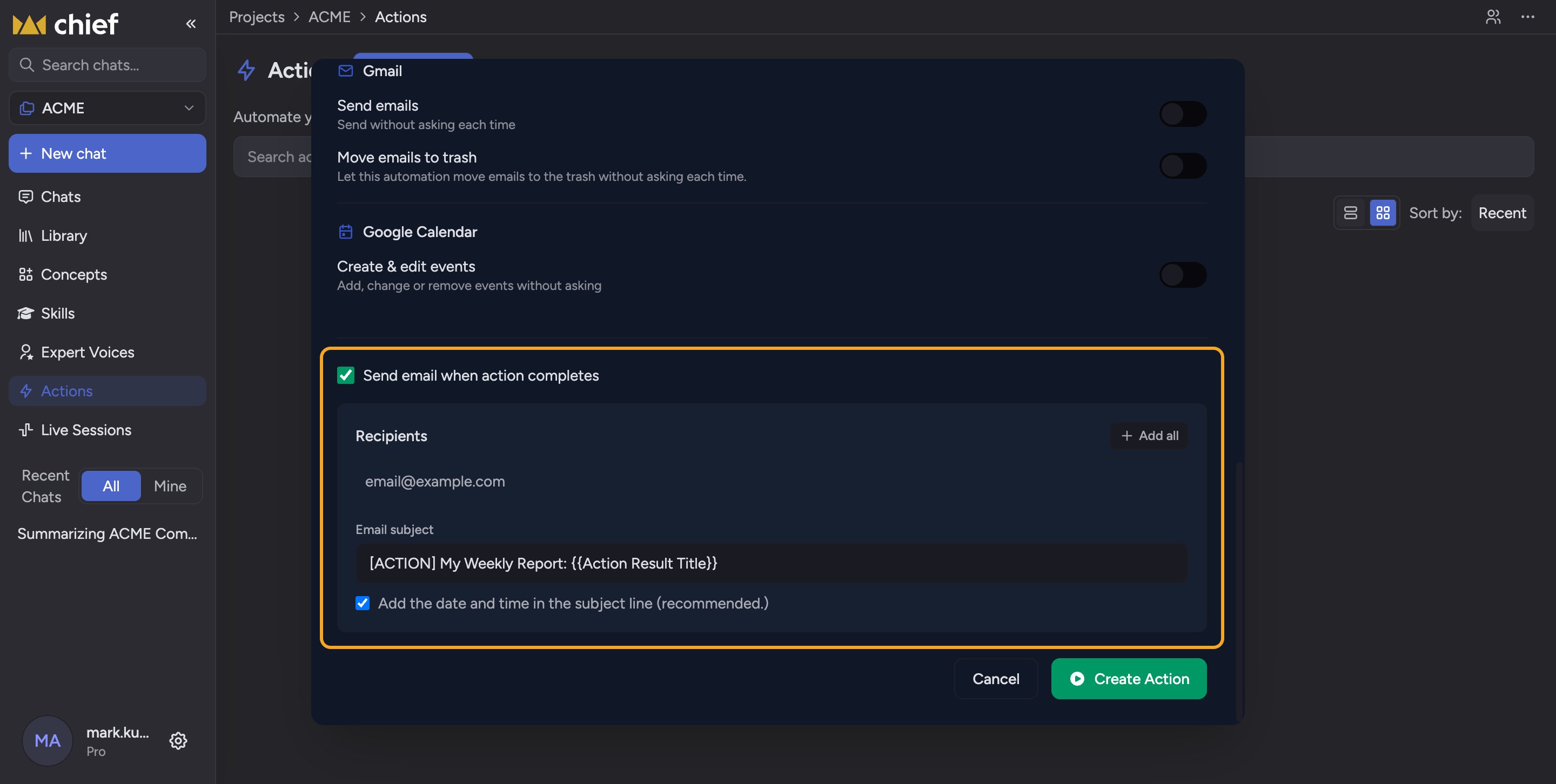
- In the create or edit dialog, check Send email when action completes. The email settings box appears.
- In the Recipients box, type an email address and select a previously used recipient when Chief suggests one, or finish typing and press Enter. Use Add all to add everyone in the Project at once, or Remove all to clear the list. You can add up to 10 recipients.
- In the Email subject field, type the subject line. To include each run’s title, insert the token {{Action Result Title}} — click the suggested code chip to copy it.
- Optionally check Add the date and time in the subject line so each email’s subject is unique.
FAQ
Can I send Action results to Slack or by SMS?
Can I send Action results to Slack or by SMS?
Slack, yes; SMS, no. If your Project has a Slack channel connected to it, the Output section shows Post each run to Slack. Check it and pick a Channel. Each run posts a new message, and replying in that message’s thread continues the chat. You can also save each run to your Library as a file, or connect a custom MCP server as a destination.
A recipient says they stopped getting the emails — why?
A recipient says they stopped getting the emails — why?
They likely unsubscribed. Open the Action’s editor and look at Recipient status under the recipients box: anyone marked Unsubscribed will not receive emails. If it is your own address, click Resubscribe.
Why is the {{Action Result Title}} text showing literally in my subject?
Why is the {{Action Result Title}} text showing literally in my subject?
The token must be typed exactly, including both pairs of braces. Copy it from the suggested chip rather than retyping to avoid typos.