

What it does
Highlight any passage in an answer and Chief offers a menu of things to do with exactly that text — copy it, task about it, cite its sources, fact-check it, explain it more simply, rewrite it, translate it, and more. It turns a single sentence into the starting point for your next move.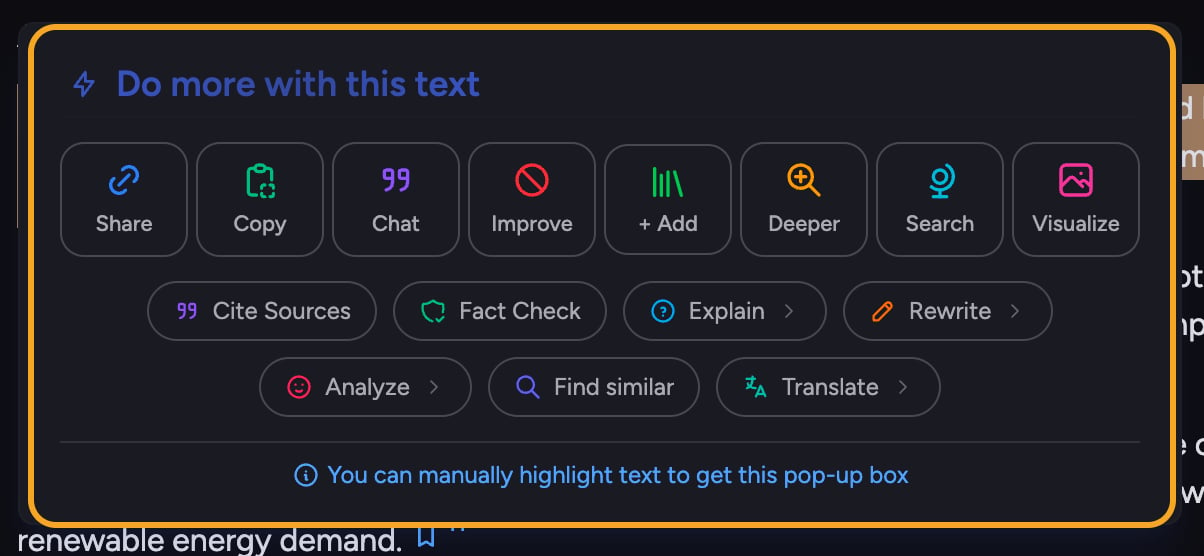
Open the menu
- In any answer, highlight the text you want to work with by dragging across it.
- The Do more with this text menu pops up next to your selection.
- Click an action. The menu closes and Chief runs it on the highlighted text.
The everyday actions
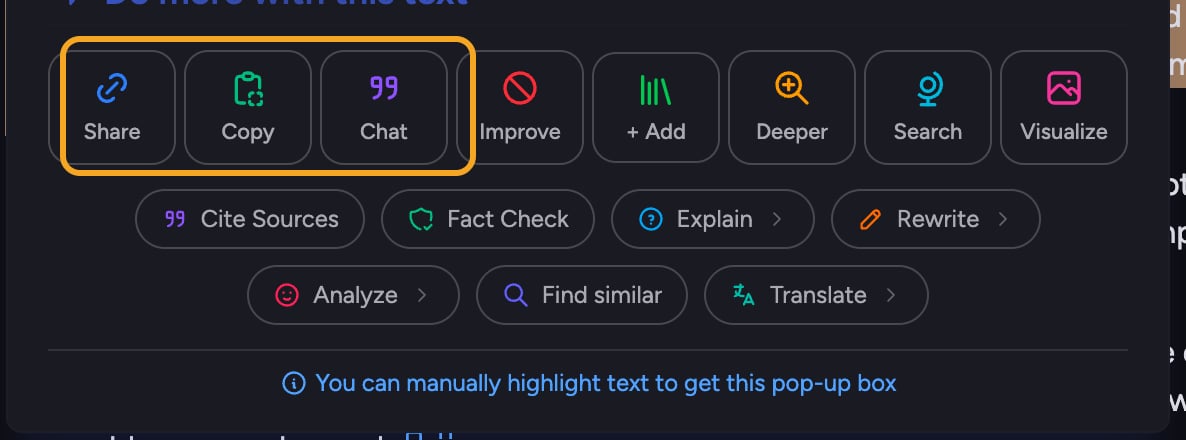
- Share — copies a link that scrolls straight to this passage.
- Copy — copies the selected text to your clipboard.
- Task — drops the passage into the prompt bar as a quote so you can ask about it.
The deeper actions
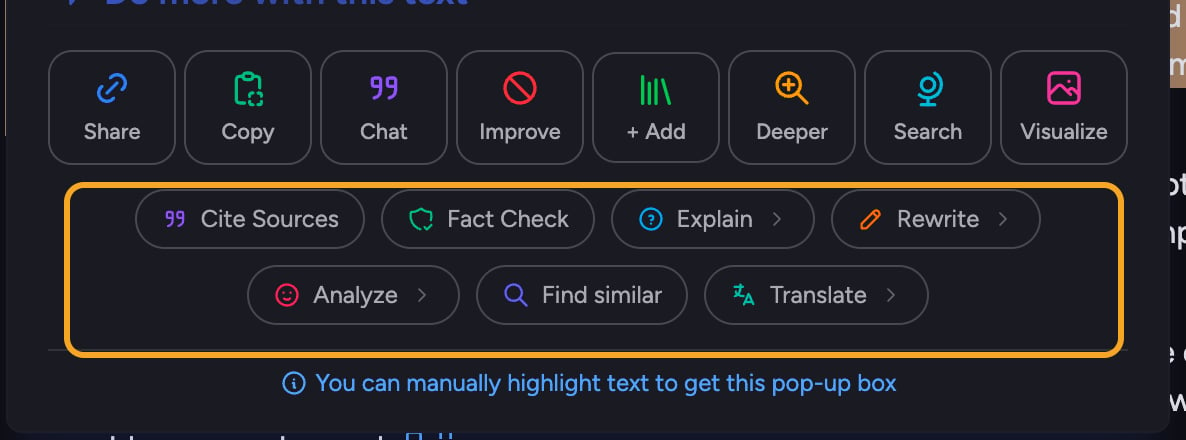
- Cite Sources — asks Chief to show exactly where the text came from.
- Fact Check — runs the built-in Fact Check Skill on the passage. If you disabled that Skill on the Skills page, the action still runs but does not invoke the Skill.
- Explain — a submenu to explain it simply (like you’re five, in middle school, in high school) or “why does this matter?”
- Rewrite — a submenu for brevity, an executive audience, more or less technical, or even a chosen personality type.
- Analyze — a submenu for feelings, unmet needs, what’s under the surface, and more.
- Find similar — searches your Library and the web for related content.
- Translate — a submenu to translate the passage into any supported language.
FAQ
Some actions are greyed out. How do I unlock them?
Some actions are greyed out. How do I unlock them?
Improve, + Add, Deeper, Search, and Visualize require Advanced Mode. Switch to Advanced from your user menu — the menu even shows a “Switch to Advanced mode” prompt — and the greyed-out actions become available.