

The three visibility levels
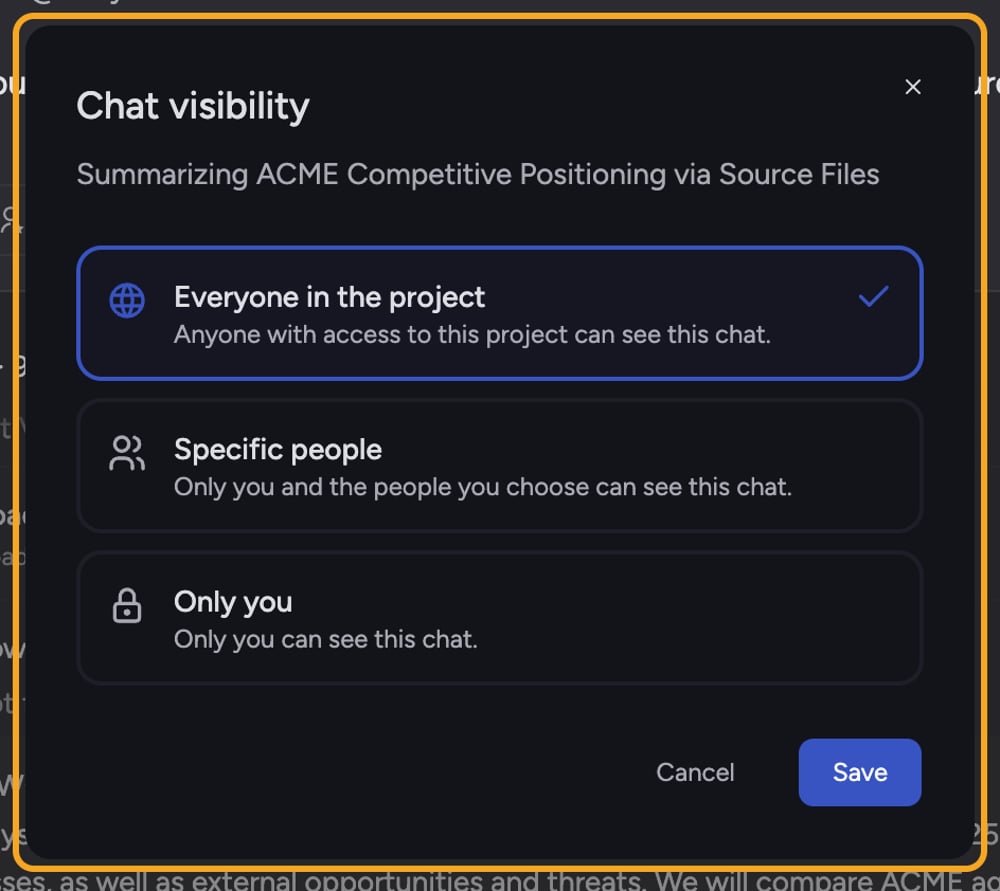
- Only you (Private) — Only you can see the task. Other Project members, including Project and Organization Owners, cannot open it unless you raise its visibility.
- Everyone in the project (Project) — Anyone with access to this Project can see the task. This is the default for most tasks.
- Specific people (Restricted) — Only you and the people you choose can see the task. You pick named Project members one by one.
How to change a task’s visibility
As an Owner, you can change the visibility of a task you can open. As a Collaborator, you can change it only on a task you created. Readers and Collaborators viewing someone else’s task see a static visibility badge instead.- Open the task you want to change.
- Select the visibility badge next to the task title. On screen, the badge shows Private, Project, or Restricted. You can also open the ⋯ menu and select Change visibility. The Task visibility dialog opens.
- In the dialog, select one of the three options: Only you, Everyone in the project, or Specific people.
- If you choose Specific people, a Share with specific people list of Project members appears below. Select each person who should have access; a checkmark marks the people you have chosen.
- Select Save. The dialog confirms with “Saving…” and then closes. The visibility badge updates to the new level.
Visibility vs. secret links
Visibility controls who inside your Project or Organization can open the task. It does not create a public link. To let someone outside the Project view a read-only copy, create a secret link instead.FAQ
Can a Project owner read my Private tasks?
Can a Project owner read my Private tasks?
No. A Private task is visible only to the person who created it. Project and Organization Owners cannot open someone else’s Private task. To give someone access, switch the task to Restricted and select them, or raise its visibility to Project.
Can an Owner create a secret link for my Private task?
Can an Owner create a secret link for my Private task?
No. An Owner can create or revoke a public secret link only for a task they can open. Because someone else’s Private task is not visible to them, they cannot manage its secret link. Anyone who can open a task and activate its secret link should treat that link carefully: anyone with it can read the full task without signing in or joining the Project.
What happens to people I removed when I lower a task's visibility?
What happens to people I removed when I lower a task's visibility?
They lose access immediately. If they had the task open, they will see a message that the task is no longer available to them; their access to the rest of the Project is unchanged.