

What the activity feed shows
The Activity feed is Chief’s show-your-work view. As an answer is built, it lists the steps Chief took — searching your Library, searching the web, planning, reading Concepts, generating a chart, and more. It is how you understand how an answer was reached, not just what it says.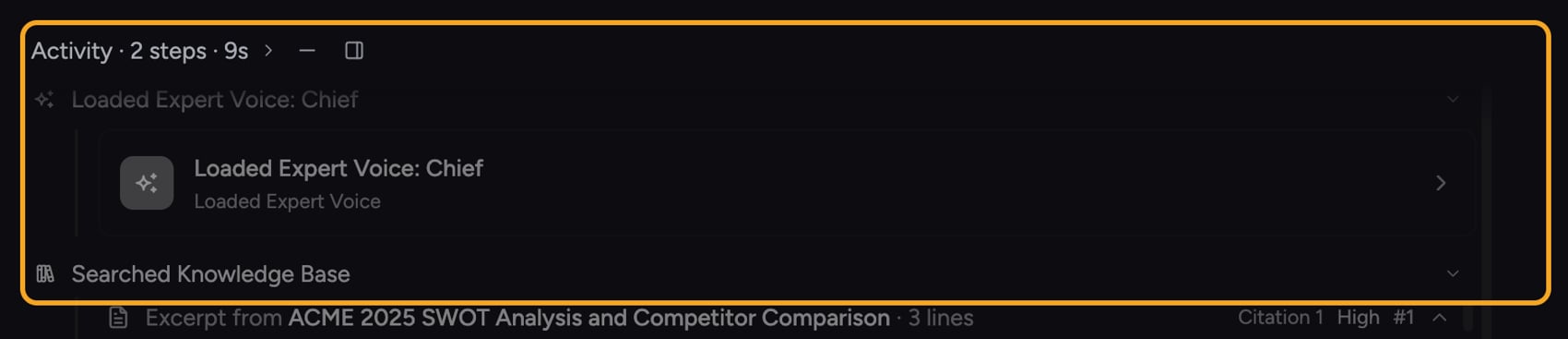
Watch it inline as Chief works
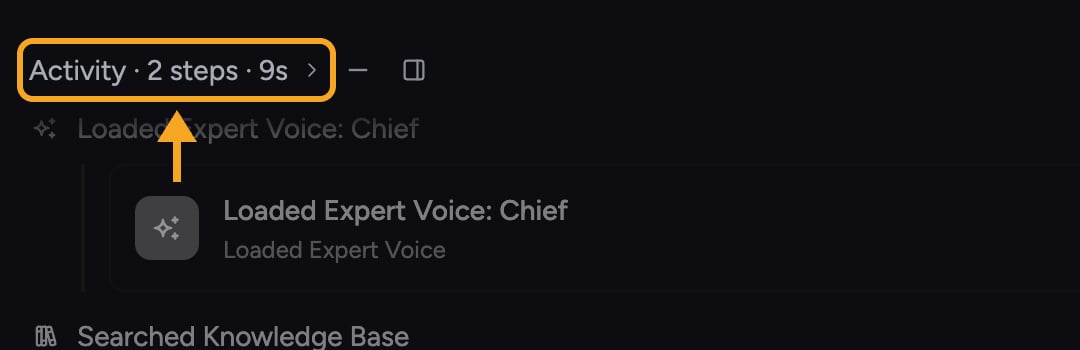
- Minimized — a compact summary line you can glance at.
- Spectator — a live peek at the latest steps as they happen.
- Expanded — the full step-by-step list. Click the timeline to expand it.
Open the full Activity view
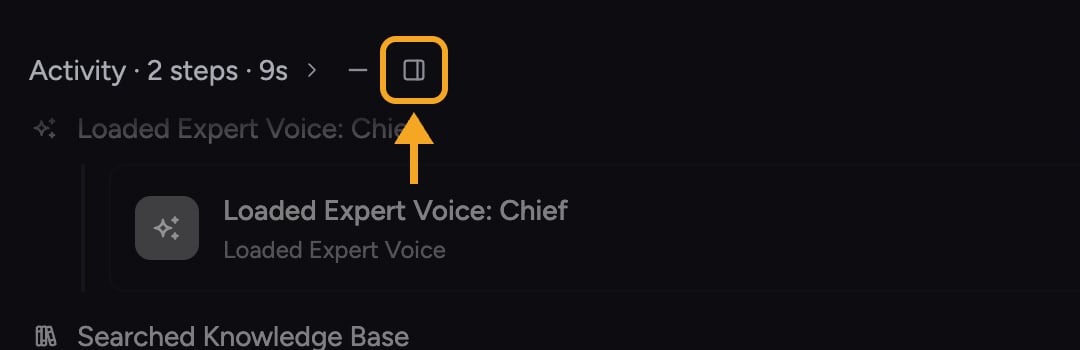
- Click the inline activity timeline on an answer to expand it.
- To dock it, open the side panel and select the Activity tab — the full feed for that answer opens there.
- Scroll the steps to see each search, plan, and tool Chief used, grouped by type (for example, Web Searches, Knowledge Search, Planning).
Good to Know: Activity steps are summarized as small icon badges with counts, for example a globe with 3 for three web searches, so you can gauge how much work went into an answer at a glance.
Use it to debug an answer
If an answer surprises you, the feed often explains why: maybe Chief searched the web when you expected Project files, or did not find a source you assumed it had. Reading the steps tells you whether to rephrase, point it at a specific file, or add the missing source to your Library.FAQ
The feed says "No activity to show." What does that mean?
The feed says "No activity to show." What does that mean?
That answer did not need separate research steps — for example a quick reply that used only the conversation’s existing context. There is simply nothing to list.
The activity timeline collapsed before I finished reading. How do I get it back?
The activity timeline collapsed before I finished reading. How do I get it back?
Click the inline timeline to expand it again, or open the Activity tab in the side panel to keep the full feed docked while you read.
Does the activity feed change my answer?
Does the activity feed change my answer?
No. It is a read-only record of the steps Chief took. Viewing or expanding it does not re-run anything or alter the answer.