

Create a custom Skill
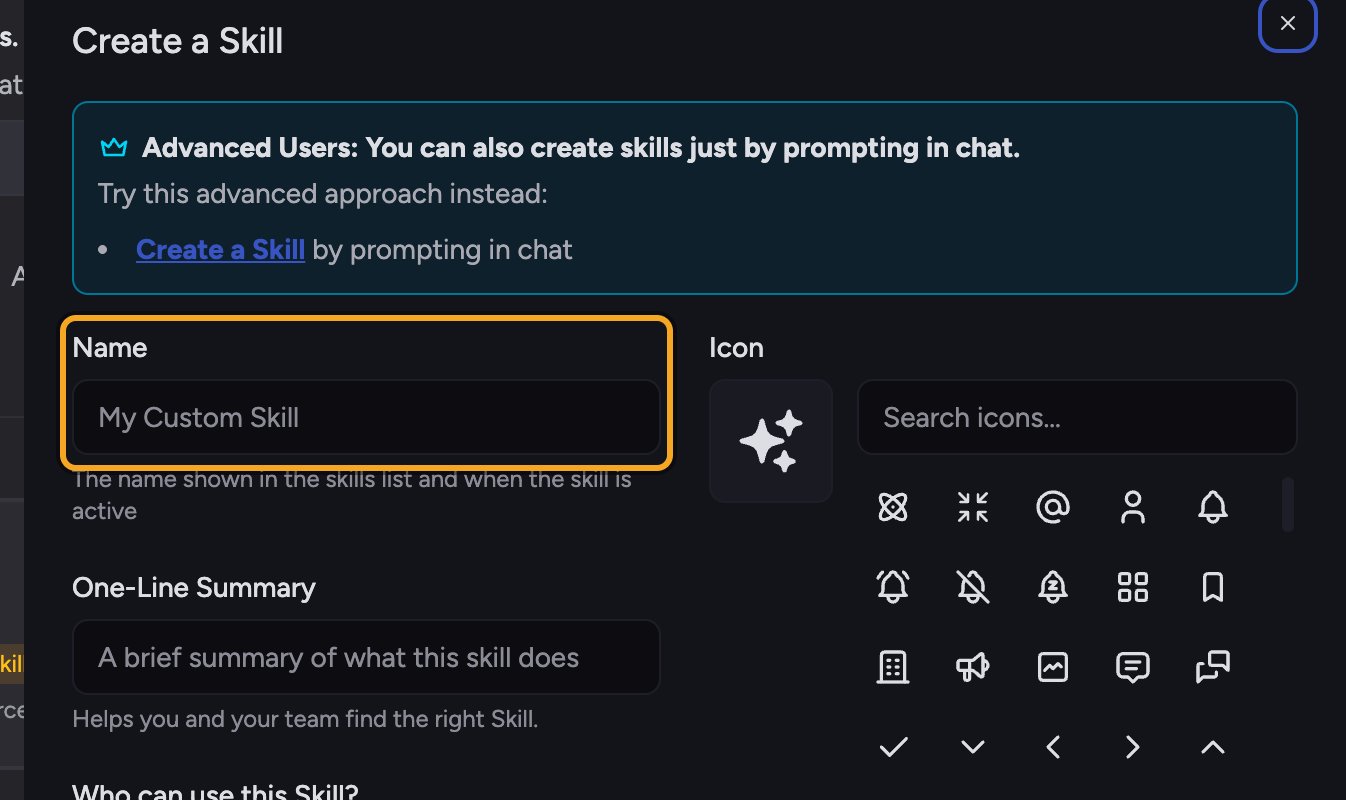
- In the left navigation, click Skills to open the Skills page.
- Click the Create a Skill button. The Create a Skill dialog opens.
- In the Name field, type a short, clear name of 128 characters or fewer (for example, “Weekly Status Summary”).
- In the One-Line Summary field, type up to 2,000 characters describing what the Skill does. This helps you and your team find it later.
- Once the name has text, a green panel appears with a Generate button. Click Generate. Chief drafts the full Skill instructions for you and fills them into the content editor.
- Review the generated instructions and edit them in the content editor if you want to refine the behavior.
- Under Who can use this Skill?, choose Anyone in the Project or Private.
- Click Save. Your Skill is created, enabled, and ready to mention with @ in any task.
FAQ
Why does Chief say "Skill name is too long"?
Why does Chief say "Skill name is too long"?
Skill names can contain no more than 128 characters. Shorten the Name field and try again. The full message reads: “Skill name is too long. Please use 128 characters or fewer.”
Do I have to use Generate?
Do I have to use Generate?
No. Generate is a shortcut. You can write or paste the Skill instructions into the content editor yourself and skip it entirely.
Can I change the generated instructions after saving?
Can I change the generated instructions after saving?
Yes. Open the Skill on the Skills page and edit it any time. Editing a custom Skill you own never affects built-in Chief Skills.