

What Get Help does
Get Help opens a new email to support@chief.bot in your default mail app. To search for answers, use this help center. To ask about your account or a problem, email the support team.Open Get Help
- Look at the left navigation bar in Chief.
- Click the Get Help button (the question-mark help icon).
- Your mail app opens a new message to support@chief.bot.
Open Get Help from your account menu
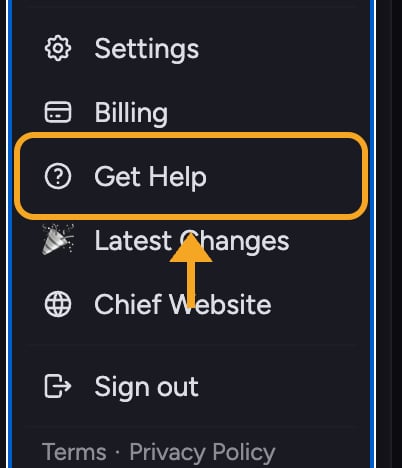
- Click your account avatar in the navigation bar to open the account menu.
- Click Get Help in the menu.
- Your mail app opens a new message to support@chief.bot.
Don’t see the help button?
The Get Help icon appears in both the expanded and collapsed navigation. If you can’t find it, open your account menu and select Get Help, or email support@chief.bot directly.FAQ
I clicked Get Help but nothing opened. What now?
I clicked Get Help but nothing opened. What now?
Your computer may not have a default mail app set up. Email support@chief.bot from any mail app or webmail.
Can I get help on my phone?
Can I get help on my phone?
Yes. Email support@chief.bot, or browse this help center directly in your browser to find answers.
Clicking Get Help opened a mail setup screen. What should I do?
Clicking Get Help opened a mail setup screen. What should I do?
Your computer does not have a default mail app set up. Send the email to support@chief.bot from your usual webmail instead.