

Contact support by email
When the help center doesn’t answer your question, Get Help opens an email to support@chief.bot. The team replies by email.Send an email
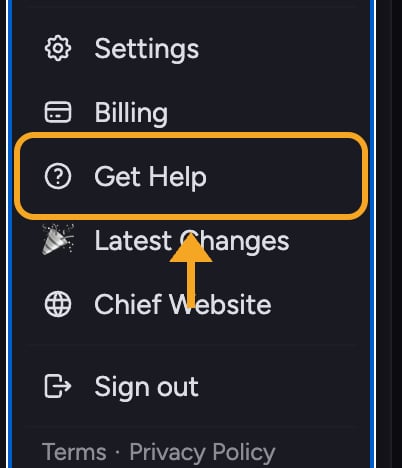
- Click Get Help — the question-mark help icon in the left navigation bar. It is also in your account menu.
- Your mail app opens a message to support@chief.bot.
- Describe the problem. Add what you were doing, what you expected, and what happened.
- Send the email.
ℹ️ Good to Know: The team replies by email. Keep an eye on the inbox tied to your Chief account so you don’t miss the response.
Read a reply
Replies arrive in the inbox of the address you used. Reply from your mail app to continue the thread.Frequently asked questions
I sent an email but never got a reply. What should I check?
I sent an email but never got a reply. What should I check?
Check the inbox for the address you sent from, including its spam folder. Confirm that you sent the message to support@chief.bot.
Can I attach a screenshot?
Can I attach a screenshot?
Yes. Attach the screenshot to the email. You can also describe the issue clearly to help the team reproduce it.