

Rename a task

- Open the task. Hover over the title at the top of the thread to reveal its inline buttons.
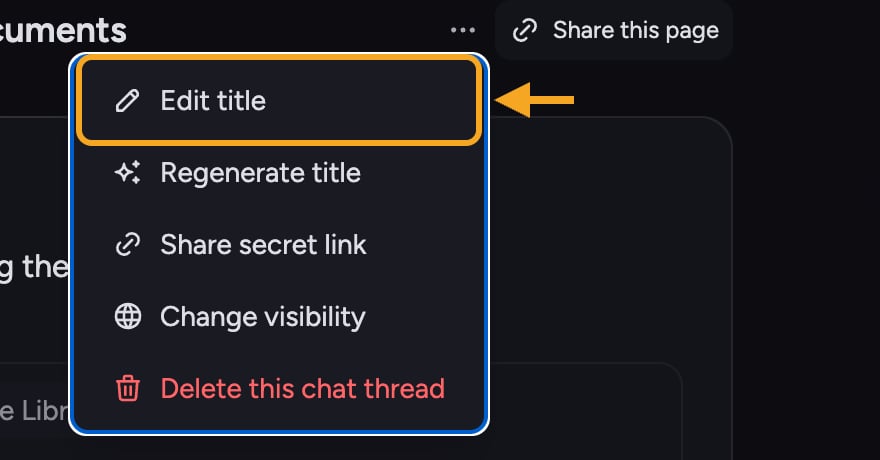
- Click the Edit title (pencil) button. The title turns into a text field.
- Type the new name, then press Enter (or click the green checkmark) to save. Press Escape (or the red X) to cancel.
Good to Know: You can also rename from the task’s action menu. Click the ⋯ (three-dot) Task actions menu in the thread header and choose Edit title.
Regenerate the title automatically
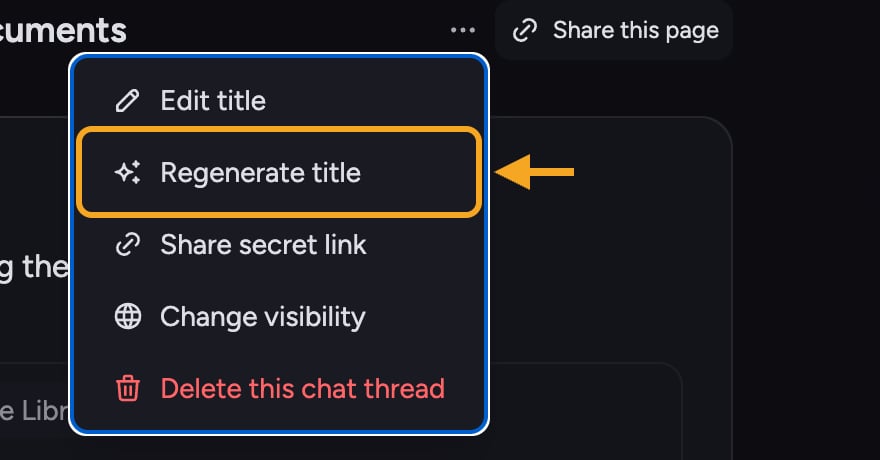
- Hover over the title and click the Regenerate title (sparkle) button — or open the ⋯ menu and choose Regenerate title.
- A spinner shows while Chief reads the conversation and writes a fresh title.
- The new title replaces the old one automatically.
FAQ
My new title didn't save — what happened?
My new title didn't save — what happened?
Titles can’t be empty and are capped at 255 characters. If you clear the field and try to save, you’ll see “Title cannot be empty.” If saving fails for another reason, you’ll see “Failed to update title” — check your connection and try again.
Will regenerating the title change my conversation?
Will regenerating the title change my conversation?
No. Regenerating only rewrites the task’s name. Your prompts and answers stay exactly as they are.
Where do I find the rename and regenerate controls?
Where do I find the rename and regenerate controls?
They live in two places: as small inline buttons that appear when you hover over the task title, and inside the ⋯ (three-dot) Task actions menu in the thread header.