

Sign out of Chief
Sign out from the account menu. This ends your session in the current browser.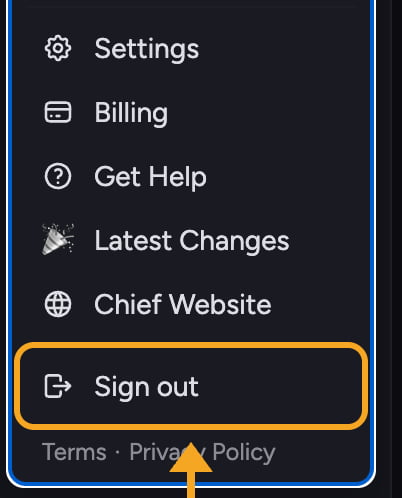
- Click your avatar at the bottom-left of the sidebar to open the account menu.
- Scroll to the bottom of the menu.
- Click Sign out (the row with the log-out icon).
ℹ️ Good to Know: Signing out only affects the browser you are using. If you are signed in on another device or browser, you stay signed in there. To unlink a paired device, use Settings → Devices and revoke it.
Change the email on your account
Your email address is shown in the account menu. With one Organization, it sits at the top of the menu, under your name. With more than one, select the header with your name and current Organization, and your email is the first line of the list that opens. It is read-only in the app, so there is no field to edit it yourself. To change the email on your account, email Chief support at support@chief.bot from your current address and tell them the new address you want to use. The team will move your account over.FAQ
I clicked Sign out but I am still signed in. What happened?
I clicked Sign out but I am still signed in. What happened?
Try refreshing the page. If you remain signed in, clear the site cookies for Chief in your browser and reload. A second tab that was already open can also keep a stale session until it is refreshed.
I signed up with the wrong email. Can I just make a new account?
I signed up with the wrong email. Can I just make a new account?
You can, but your projects, Library, and history stay with the original account. To keep your data, ask support to change the email instead of starting over.
I never got the Magic Link to sign back in.
I never got the Magic Link to sign back in.
Check your spam folder and confirm you entered the same email you registered with. You can request a new link from the login screen. If it still does not arrive, contact support.