

Use one of your Saved Prompts
The/ picker lets you load your own Saved Prompts directly into the prompt bar. Use it to start recurring work without retyping the same instructions.
Open the prompt picker
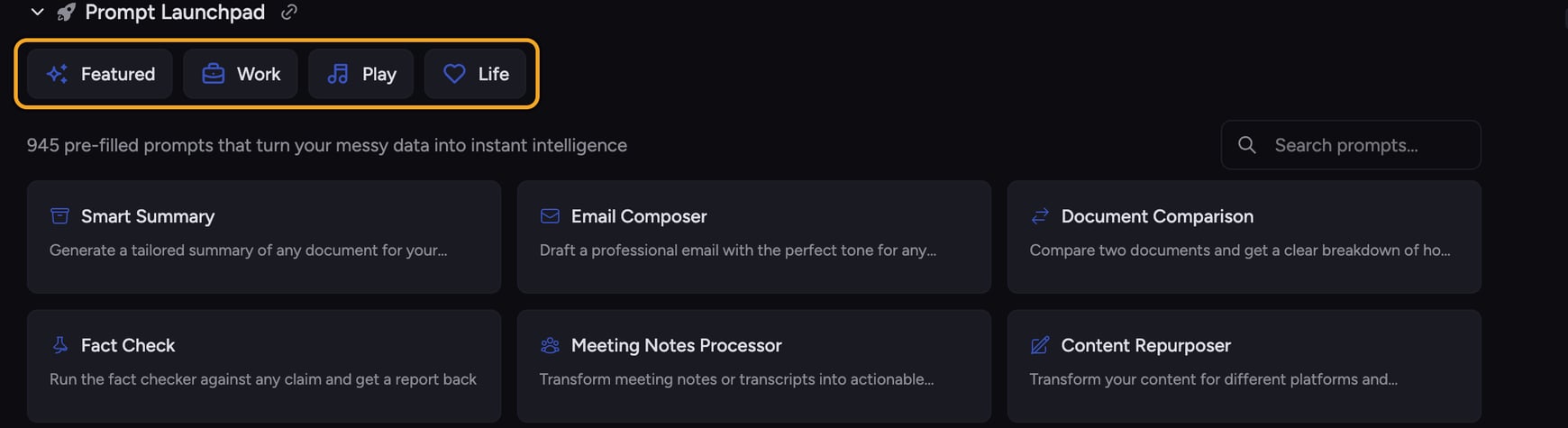
- Click the prompt bar and type
/. - A list of your Saved Prompts appears, with starred prompts first.
- Type after
/to narrow the results, then select a saved prompt.
/ again.
Run a prompt
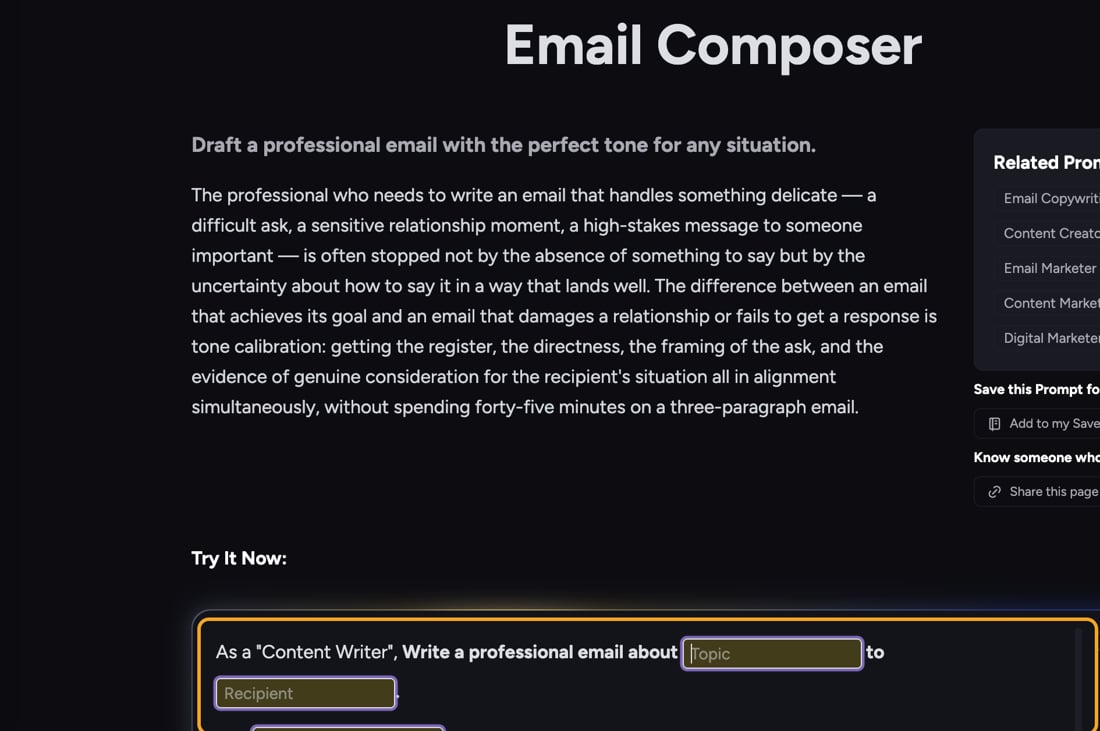
- Select a saved prompt from the picker. Chief loads it into the prompt bar.
- Complete any variable fields and review or edit the text.
- Send the prompt when it is ready.
ℹ️ Good to Know: Saved Prompts can contain fill-in fields (shown as chips). Click each chip to enter your details before sending, so the prompt is tailored to you.
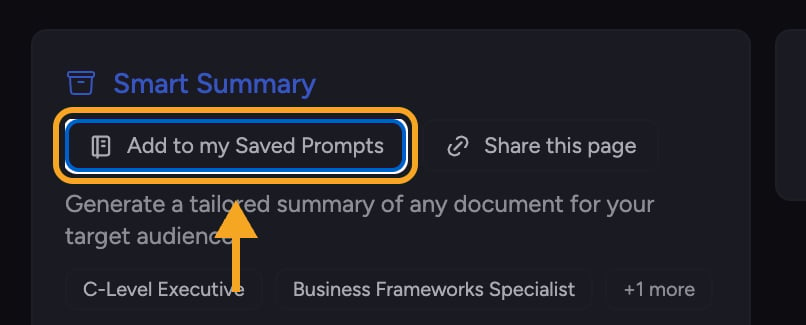
Create a reusable version
Frequently asked questions
I chose a Saved Prompt but nothing ran — did it fail?
I chose a Saved Prompt but nothing ran — did it fail?
No. Choosing a Saved Prompt only loads it into the prompt bar. Review the text and send it when you are ready.
What does the / picker search?
What does the / picker search?
It searches your Saved Prompts only. Start typing after
/ to filter the list by each prompt’s name and description.Can I edit a Saved Prompt for just this task?
Can I edit a Saved Prompt for just this task?
Yes. Editing the text in the prompt bar only affects your current message. To keep the changes for later, update or create a Saved Prompt.