

Where variable fields come from
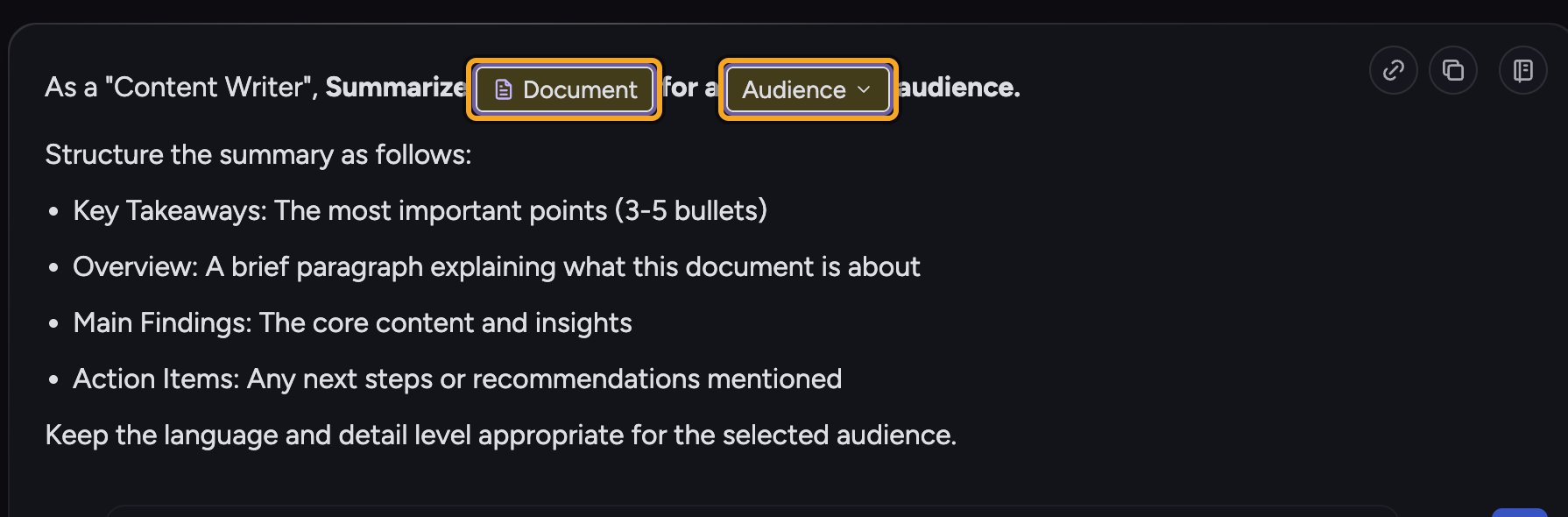
/ picker in the prompt bar. Each variable appears in the prompt bar as an editable field waiting for your input.
Good to know: You add variable fields when you create a prompt template in the Prompt Library editor (type # there to add one). In a normal task you fill them in rather than create them.
Fill in a template’s variable fields
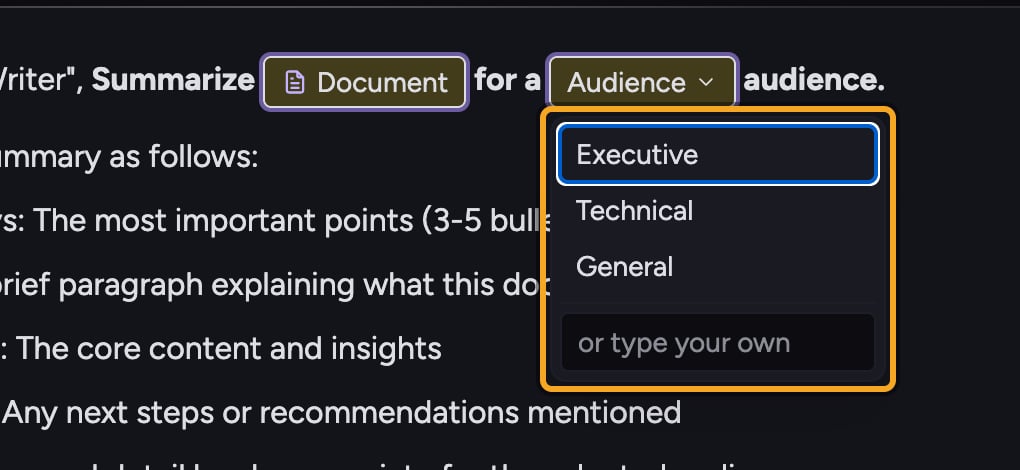
- Open a Saved Prompt that contains variables. Its text appears in the prompt bar with one editable field per variable.
- Click a text or paragraph field and type your value. Press Tab to jump to the next blank, or Shift+Tab to go back to the previous one.
- For a dropdown field, click it and choose one of the listed options (or type your own where allowed).
- For a file field, click it to open the file popover: Upload a file, Paste data, or Describe by audio. If your Library already holds files, search them from the box below those three.
- For an audio field, record your input when prompted.
- When every required field is filled, send the prompt as usual. A count beside the prompt bar’s chips tracks how many of the blanks are filled as you go.
The field types you’ll see
- Text Input — a single-line value.
- Paragraph Input — a multi-line value for longer input.
- File Picker — upload a file, paste data, describe the file by audio, or search the Files you already have.
- Dropdown — choose from predefined options.
- Record Audio — capture spoken input for that field.
FAQ
Can I type # in a normal task to add a field?
Can I type # in a normal task to add a field?
The # shortcut to add variable fields lives in the Prompt Library editor, where you build templates. In a task you fill in the fields a template already defines.
It won't let me send the prompt.
It won't let me send the prompt.
A required field is probably still empty. Fields marked required must have a value; fill them in (or remove the field in the template editor and mark it optional) before sending.
I don't want to fill in an optional field.
I don't want to fill in an optional field.
Optional fields can be left blank or removed from the prompt. Use the field’s remove control to drop it from this run.