

Run without asking
By default, when an Action wants to take a real-world step — send an email, change a calendar event — Chief pauses and asks you to approve it first. You can pre-approve specific operations in the Action’s Permissions section or save permission from an eligible confirmation card, so later matching steps can run without asking.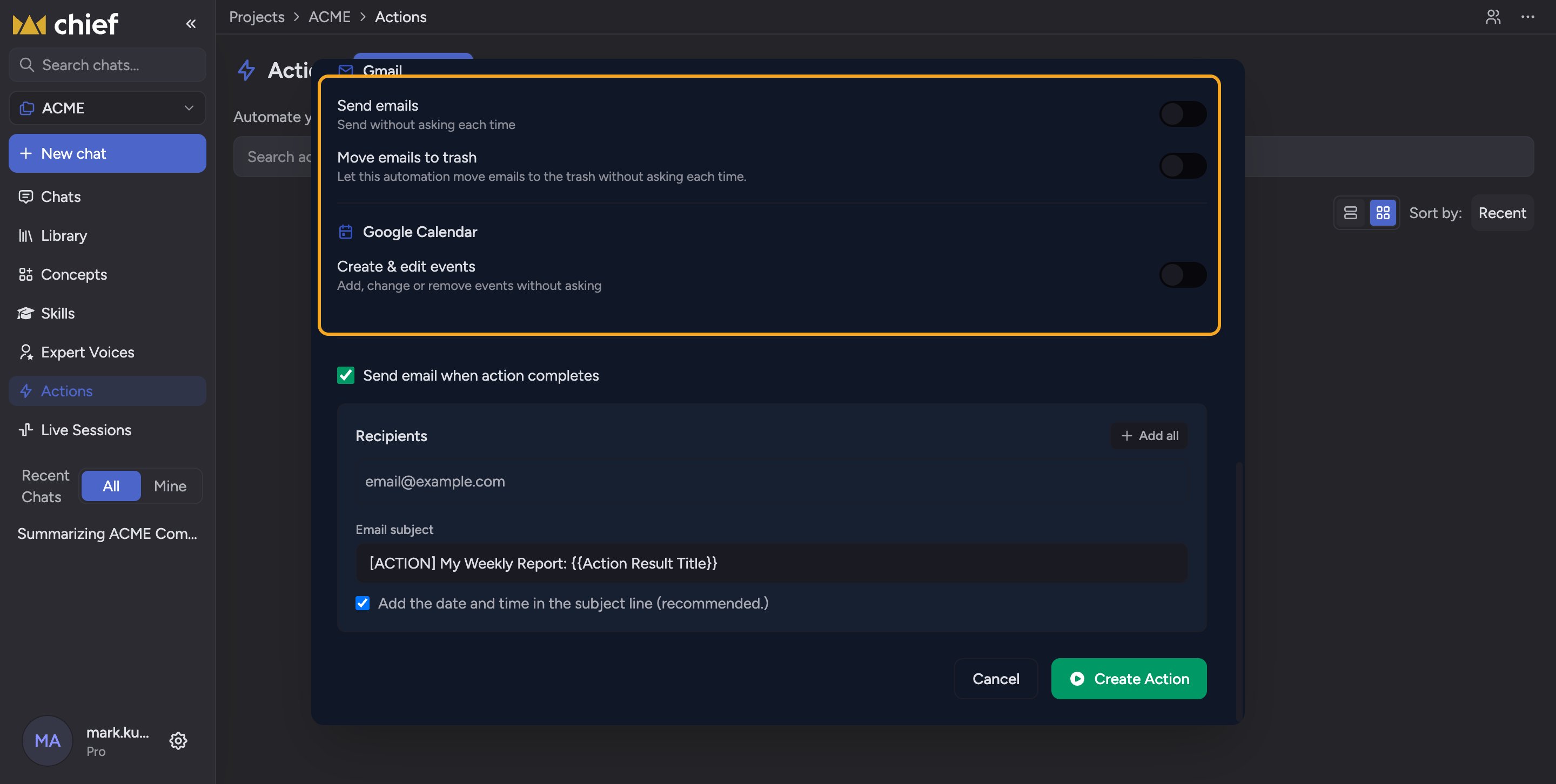
Granting permissions
In the create or edit dialog, open Permissions. When it is collapsed, its summary reads Asks before every action or shows how many operations are pre-approved. Each connection is a collapsible row whose header counts its pre-approved operations, such as None of 3 auto or 1 of 3 auto. A row opens automatically when at least one operation is on. Chief’s row comes first.- Google Workspace — one row, with Gmail, Google Calendar, and Google Drive as sub-headings inside it. Gmail can send emails, move emails to trash, and update or delete drafts. Calendar and Drive can create or edit events and documents.
- Slack — send channel or direct messages, reply in threads, and add reactions.
- Notion, Linear, and GitHub — create or edit their supported content.
- Chief — manage Labels or update Assets. Actions cannot pre-approve creating and managing other Actions.
- Your server (MCP) — run tools that change data. Chief adds one row for each MCP server deployed to the Project that you can call. For an OAuth, per member server, the row appears only after you connect your own account.
If a tool is missing
The list includes Chief plus tools that are connected to the Project or your account. An unconnected tool is omitted; the Permissions section does not show a connection button or placeholder for it. Connect the integration first, then return to the Action editor.FAQ
Why isn't a tool listed under Permissions?
Why isn't a tool listed under Permissions?
The tool is not connected to the Project or your account. Connect it first, then reopen the Action editor. Chief always appears; MCP rows appear for servers deployed to the current Project that you can call, so connect your own account first for an OAuth, per member server.
If I don't auto-approve anything, what happens?
If I don't auto-approve anything, what happens?
The Action still runs, but each real-world step waits for your approval. You’ll see a confirmation card where you can approve, reject, and—when eligible—always allow the operation.
Can I revoke auto-approval later?
Can I revoke auto-approval later?
Yes. Open the Action’s editor and toggle the operation back off, or open Settings › Tool permissions and turn off the saved permission there. Future matching steps will ask for confirmation again.