

Apply a voice
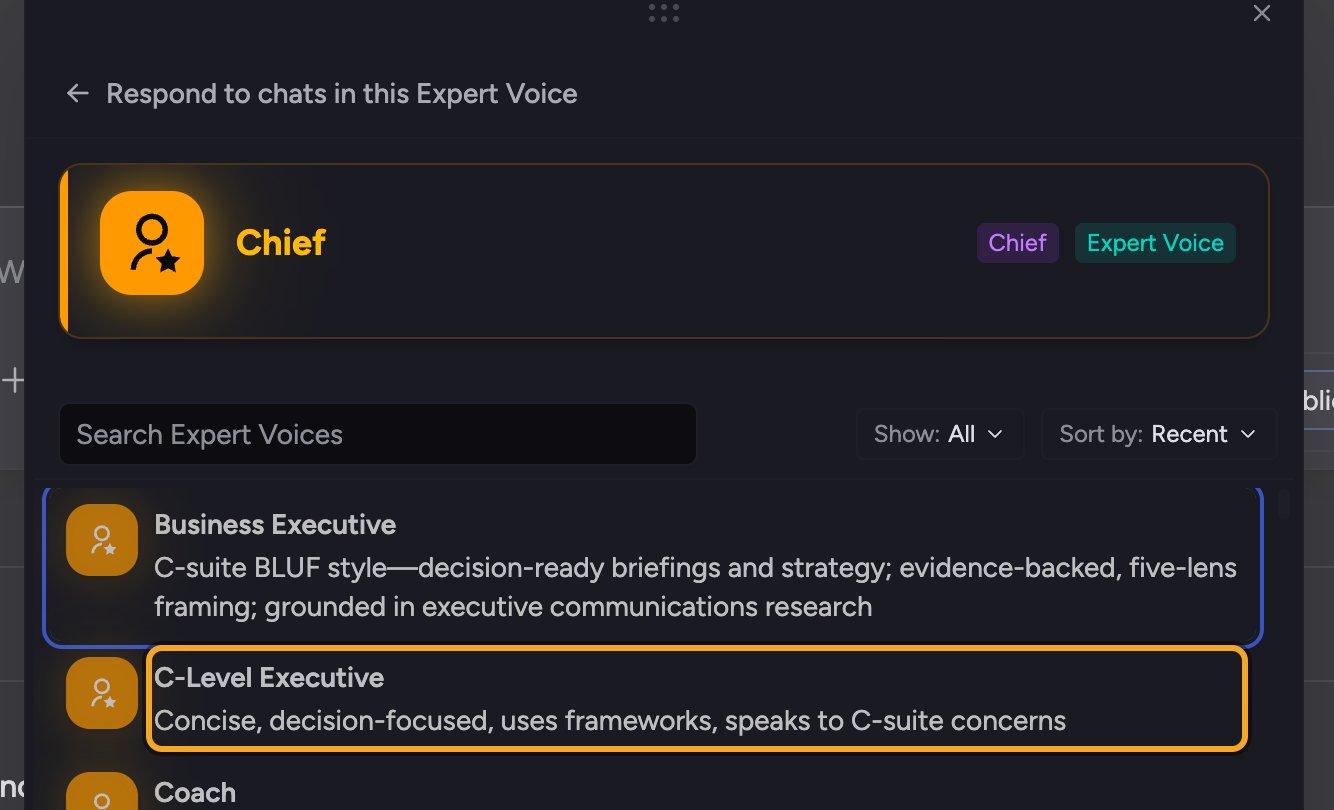
- Open or start a task so the prompt bar is visible.
- In the prompt bar, expand the Using: row, then click the Voice chip. When a voice is set, the chip shows its name instead. The Respond in this Expert Voice picker opens and separates voices into Created by you and Created by Chief.
- Use search or the Show and Sort options to find the voice you want. Custom voices stay above Chief voices; sorting applies within each section.
- Click the voice. The picker closes, and the chip now shows the voice’s name.
- Send your message. Chief replies in that voice.
Switch or reset the voice
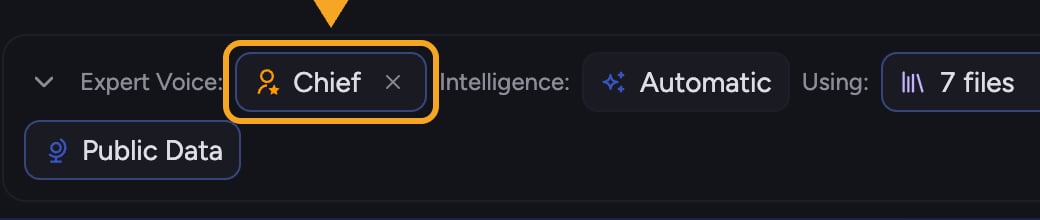
- Click the voice chip again to open the picker.
- To switch, click a different voice in the list.
- To go back to neutral, click Reset to default beside the Selected heading at the top of the picker, or click the × on the voice chip. Chief returns to the Default Expert Voice.
- To start new tasks on the current voice, click Use these settings for new tasks at the bottom of the picker. The row then reads Used for new tasks.
💡 Good to Know: Each task keeps the voice used by its most recent prompt. A voice you pick in one task doesn’t follow you into other tasks: a new task starts on your saved default, or on Chief if you haven’t saved one.
FAQ
My voice keeps applying to every task — how do I stop that?
My voice keeps applying to every task — how do I stop that?
You’ve saved that voice as your default for new tasks. Open the voice picker. To use the neutral Default Expert Voice, click Reset to default. To use another voice, select it; after the picker closes, open it again. Then click Use these settings for new tasks. A task you’ve already used keeps the voice from its most recent prompt, so change it there from the voice chip.
Why don't I see my custom voice in the list?
Why don't I see my custom voice in the list?
Open the Show filter and make sure it isn’t limited to Chief voices. If the voice is scoped Private, only you can see it; if it’s Anyone in the Project, confirm you’re in the right Project.
Can I use an Expert Voice and a Skill at the same time?
Can I use an Expert Voice and a Skill at the same time?
Yes. Set your voice from the Voice chip, then mention a Skill with @ in your prompt. Chief applies the voice’s style and the Skill’s task instructions together.