

Before you start
A Collection is built entirely from Label filters, so you need at least one Label that’s applied to some files. If you haven’t created Labels yet, do that first — see Creating & customizing Labels.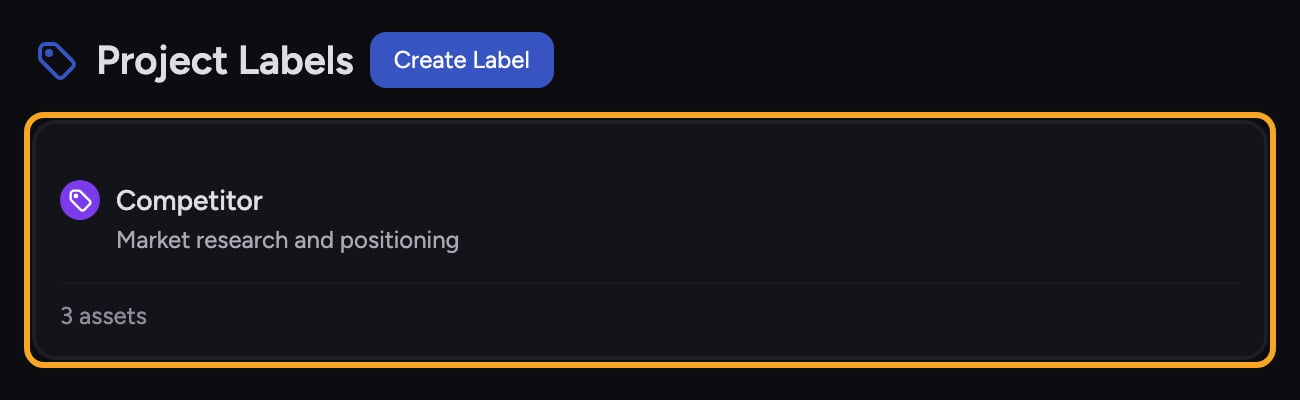
Open the New Collection page

- In your Library, go to the Collections page.
- Click Create Collection. If your Project has no Collections yet, use the button in the empty state. If it already has Collections, use the button next to the Project Collections heading. The New Collection page opens.
Name the Collection
-
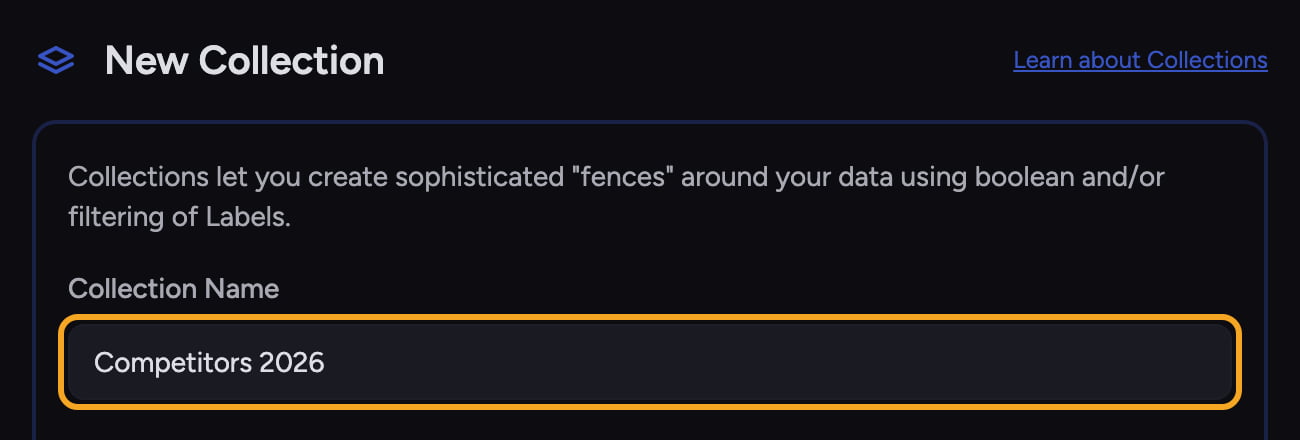
Click the Collection Name field and type a name (for example, Competitors 2026).
Add your first Label filter
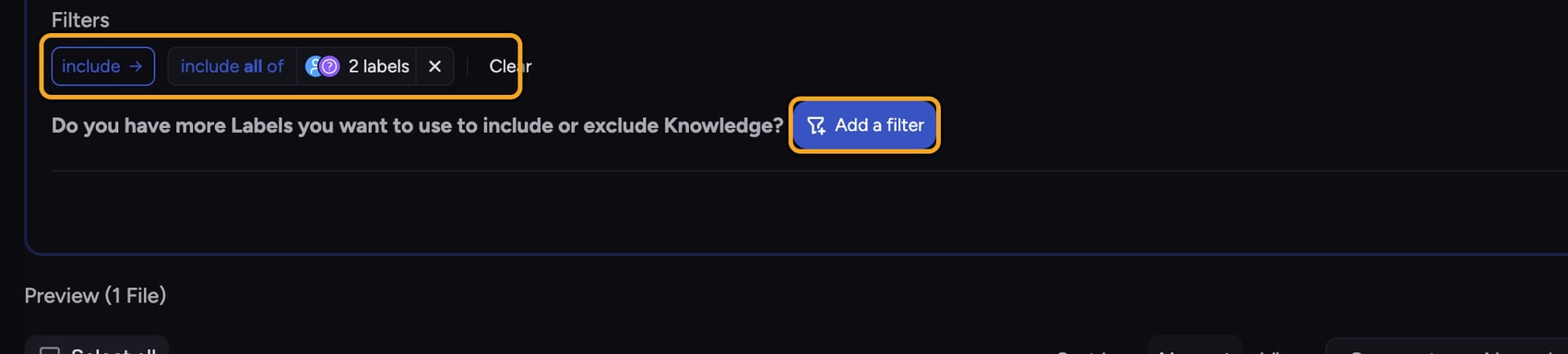
- Under Filters, find the prompt Select one or more Labels you want to use to include or exclude sets of Files from this Collection, then click the Add a filter button (filter-plus icon).
- In the Choose Labels to Filter picker that opens, click a Label. It becomes a filter chip, and the Preview below updates to show matching files.
- Add more Labels to the same chip by clicking them in the picker, or close the picker and use the prompt Do you have more Labels you want to use to include or exclude Knowledge? to add another filter group.
Switch between AND and OR

- On a filter chip with two or more Labels, click the operator at the left of the chip to cycle its logic: include all of (AND — a file must carry every Label), include any of (OR — any one Label qualifies), exclude if all, or exclude if any of.
- When you have two or more separate filter chips, click the operator chip at the start of the row to flip how the groups combine between and and or.
ℹ️ Good to Know: Multiple Labels inside one chip combine with that chip’s operator; separate chips combine with the row’s top-level operator. This lets you build rules like “(A and B) or C” by putting A and B in one chip and C in another.
Check the Preview, then save

- Watch the Preview count and file list update as you adjust filters, so you can confirm the Collection captures what you intend before saving.
- Click Save. Chief creates the Collection and returns you to the Collections page, where your new Collection appears with its file count.
Frequently asked questions
It says "No labels available. Create some labels first" — why?
It says "No labels available. Create some labels first" — why?
You can’t build a Collection without Labels. Go create and apply Labels to some files, then come back and build the Collection.
The preview shows zero files — did I do something wrong?
The preview shows zero files — did I do something wrong?
Not necessarily. A zero count usually means your AND logic is too strict (no file carries every Label) or your exclude rule removed everything. Loosen a chip to include any of, or remove an exclude filter, and watch the count recover.
Can I change a Collection's filters after saving?
Can I change a Collection's filters after saving?
Yes. Open the Collection from the Collections page — it shows the same filter builder as the New Collection page. Add or remove Label chips and switch operators as you did when building it; an Unsaved changes marker appears above the filters. Click Save Changes to update the Collection in place, or Save as New to keep the original and create a second Collection from the edited filters — Chief asks Enter name for new collection: in a browser prompt, prefilled with the current name plus (copy). Click Discard to drop the edit. If you clear every filter, both save buttons stay disabled with the hint Add at least one filter above. You can still delete a Collection at any time from its card without affecting your files.