

Dictate a prompt
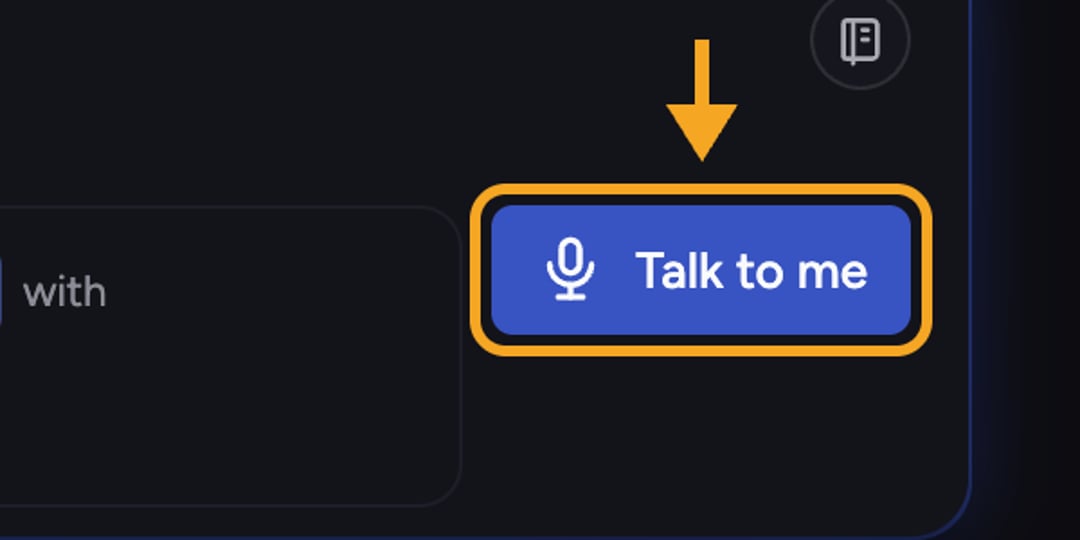
- In the prompt bar, click the microphone control labeled Talk to me.
- If your browser asks for microphone access, click Allow. (This prompt comes from your browser, not Chief.)
- Start speaking. The control shows Listening… while it transcribes, and your words appear in the prompt bar.
- Click the control again to stop listening.
- Edit the transcribed text if you need to, then send your prompt as usual.
Good to know: Dictated text lands wherever your cursor is, so you can mix typing and talking — dictate the bulk of a prompt, then tidy up the wording by hand.
FAQ
I clicked Talk to me but nothing is transcribed.
I clicked Talk to me but nothing is transcribed.
Microphone access was likely blocked. Allow microphone access for the site in your browser settings, reload, and try again. A working mic and a supported browser are both required.
Is this the same as Chief Voice?
Is this the same as Chief Voice?
No. Talk to me is dictation — it turns your speech into prompt text that you still review and send. It is a click-to-start, click-to-stop control, not a hands-free voice assistant. To capture a longer recording into your Library instead, see recording audio directly into Chief.
Can I dictate in another language?
Can I dictate in another language?
Not yet. Dictation currently transcribes English (US) only, regardless of the language your interface is set to.