

How access is managed
Project access can come from an Organization-wide role or a Project-level invitation. Open Share this Project to remove email, domain, and secret-link invitations. Manage Organization-wide access under Organization → Members; an individual Project can raise that role but cannot lower or remove it.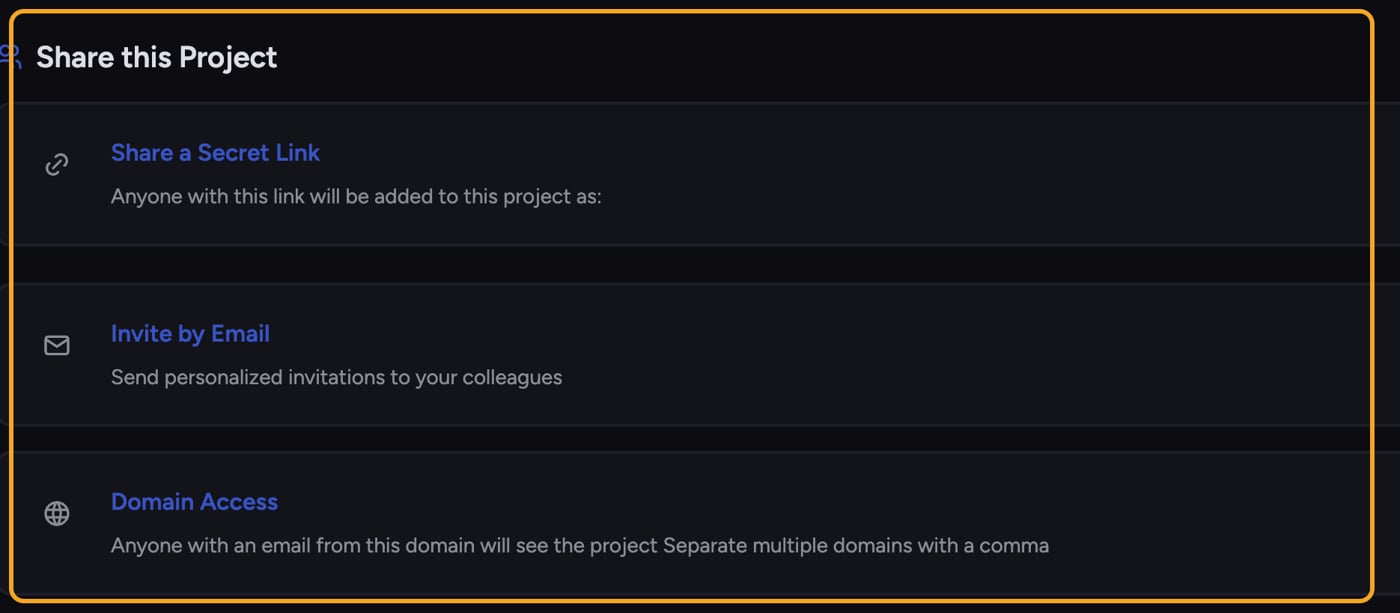
- Open the Project you want to manage.
- In the sidebar, open the Projects dropdown and select Share this Project. The window opens with Share a Secret Link, Invite by Email, and Domain Access.
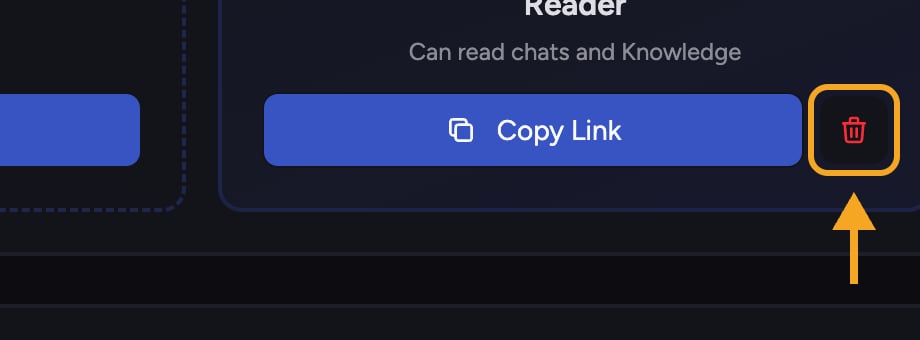
ℹ️ Good to Know: The Current Members list (who has joined, with their role and join method) is read-only. To change Project-level access, remove the invitation that granted it. Every email entry, domain rule, and secret link has its own delete (trash) control next to it — the example under Delete a secret link below shows what it looks like.
Remove an email invite
- In the Share this Project window, expand Invite by Email and find the invite.
- Click the trash icon next to that invite.
- In Remove access for {email}?, review the warning that the address will lose access to this Project.
- Click Yes, Remove Email. The invite is removed and that address no longer has standing access through it.
Remove a domain rule
- Expand Domain Access and find the domain you want to revoke.
- Click its trash icon.
- In Remove domain access for @{domain}?, review the warning that all users with that email domain will lose access to this Project.
- Click Yes, Remove Domain. People are no longer granted access just for having an email at that domain.
Delete a secret link
- Expand Share a Secret Link and find the active link (it shows a Copy Link button).
- Click the red Delete link (trash) icon next to it.
- In Delete this {role} secret link?, review the warning: everyone invited at that role through its secret link, email entries, or domain access will lose access to the Project.
- Click Yes, Delete Link. Chief deletes the invitation for that role, including its linked email and domain entries, and revokes the Project grants it created.
Frequently asked questions
I don't see a way to remove a specific person from the members list.
I don't see a way to remove a specific person from the members list.
The members list is read-only. Remove Project-level email, domain, and secret-link invitations in Share this Project. If the person has an Organization-wide role, an Organization Owner must change or remove it under Organization → Members.
What happens to people who already joined when I delete a secret link?
What happens to people who already joined when I delete a secret link?
Deleting the link removes the full invitation for that role. People who received access from it lose that Project access, and email or domain entries attached to the same role invitation are removed too. A person can still get in through an Organization-wide role or another independent grant.
The delete control failed with an error.
The delete control failed with an error.
This is usually a temporary issue or a permissions limit — only members who can manage the Project can remove invites. Refresh and try again, and confirm you have the right role (an Owner can always manage access).