

Domain-based access

Two other ways to grant access
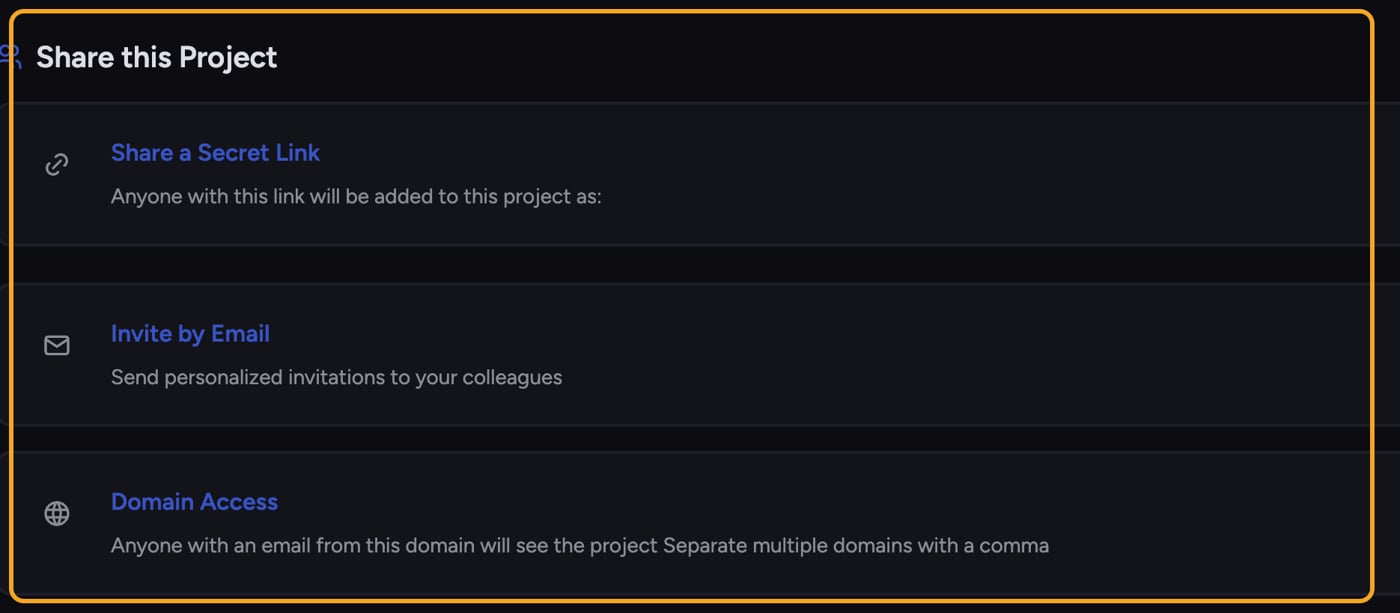
- Invite by Email — Send a personalized invite to specific people at a chosen role.
- Share a Secret Link — Anyone who opens the link joins the Project at the role set on the link.
ℹ️ Good to Know: There’s no per-seat model to manage. You grant access by domain, email invite, or secret link, and control capability with roles. You don’t assign or count seats.
Removing domain access
- Open the Project’s Share this Project panel and find the domain under Domain Access.
- Click the domain’s remove (trash) control. A confirmation appears: Remove domain access for @domain?
- Confirm the removal. Access granted by that domain is withdrawn. People who also have another grant, such as an Organization role, direct invitation, or secret link, keep the access supplied by that grant.
Frequently asked questions
How many seats does my plan include?
How many seats does my plan include?
Chief doesn’t allocate per-seat licenses for Project access. You grant access by domain, email invite, or secret link. Plan tiers can gate certain features (for example the Google Workspace integration), but Project membership isn’t counted as seats.
I added a domain but a colleague still can't see the Project.
I added a domain but a colleague still can't see the Project.
Check that their email address is exactly on the domain you added (watch for subdomains and typos), and that they’re signed in with that address. If they signed up with a personal email instead of their company domain, they won’t match.
If I remove a domain, what happens to people who joined another way?
If I remove a domain, what happens to people who joined another way?
Removing a domain only removes access granted through that domain. Anyone who also joined by email invite or secret link keeps that access. Check the Current Members list to see each person’s join method.