

Import memories from a block of text
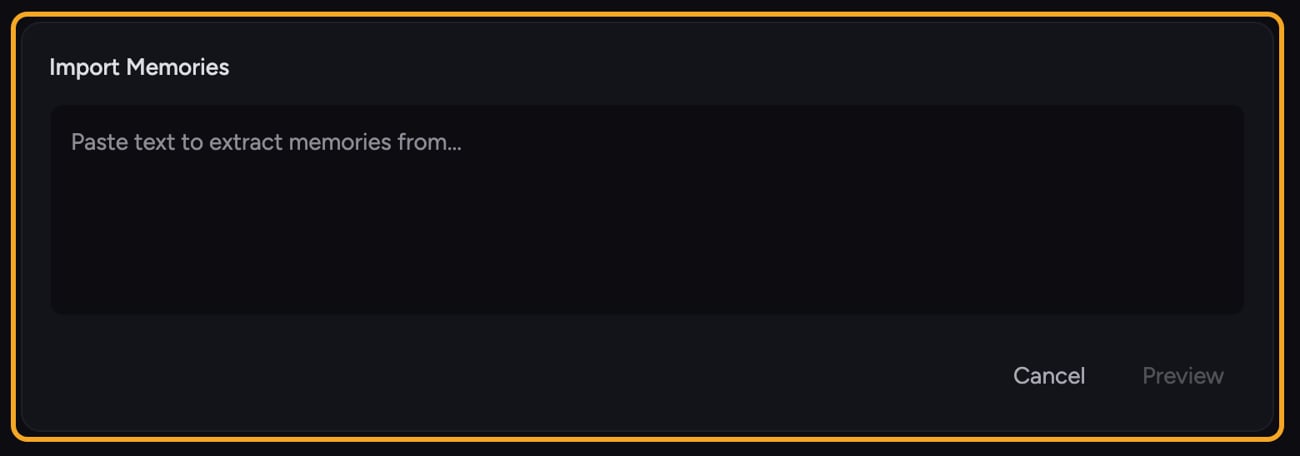
- Open the memory page for the scope you want (Settings → Memory, a project’s Memories page, or the organization’s Memory page).
- In the section header, click the Import button (the upload icon). The Import Memories panel opens.
- Paste your text into the box. The placeholder reads “Paste text to extract memories from…”
- Click Preview. Chief reads the text and proposes a list of memories, with every suggestion checked by default.
- Review the list. Untick any suggestion you don’t want. The count below shows “X of Y selected”.
- Click Confirm Import. Chief saves the selected memories and confirms with “Successfully imported {count} memory items.” (or “…1 memory item.” when you imported just one).
- To bring in another batch, click Import More; otherwise close the panel.
ℹ️ Good to Know: Nothing is saved at the preview stage. Memories are only created after you click Confirm Import, and only the suggestions you left ticked are imported.
FAQ
The preview didn't find any memories.
The preview didn't find any memories.
Chief extracts durable facts and preferences, not every sentence. If the text was vague or conversational, it may not produce suggestions. Try pasting clearer, more factual statements, or add the memory by hand instead.
I got an error while previewing or importing.
I got an error while previewing or importing.
An error banner appears at the top of the Import Memories panel with the reason. Previewing returns you to the text box so you can adjust and try again; an import error keeps your selections so you can retry Confirm Import. Already-imported memories are not duplicated.
Can I import into a project or organization instead of my personal memories?
Can I import into a project or organization instead of my personal memories?
Yes. Imported memories go into whichever scope’s page you started from. Open the project’s Memories page or the organization’s Memory page first, then click Import — as long as you have permission to add memories there.