

Search the same prompts in two places
You can filter your Saved Prompts while using the/ prompt picker, or search the same personal library in the Saved Prompts panel.
Search from the prompt bar

- Click the prompt bar and type
/to open the prompt picker. - Type a word or phrase after the slash. The list filters your Saved Prompts.
- Select a result to load it into the prompt bar.
Search your Saved Prompts
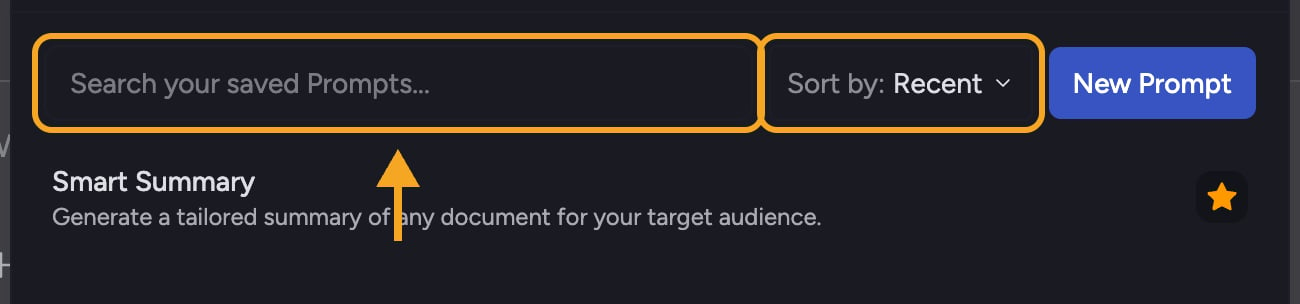
- Open the Saved Prompts panel.
- Type in the search box at the top (placeholder Search your saved Prompts…). The list filters as you type.
- Use the Sort by dropdown to order results by Recent or A→Z. Starred prompts always rise to the top.
Frequently asked questions
Why isn't the old Launchpad search available?
Why isn't the old Launchpad search available?
The Launchpad gallery was removed. Use the
/ picker in the prompt bar or the Saved Prompts panel to search prompts you created.The prompt picker found nothing. What should I try?
The prompt picker found nothing. What should I try?
Try a shorter or broader phrase. If you have not saved a matching prompt, create a Saved Prompt for that recurring work.
Do both searches use the same prompts?
Do both searches use the same prompts?
Yes. The Saved Prompts panel and the
/ picker both search your Saved Prompts. The picker shows up to eight matches at a time.