

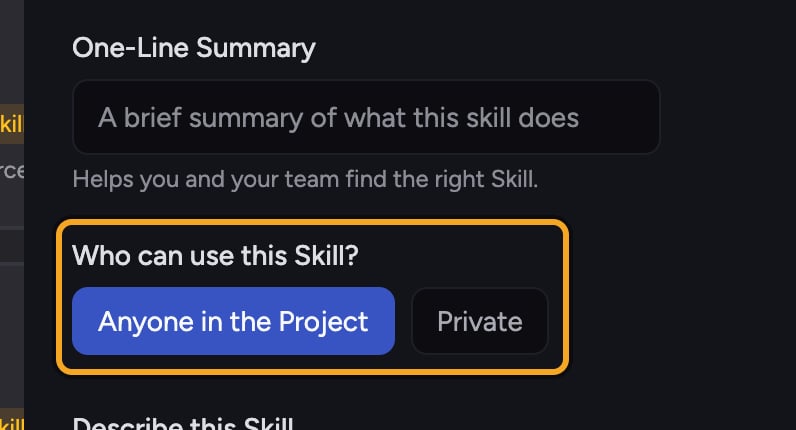
- Anyone in the Project — the Skill is shared with everyone who has access to the current Project. Use this for team workflows and shared standards.
- Private — the Skill is visible only to you. Use this for personal shortcuts you don’t want to share.
Set the scope when creating a Skill
- On the Skills page, click Create a Skill.
- Fill in the Skill details.
- Under Who can use this Skill?, click either Anyone in the Project or Private.
- Click Save.
Copy a Skill into another Project
Sharing across Projects is a copy operation: you duplicate the Skill into a destination Project and can re-scope it there.- On the Skills page, select the Skill (or Skills) you want to copy using the Select checkbox on each card.
- Start the copy action to open the copy dialog.
- Under the scope control, choose Keep original to preserve each Skill’s existing scope, or pick Anyone in the Project or Private to override it in the destination.
- Choose the destination Project from the list, then confirm the copy.
FAQ
If I set a Skill to "Anyone in the Project," can people in other Projects use it?
If I set a Skill to "Anyone in the Project," can people in other Projects use it?
No. “Anyone in the Project” shares the Skill within the current Project only. To make it available elsewhere, copy it into that other Project.
I copied a Skill but my teammate still can't see it.
I copied a Skill but my teammate still can't see it.
Check the scope you applied in the destination. If the copy landed as Private, only you can see it. A saved Skill’s scope can’t be changed. To share it, copy the original again from its Project and pick Anyone in the Project in the copy dialog’s scope control, then delete the Private copy.
Can I change a Skill from Private to Anyone in the Project after saving?
Can I change a Skill from Private to Anyone in the Project after saving?
No. Who can use this Skill? appears only when you create a Skill. Clicking Edit lets you change the Skill’s definition, but the scope you chose when you created it (Anyone in the Project or Private) can’t be changed afterward. To share a Private Skill, create a new Skill with Anyone in the Project selected.