

Stop a response while Chief is writing
While Chief is generating an answer, a Stop Generating button appears just above the prompt bar. Use it when the answer is going the wrong direction and you’d rather rewrite your prompt. If the response ends with a classified failure instead, read the task error card to decide whether to retry the prompt or switch models.
- Watch for the Stop Generating button (with a stop icon) centered above the prompt bar while the response streams.
- Click Stop Generating.
- The label changes to Stopping… while Chief winds down, then the response stops where it was. Chief keeps everything it had written so far.
Good to Know: A stopped response is still saved to the task thread. Chief also remembers the partial answer, so you can ask a follow-up that builds on it.
Edit your prompt to get a different answer
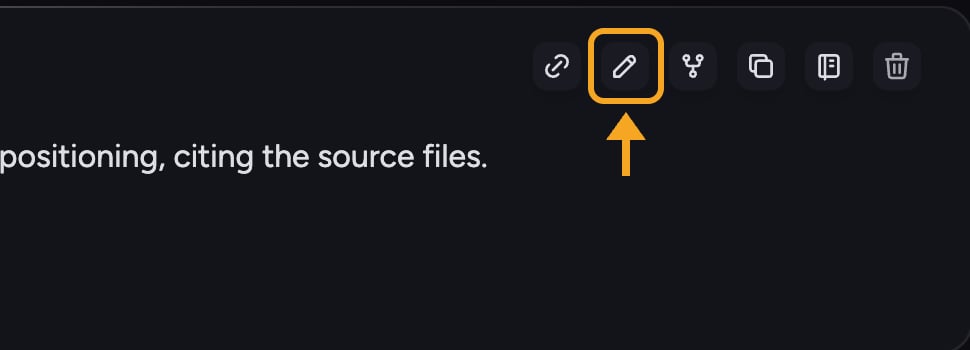
- Hover over the prompt you want to change.
- Click the Edit message (pencil) button in the action row that appears.
- Change your wording, then submit. Chief generates a fresh response on a new branch.
FAQ
I clicked Stop Generating but nothing happened right away. Did it work?
I clicked Stop Generating but nothing happened right away. Did it work?
The button switches to Stopping… while Chief finishes the in-flight chunk. Give it a moment — it can take a second or two to fully stop. If it stays on Stopping… for a long time, your connection may be unstable; check the offline banner at the top of the screen.
Does stopping a response cost me anything?
Does stopping a response cost me anything?
You’re only billed for what Chief actually generated before you stopped, not for the full answer it would have written.