

Turn an answer into a saved file
When Chief produces an artifact worth keeping, such as a document or a report, you can save it back to your Library as a File. From then on it lives alongside your other knowledge and can power future tasks.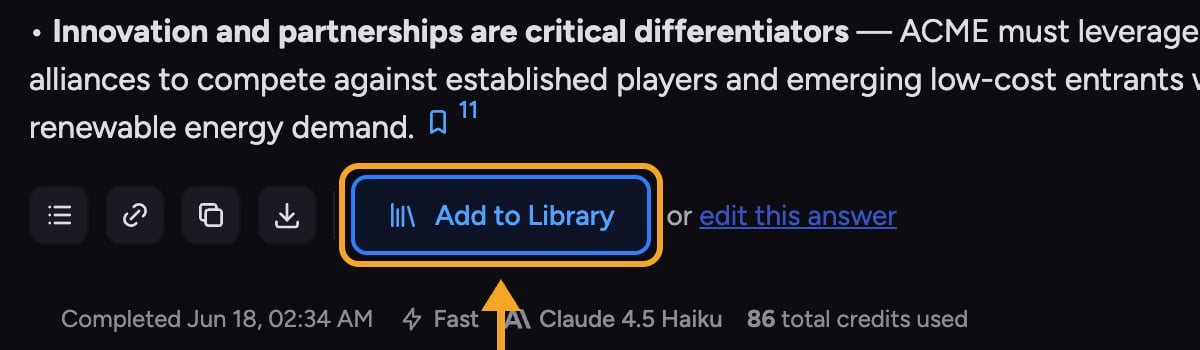
Save an answer

- In the task, open the answer or artifact you want to keep.
- Click Add to Library under the answer. It appears on answers that produced an artifact, not on plain text replies.
- Chief saves the answer and confirms with Added! and a green banner. The new File appears in your Library.
- Use the link in the confirmation to open the saved File in your Library.
FAQ
I got an error saving to my Library. What now?
I got an error saving to my Library. What now?
Saving failed — for example, “Failed to save presentation to Project Library.” Try again. If it keeps failing, the answer may still be generating; wait until it finishes, then save.
Where does the saved answer go?
Where does the saved answer go?
Into the current project’s Library as a new File. Open it from the confirmation link, or find it in your Library afterward.