

Choose an Expert Voice
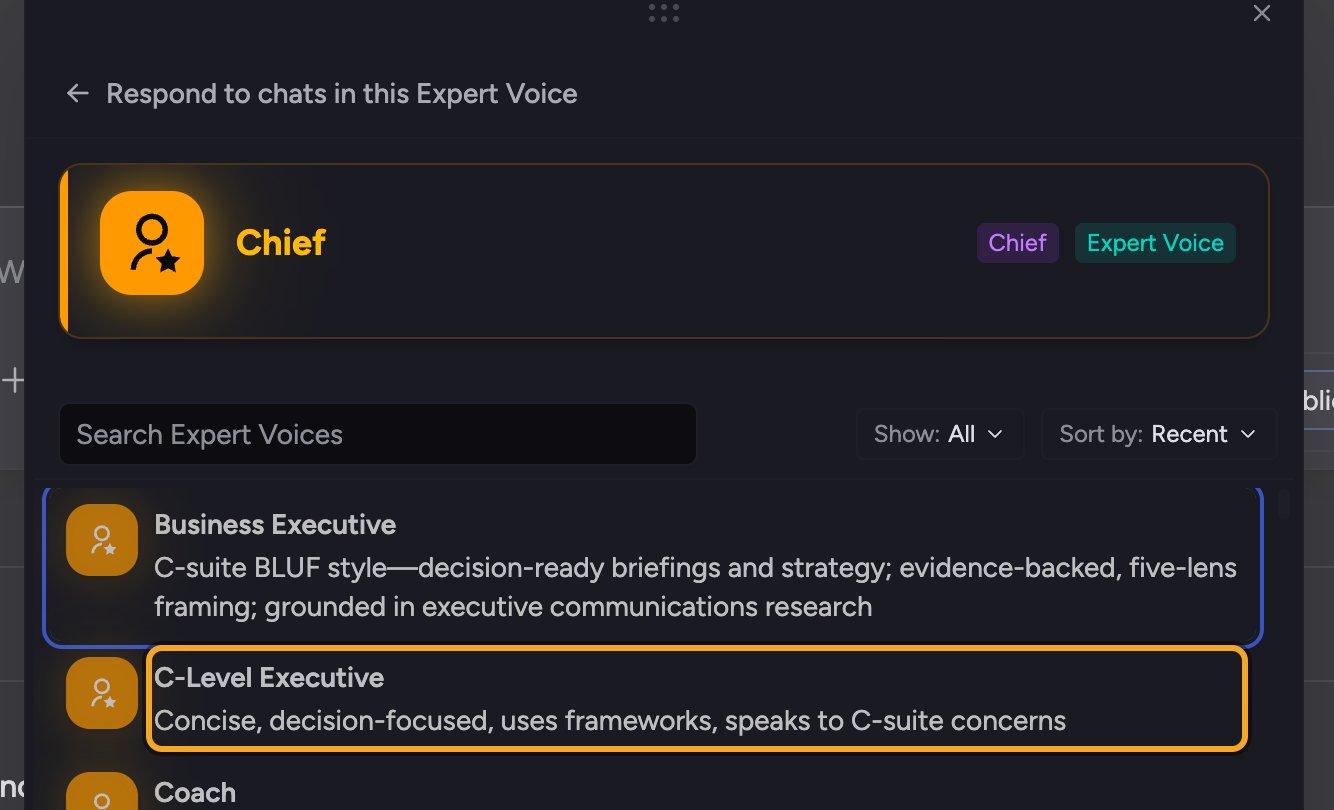
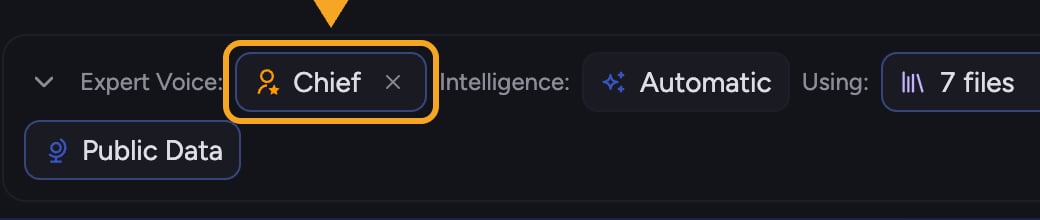
- In the prompt bar, expand Using:, then click the voice chip. On a new task it may read Chief; after you remove the voice, it reads Voice.
- The Respond in this Expert Voice panel opens.
- Browse the list of Expert Voices, or type in the Search Expert Voices box to filter.
- Click a voice to select it. The chip now shows that voice’s name, and Chief will answer in it.
Good to know: Chief ships with ready-made Expert Voices — such as a business executive, an executive advisor, a coach, a brevity-focused voice, and an ELI5 (“explain like I’m five”) voice. You can also create your own.
Switch back to Default
Expert Voices vs. Skills
An Expert Voice shapes how Chief communicates. A Skill gives Chief task-specific know-how. They are different tools; the Respond-as flyout focuses on Expert Voices, and you can create either one.FAQ
My chip still says Voice — how do I apply a voice?
My chip still says Voice — how do I apply a voice?
Expand Using:, click the Voice chip, then click a voice in the panel. The chip should update to the voice’s name. If it does not, make sure you selected a voice rather than just searching.
Does my Expert Voice carry over to other tasks?
Does my Expert Voice carry over to other tasks?
Your selected Expert Voice applies to the current task. To use it for new tasks, choose Use these settings for new tasks in the Expert Voice picker. Without a saved default, a new task starts on Chief. The unset chip reads Voice.
Can I make my own Expert Voice?
Can I make my own Expert Voice?
Yes. The flyout includes an option to create an Expert Voice, where you describe the tone and perspective you want Chief to use.