

Before you start
Email sharing sends the secret link, so a task must already be shared. If you have not created a secret link yet, do that first (see “Sharing a task via secret link”) — the email section appears only once the task is shared.Send a task by email
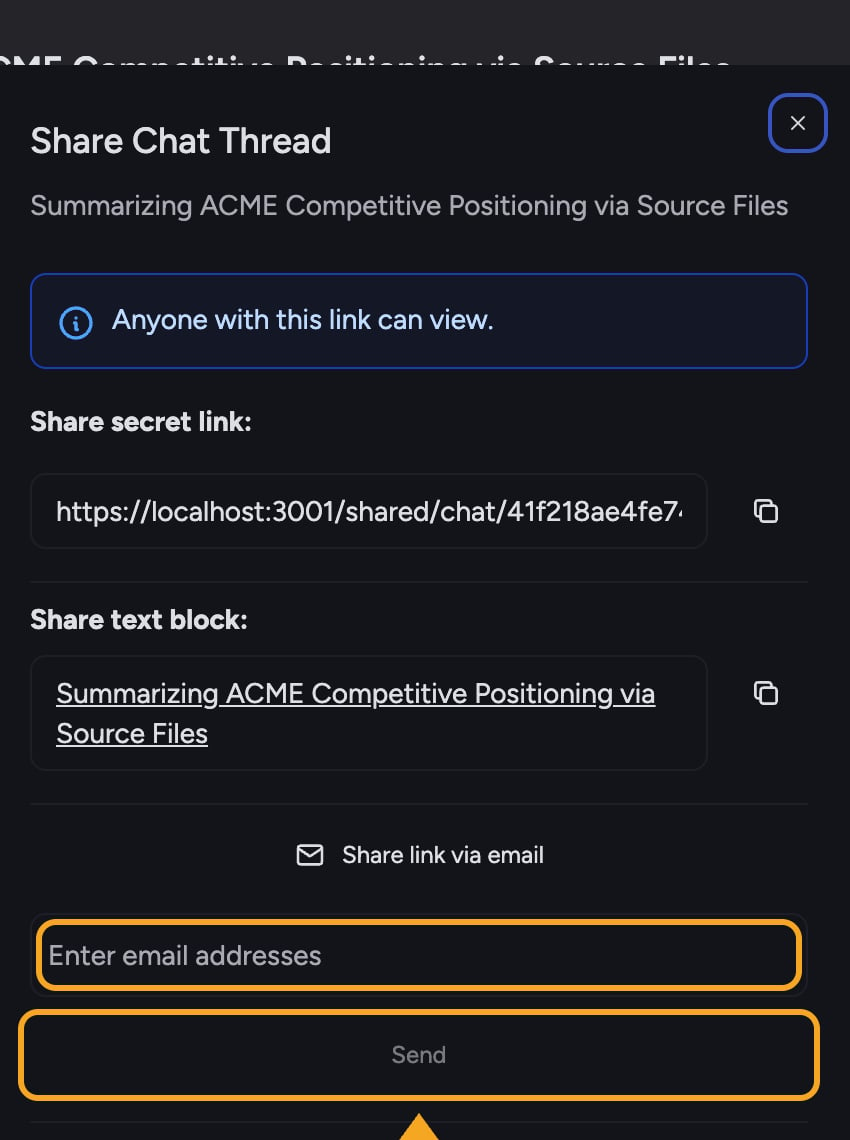
- Open the task and select Share this page beside the task title to open the Share Task dialog. On a narrow screen, select the link icon instead. You can also open the task’s ⋯ menu and select Share secret link. Do not use the link icon attached to an individual answer.
- With the task shared, select Share link via email. An email entry field expands.
- In the Enter email addresses field, type each recipient’s email address. You can add up to 10 addresses.
- Select Send. The button shows “Sending…” while the messages go out.
- Chief confirms how many messages it queued. For one address, you will see Email is on its way. For several, you will see a message such as 3 emails are on their way. The address field clears when at least one message is queued. This confirms queuing, not delivery.
ℹ️ Good to know: Everyone you email receives the same secret link, which is a read-only view of the entire task thread. Email sharing does not restrict each recipient to a personal copy. When the conversation should no longer be viewable, revoke the link.
FAQ
I saw "Not a valid email address." What should I do?
I saw "Not a valid email address." What should I do?
Chief lists invalid addresses after Not a valid email address:. Correct those addresses and try again. Other valid addresses may still have been queued, but a queued message is not proof that it was delivered. If you see only Failed to send emails, the whole request failed and Chief does not provide an address-by-address result; wait a moment and try again.
Why can't I find the email option?
Why can't I find the email option?
The Share link via email option only appears after the task has a secret link. Create the link first, then the email section becomes available in the same dialog.
Can I send to more than 10 people at once?
Can I send to more than 10 people at once?
Each send is capped at 10 addresses. For a larger group, send in batches, or copy the secret link and share it through your own email or task tool.