

Open the notification panel
- Click the bell in the sidebar. Its count shows how many notifications are unread.
- Review In progress to see prompts that are still generating.
- Select a notification to open the related task or setting.
- Click Mark all read to clear the unread state for everything in the panel.
View notification history
Click View all at the bottom of the panel to open the Notifications page. Use Load more to retrieve older entries. Chief retains notification history for 30 days. For results emailed to you by an Action, see Managing email notifications.FAQ
Can I turn in-app notifications off?
Can I turn in-app notifications off?
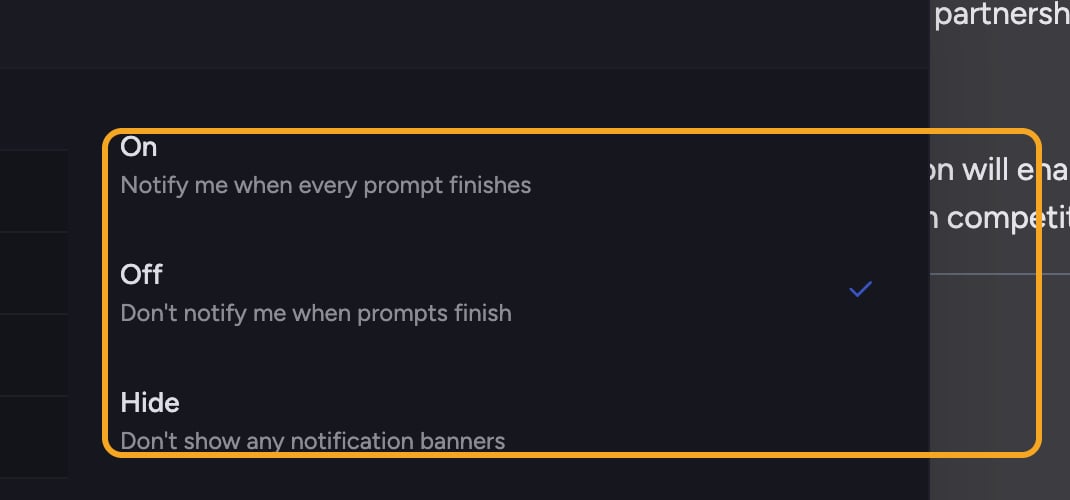
Chief does not currently provide a per-user on/off control for the in-app notification panel. You can mark notifications as read or delete individual entries.
Where can I see prompts that are still running?
Where can I see prompts that are still running?
Open the bell and look under In progress. A pulsing indicator on the bell also shows that Chief is generating a response in the background. See Running tasks in the background.
How long does Chief keep notifications?
How long does Chief keep notifications?
Notifications remain available for 30 days. Open View all if the entry you need is no longer in the compact panel.