

Turn a good prompt into a reusable template
Saved Prompts let you store prompts you use often and reuse them in one click. The real power comes from variable fields — fill-in blanks you add with# so the same template adapts to each new task.
Open the Create New Prompt window
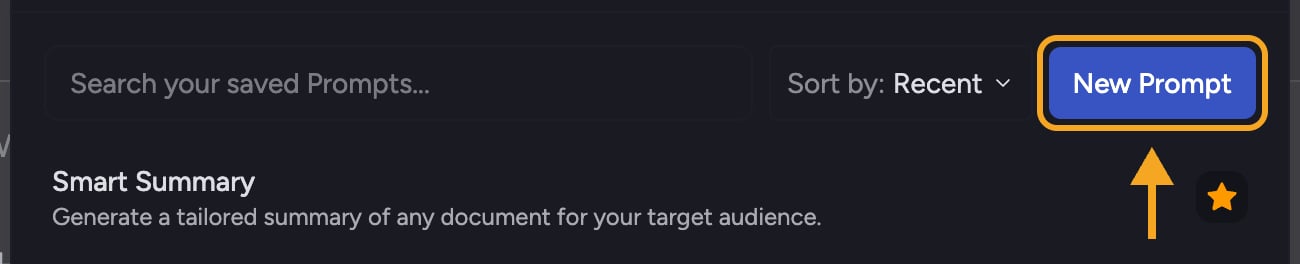
- Open Saved Prompts from the prompt bar’s + menu.
- Click New Prompt (top-right button). The Create New Prompt window opens.
Fill in the details
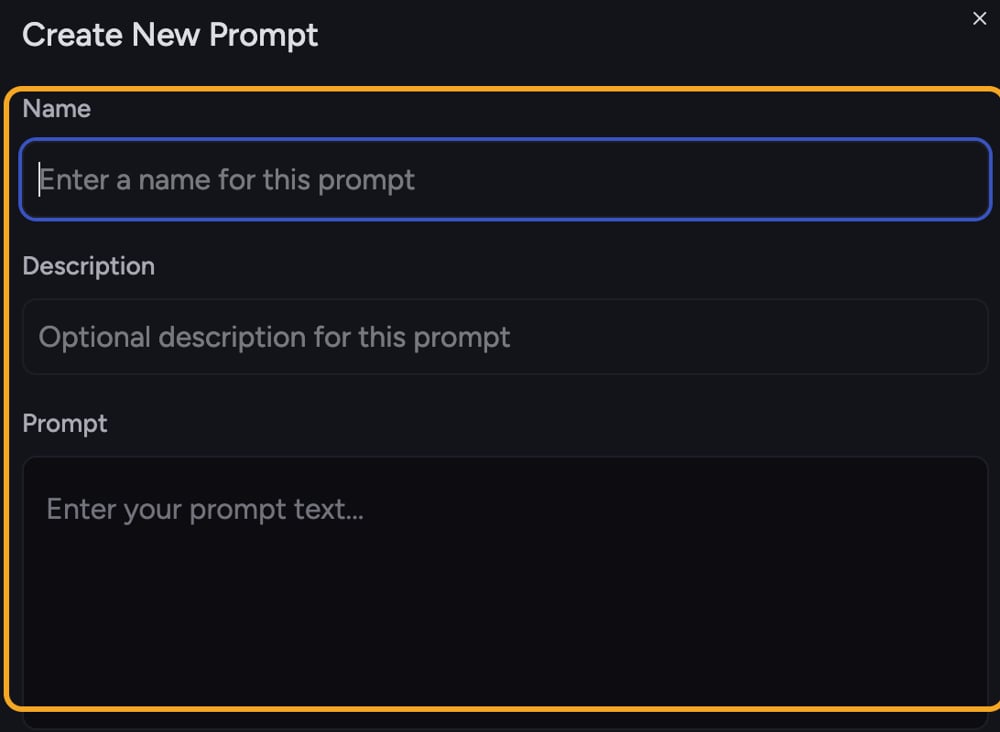
- In Name, type a short title — this is how the prompt appears in your list.
- In Description (optional), add a one-line reminder of what the prompt does.
- In the Prompt editor, write the prompt text you want to reuse.
Add a variable field with
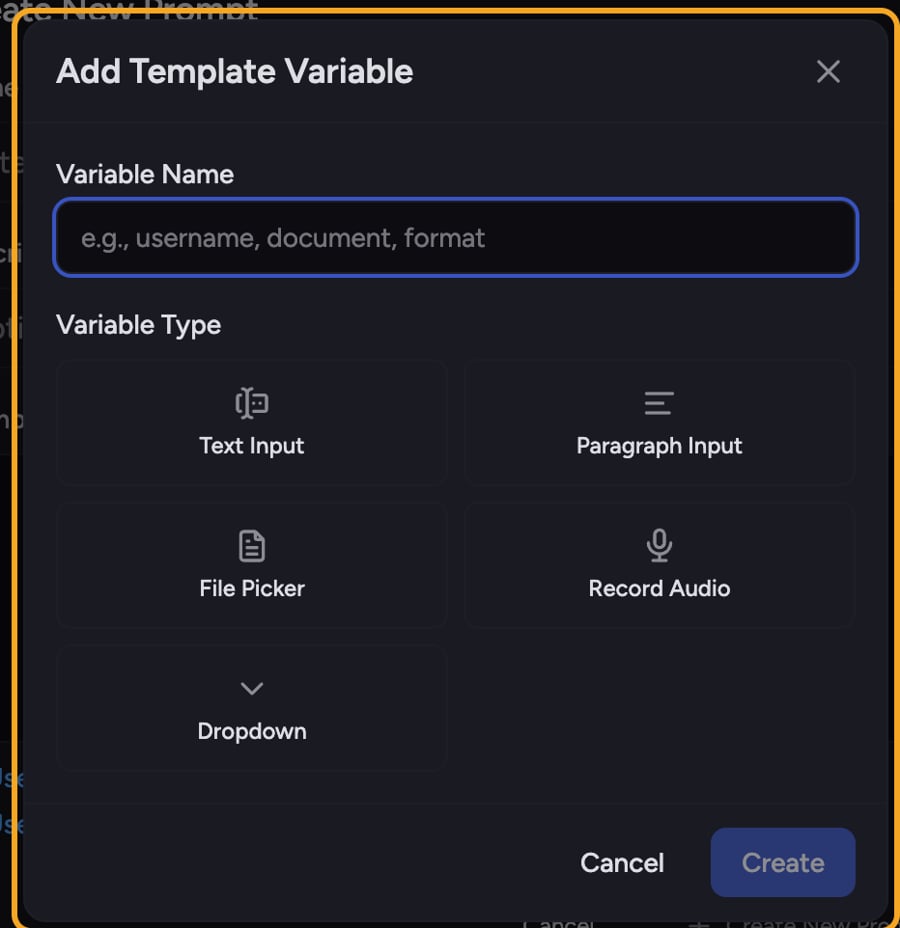
- In the Prompt editor, type # where you want the blank. The Add Template Variable window opens.
- In Variable Name, type a short label (for example document, format, or tone).
- Under Variable Type, pick one of the five field types:
- Text Input — a single-line field for free-form input.
- Paragraph Input — a multi-line area for longer input.
- File Picker — lets you select a file from your assets.
- Record Audio — records audio for the field.
- Dropdown — a list of options you choose from.
- If you chose Dropdown, type each option under Dropdown Options and press Enter to add it. You need at least one option.
- Click the create button to insert the field. It appears as a chip in your prompt text.
- Repeat for any other blanks you want.
Save the template
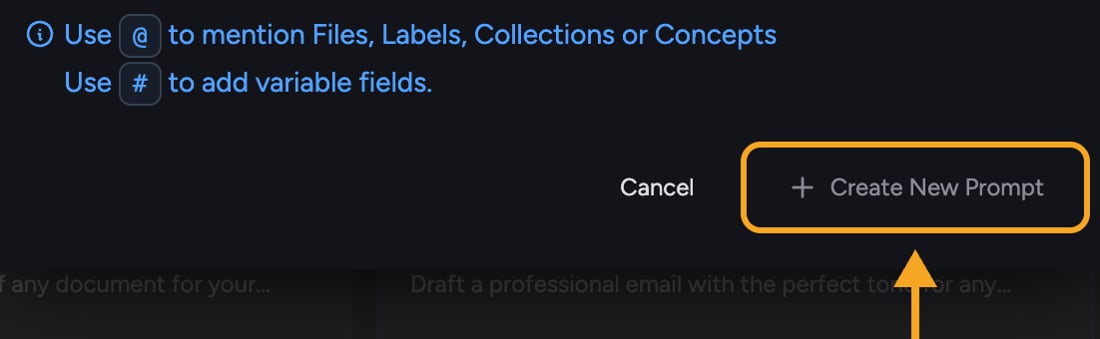
- Click Create New Prompt at the bottom of the window.
- Your template appears in the Saved Prompts list, ready to reuse.
Frequently asked questions
I closed the window by mistake — did I lose my draft?
I closed the window by mistake — did I lose my draft?
No. Chief keeps an unsaved draft for the Create window, so reopening New Prompt restores your name, description, and text. Click Cancel if you instead want to discard the draft.
Do variable fields show up when I edit the template later?
Do variable fields show up when I edit the template later?
Yes. Variable chips are stored with the template, so they reappear in the editor and in the prompt bar each time you reuse it.