

Enable or disable a Skill
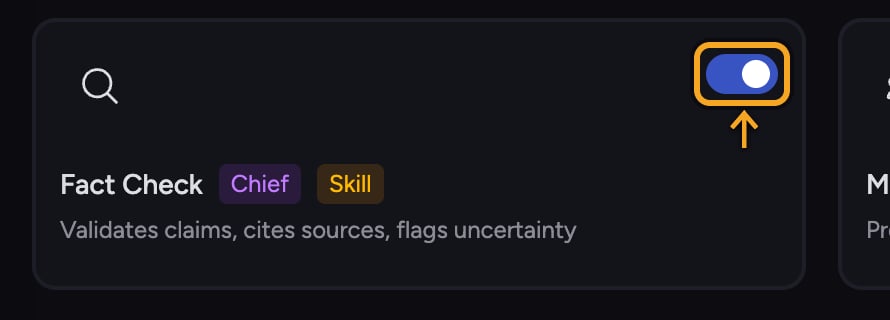
- In the left navigation, click Skills to open the Skills page.
- Find the Skill you want to manage. Each card has a toggle switch.
- Click the toggle to turn the Skill on (enabled) or off (disabled). The change takes effect right away.
- Accepting a prompt from the suggestion strip.
- Using Fact Check on selected answer text.
- Sending the advanced prompt offered while creating a Skill.
- Opening a shared prompt link.
Mention a Skill in a task (@)
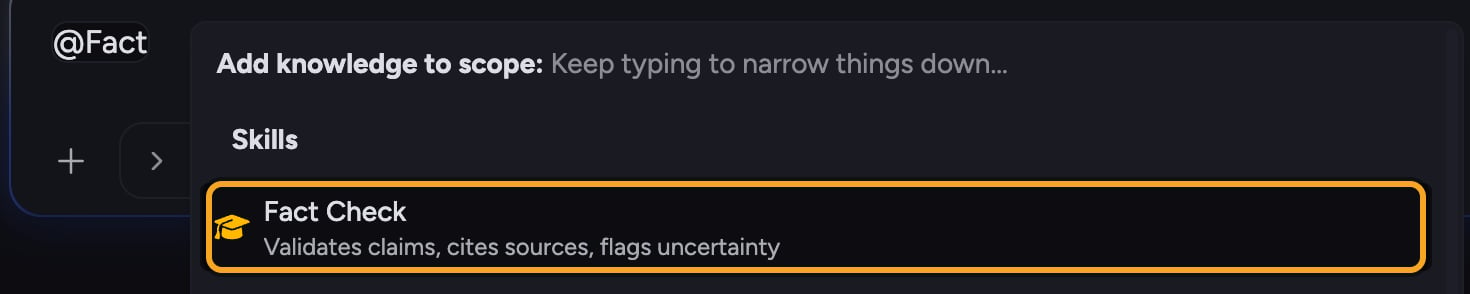
- Open or start a task so the prompt bar is visible.
- Type @ in the prompt bar. A picker opens listing your enabled Skills and Expert Voices.
- Keep typing the Skill’s name to filter, then click it. The Skill is inserted as a pill (for example, @Skill name).
- Finish your prompt and send. Chief applies that Skill’s instructions to the response.
💡 Good to Know: You can mention more than one Skill in a single prompt — just type @ again and pick another. Chief combines their instructions for that message.
FAQ
I typed @ but my Skill isn't in the list.
I typed @ but my Skill isn't in the list.
Only enabled Skills appear in the @ picker. Open the Skills page and confirm the toggle on that Skill’s card is on. If it’s enabled, type more of its name so the picker can match it.
What's the difference between disabling a Skill and deleting it?
What's the difference between disabling a Skill and deleting it?
Disabling hides the Skill from tasks but keeps it on your Skills page, so you can re-enable it later. Deleting removes a custom Skill permanently. Built-in Chief Skills can be disabled but not deleted.
Why did an inserted prompt name a Skill without using it?
Why did an inserted prompt name a Skill without using it?
The Skill may be disabled. A saved prompt inserted from the / picker keeps its saved Skill pill, even when that Skill is disabled, but Chief does not load the disabled Skill’s instructions. Other prompt-insertion paths leave a disabled Skill’s name as plain text. Return to the Skills page and enable the Skill before running the prompt again.
Does disabling a Skill affect my teammates?
Does disabling a Skill affect my teammates?
The toggle controls whether the Skill is active in your tasks. How a Skill is shared is set by its scope (Anyone in the Project vs. Private), which is separate from the on/off toggle.