

Bring your team into a Project
Sharing a Project lets colleagues see the same Files and tasks and collaborate with you. You can invite people three ways — by email, by domain, or with a secret link — and set what each person can do with a role.Open the share options
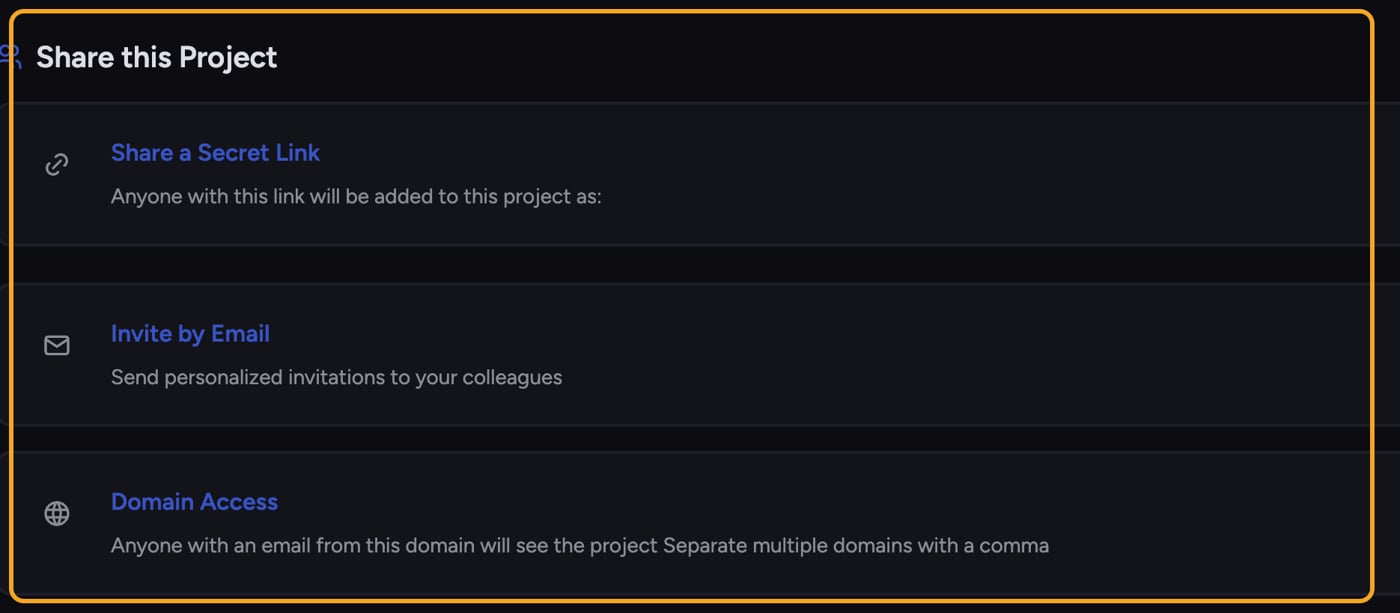
- Open the Project you want to share.
- Open the sidebar’s Projects dropdown and select Share this Project.
Invite by email

- In the “Invite by Email” section, type one or more addresses in the field (placeholder: “Mark@MyCompany.com, Margaux@MyClient.com, etc…”).
- Choose a role from the dropdown. It defaults to your own role. Project Owners can pick Owner, Collaborator, or Reader; anyone else can invite only at their own role.
- Click “Add” to send the invitations.
Other ways to invite
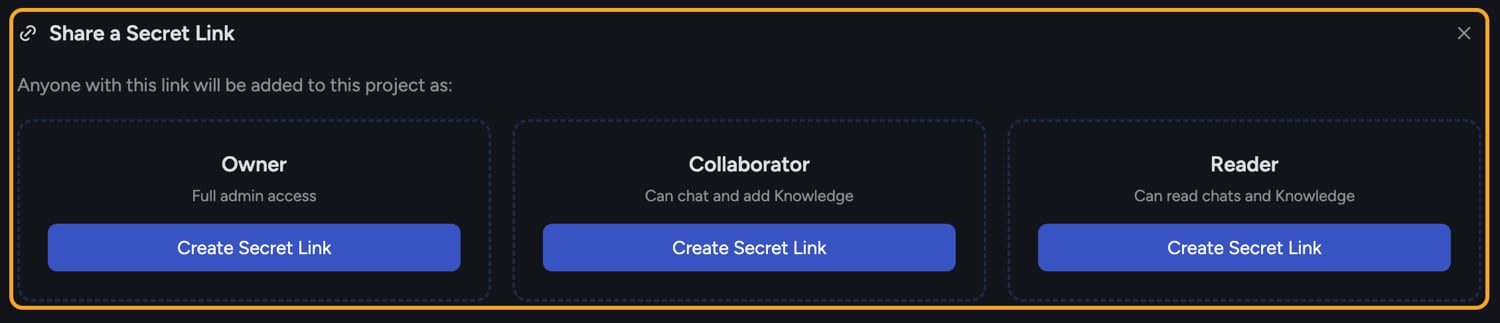
- Domain Access — in the “Domain Access” section, enter a domain (placeholder: “MyCompany.com, MyClient.com, etc…”) so anyone with an email from that domain can see the Project. Separate multiple domains with a comma.
- Secret Link — in the “Share a Secret Link” section, click “Create Secret Link”, then “Copy Link”. Anyone with the link is added to the Project at the role you set.
Good to Know: The three roles are Owner (full admin access), Collaborator (can task and add Knowledge), and Reader (can read tasks and Knowledge). Not sure which to pick? Use the “Learn about Project Roles” link in the share panel.
FAQ
What does an invited person see when they click the link?
What does an invited person see when they click the link?
They see “You’ve been invited to a project.” If they’re not signed in, they’re prompted to “Create an account to accept the invitation and start collaborating” or to “Log in to accept your project invitation.” After signing in, the invite is accepted automatically.
Can I invite people if I'm not the Owner?
Can I invite people if I'm not the Owner?
Yes, but only at your own role. A Collaborator invites people as Collaborators and a Reader as Readers; the role dropdown is locked to that one choice. Only Project Owners can pick a different role. If you need to invite someone at another role, ask a Project Owner.