

Where to find it
Under every finished answer is a row of action buttons — the response menu. It is where you copy, share, save, and download an answer, jump around inside it, or hand the whole thing to the Do more with this answer menu. The row appears once an answer is complete and substantial enough to act on.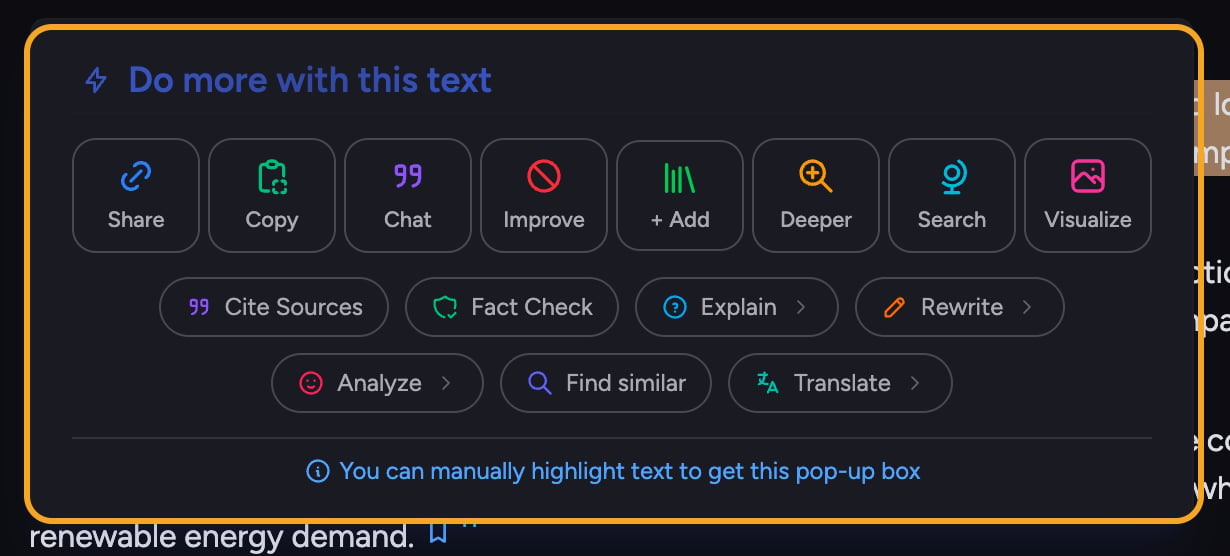
The buttons in the row
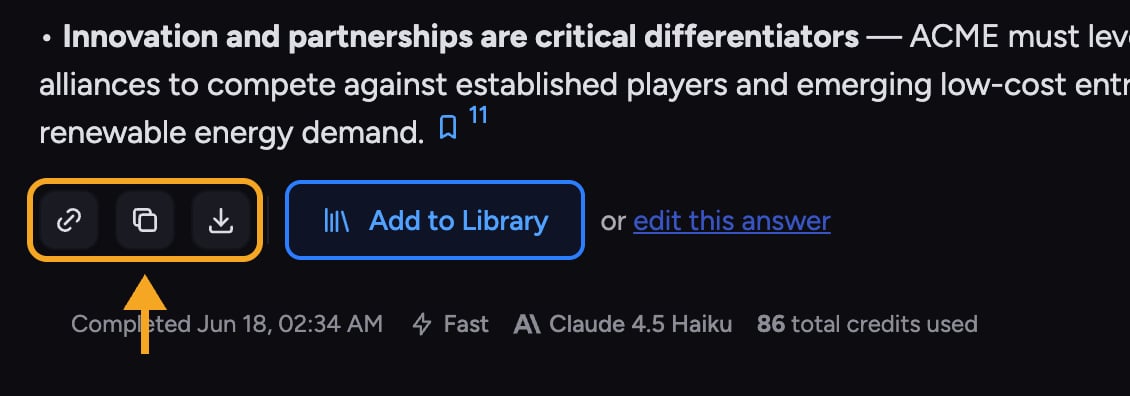
- Sections (list icon) — opens the side panel to jump between headings. Appears when an answer has several sections.
- Share (link icon) — opens the Share dialog so you can send a link to this answer.
- Copy — copies the answer as rich text to your clipboard.
- Copy as Markdown (Markdown icon) — appears for a few seconds right after you click Copy, for pasting into Markdown editors.
- Select All (text-cursor icon) — also appears briefly after Copy, to select the whole answer.
- Download — appears when the answer produced a downloadable artifact (for example a document), with format options.
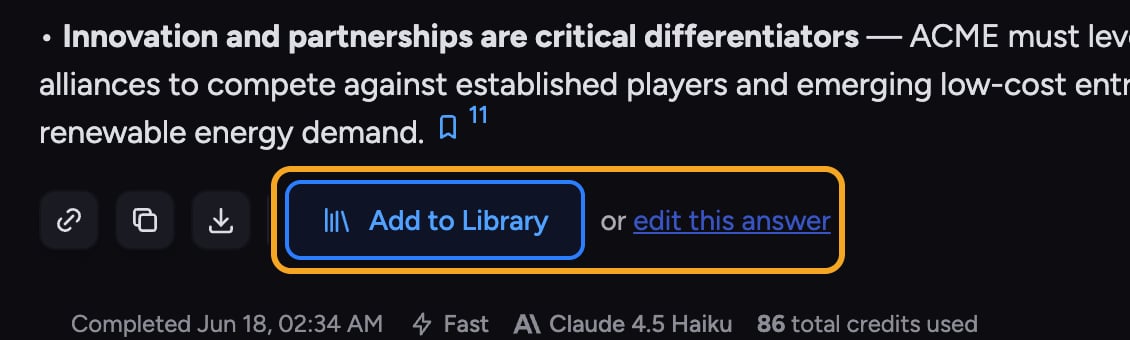
Save the answer to your Library
Do more with this answer
Hover an answer and a bolt icon appears on the left. Click it to open the Do more with this answer menu — the same toolkit as the text selection menu (Cite Sources, Fact Check, Explain, Rewrite, Translate, and more), applied to the entire answer at once. Fact Check invokes the built-in Fact Check Skill when that Skill is enabled on the Skills page.FAQ
The action row isn't showing under my answer. Why?
The action row isn't showing under my answer. Why?
The row appears only on completed answers that are long enough to act on — at least a few sentences. Short replies and answers still streaming do not show it. Wait for the answer to finish.