

Build a presentation
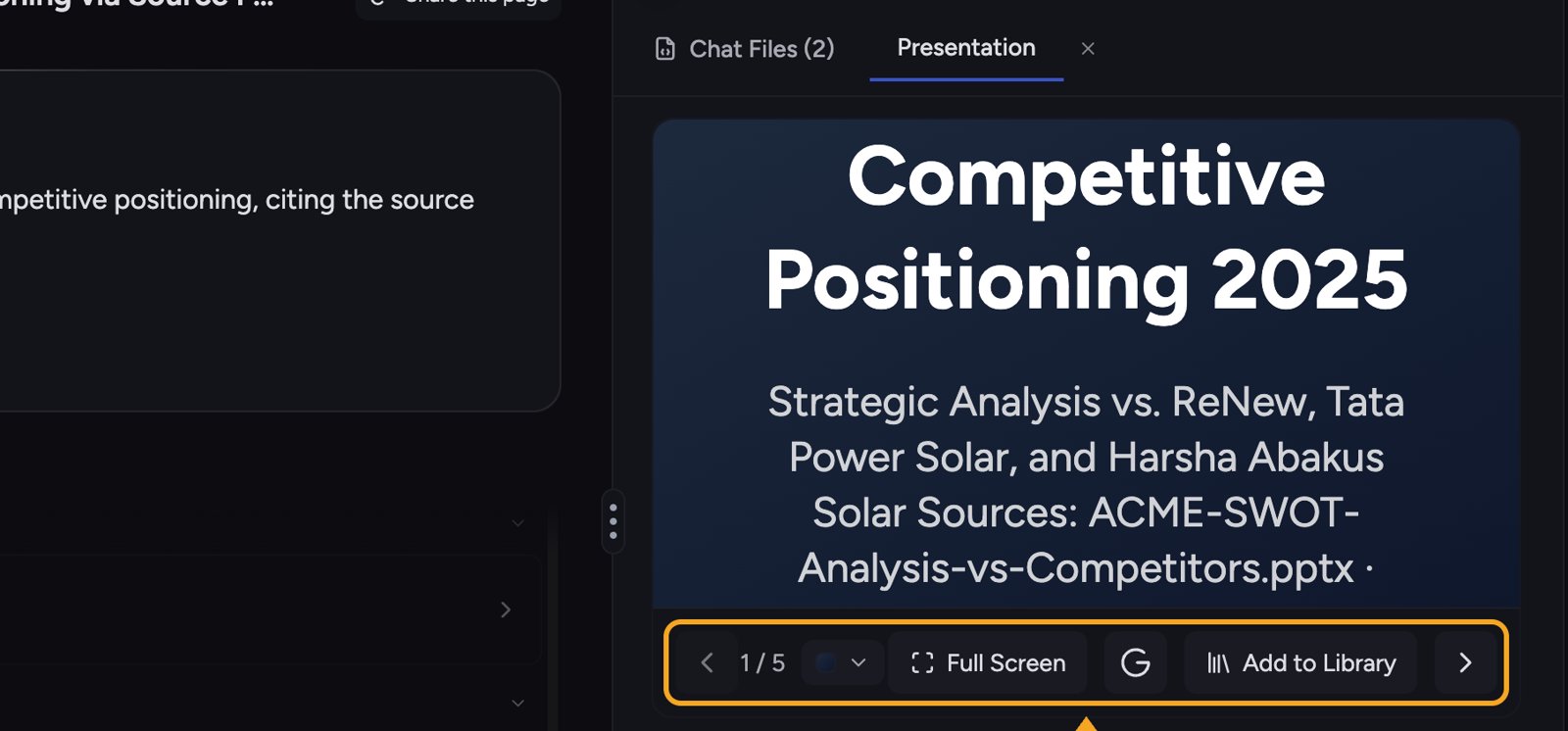
- In a conversation, ask Chief to create a presentation, for example “Turn this into a 6-slide presentation for our leadership team.”
- Chief generates the deck (you’ll see a Generating presentation… status while it works).
- When it finishes, the presentation is created as a File and opens in the Presentation tab.
Choose a theme
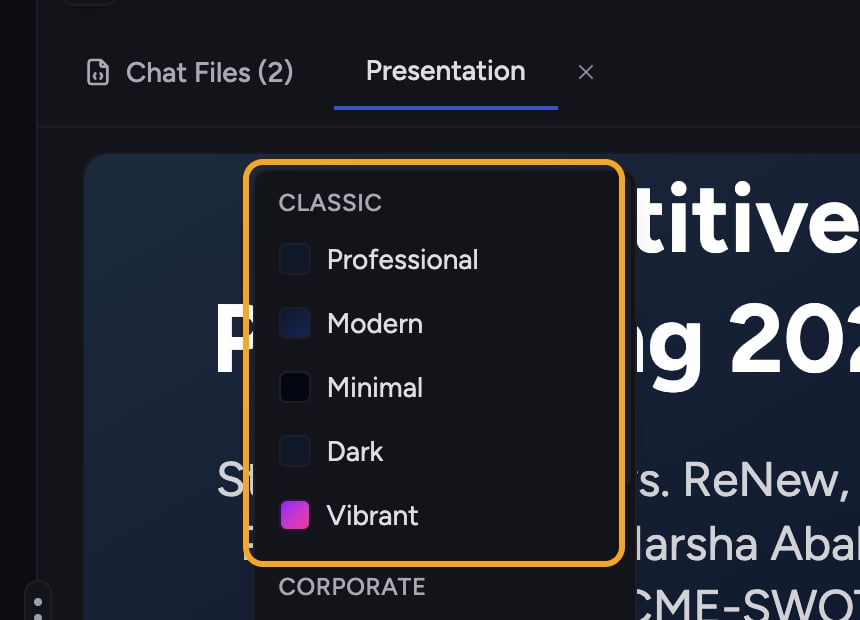
- Open the presentation.
- Click the theme control (Select theme).
- Choose a theme. Themes are grouped into categories — Classic (Professional, Modern, Minimal, Dark, Vibrant), Corporate (Executive, Startup, Tech, Finance), and Creative (Gradient, Nature, Neon, Pastel).
ℹ️ Good to Know: You can’t change the theme while the presentation is still streaming in. The Select theme control appears after generation finishes; wait for it to complete, then switch themes.
Present and navigate
- Click Full Screen to present.
- Use the next-slide and previous-slide controls (the ‹ › arrows, or your keyboard arrow keys) to move through the slides — the counter shows your position (for example 1 / 5).
- Click Exit Full Screen when you’re done.
Save the presentation
FAQ
Why don't I see the theme picker?
Why don't I see the theme picker?
The theme picker is hidden while the presentation is still generating. Wait for it to finish, then pick a theme.
Saving to my Project failed.
Saving to my Project failed.
If you see “Failed to save presentation to Project Library,” try again. If it keeps failing, confirm you have edit access to the Project.
Can I export the deck to Google Slides?
Can I export the deck to Google Slides?
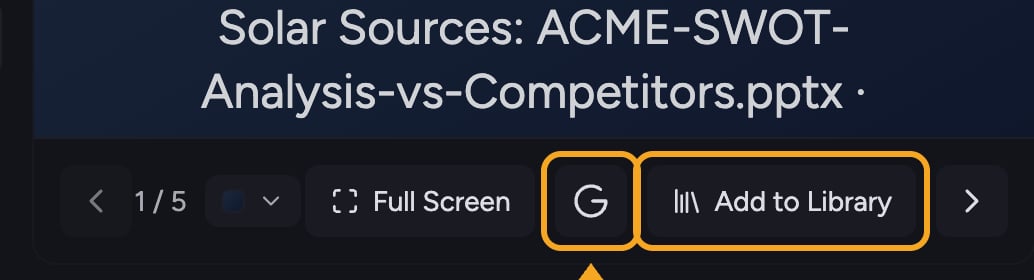
No. Google Slides export is not available to customer accounts. Save the deck to your Library or download it in a supported format.